Unit 2 · 8 teaching hours · 22 min read
Android Components, Intents and the Activity Lifecycle
What the syllabus asks for 7
- Application components
- Intents
- The Activity lifecycle
- Configuration changes and saving state
- Tasks, back stack and launch modes
- Services, receivers and providers in outline
- Seeing the lifecycle: states, stacks and intents
An Android app is not one program with a main function; it is a collection of components that the operating system creates, pauses and destroys as the user moves around, takes a call or rotates the phone.
The programmer does not control when the app is running; the system calls the app's lifecycle callbacks and the app must respond correctly.
This unit describes the four component types, the manifest that declares them, the Intent messages that connect them, and the Activity lifecycle, which you will see executed in a small simulator whose call sequences were checked against the documented lifecycle for launch, navigation, back and rotation.
- The four component types and the role of AndroidManifest.xml.
- Explicit and implicit Intents, Intent filters, extras and results.
- The Activity lifecycle, task/back stack, configuration changes and saving state.
- A runnable lifecycle simulator.
2.1 Application components
| Component | What it is | Example |
|---|---|---|
| Activity | One screen with a user interface | The login screen; the list of notes |
| Service | Work without UI that continues in the background | Playing music, uploading a file |
| BroadcastReceiver | Responds to system-wide or app announcements | "Battery low", "boot completed", "network changed" |
| ContentProvider | Shares structured data between apps through a URI interface | Contacts, the media store |
All are declared in AndroidManifest.xml (except dynamically registered receivers). Not executed (needs the Android SDK):
<manifest xmlns:android="http://schemas.android.com/apk/res/android">
    <uses-permission android:name="android.permission.INTERNET" />
    <application android:label="@string/app_name" android:icon="@mipmap/ic_launcher">
        <activity android:name=".MainActivity" android:exported="true">
            <intent-filter>
                <action android:name="android.intent.action.MAIN" />
                <category android:name="android.intent.category.LAUNCHER" />
            </intent-filter>
        </activity>
        <activity android:name=".DetailActivity" android:exported="false" />
        <service android:name=".SyncService" />
    </application>
</manifest>
The MAIN/LAUNCHER filter makes MainActivity the app's entry point on the launcher. exported says whether other apps may start the component (required to be explicit on recent versions; keep it false unless needed, a security rule).
Components are started by the system; they must not be created with new.
2.2 Intents
An Intent is a message object that asks the system to start a component or deliver a broadcast. It carries an action, optional data (a URI and MIME type), categories, extras (key–value pairs) and flags.
- Explicit Intent: names the target component class: start my DetailActivity.
- Implicit Intent: describes an action, and the system finds components whose intent filters match: view a web page, dial a number, share text, take a photo. If several match the user chooses (a chooser).
Not executed (needs the Android SDK):
val explicit = Intent(this, DetailActivity::class.java)
explicit.putExtra("note_id", 42)
startActivity(explicit)

val dial = Intent(Intent.ACTION_DIAL, Uri.parse("tel:+9779800000000"))
startActivity(dial)

val share = Intent(Intent.ACTION_SEND).apply {
    type = "text/plain"
    putExtra(Intent.EXTRA_TEXT, "Namaste from my app")
}
startActivity(Intent.createChooser(share, "Share via"))
To get a result back, use the Activity Result API (registerForActivityResult) instead of the older startActivityForResult; the second activity returns data with setResult.
A PendingIntent hands another app (the notification manager, the alarm manager) the right to fire an Intent later on your behalf.
Extras must be small (they travel through Binder with a size limit of about one megabyte for the whole transaction), so pass an ID and reload the data rather than passing a large object.
2.3 The Activity lifecycle
An Activity moves through states as it becomes visible, loses focus, is hidden and is destroyed. The system calls one callback on each transition:
| Callback | Called when | Typical work |
|---|---|---|
onCreate(Bundle?) |
The activity is first created | Inflate the layout, create view models, restore saved state |
onStart() |
Becoming visible | Start things the user sees |
onResume() |
In the foreground and interactive | Start animations, camera, sensors |
onPause() |
Losing focus (another activity partly covers it) | Pause what must not run in the background; save light state quickly |
onStop() |
No longer visible | Release heavy resources; save data |
onRestart() |
Coming back from stopped to started | Rare |
onDestroy() |
Being finished or destroyed by the system | Final cleanup |
The three nested loops: the entire lifetime runs from onCreate to onDestroy; the visible lifetime from onStart to onStop; the foreground lifetime from onResume to onPause.
onSaveInstanceState(Bundle) is called (after onStop on current versions) so that the activity can store small UI state, which comes back as the Bundle in onCreate.
A lifecycle simulator
The Python program below models the legal state transitions of an Activity and a small back stack, and replays four scenarios. Calling a callback that is illegal in the current state raises an error.
The printed sequences are compared by the checker with the sequences documented in the Android guide for launch, opening B on top of A, pressing Back from B, and rotating A (on current Android versions onSaveInstanceState follows onStop).
LEGAL = {
    "NONE": {"onCreate": "CREATED"},
    "CREATED": {"onStart": "STARTED", "onDestroy": "DESTROYED"},
    "RESTARTING": {"onStart": "STARTED"},
    "STARTED": {"onResume": "RESUMED", "onStop": "STOPPED"},
    "RESUMED": {"onPause": "PAUSED"},
    "PAUSED": {"onResume": "RESUMED", "onStop": "STOPPED"},
    "STOPPED": {"onRestart": "RESTARTING", "onDestroy": "DESTROYED",
                "onSaveInstanceState": "STOPPED"},
}
log, stack = [], []

class Activity:
    def __init__(self, name):
        self.name, self.state = name, "NONE"

def call(act, cb):
    act.state = LEGAL[act.state][cb]
    log.append(act.name + "." + cb)

def launch(a):
    for cb in ("onCreate", "onStart", "onResume"):
        call(a, cb)
    stack.append(a)

def open_new(b):
    top = stack[-1]
    call(top, "onPause")
    for cb in ("onCreate", "onStart", "onResume"):
        call(b, cb)
    call(top, "onStop")
    call(top, "onSaveInstanceState")
    stack.append(b)

def back():
    top = stack.pop()
    below = stack[-1]
    call(top, "onPause")
    for cb in ("onRestart", "onStart", "onResume"):
        call(below, cb)
    call(top, "onStop")
    call(top, "onDestroy")

def rotate():
    top = stack.pop()
    for cb in ("onPause", "onStop", "onSaveInstanceState", "onDestroy"):
        call(top, cb)
    launch(Activity(top.name))

def show(label, fn, *args):
    log.clear()
    fn(*args)
    print(label + ": " + " -> ".join(log))

A, B = Activity("A"), Activity("B")
show("Launch A", launch, A)
show("A opens B", open_new, B)
show("Back from B", back)
show("Rotate A", rotate)
Launch A: A.onCreate -> A.onStart -> A.onResume
A opens B: A.onPause -> B.onCreate -> B.onStart -> B.onResume -> A.onStop -> A.onSaveInstanceState
Back from B: B.onPause -> A.onRestart -> A.onStart -> A.onResume -> B.onStop -> B.onDestroy
Rotate A: A.onPause -> A.onStop -> A.onSaveInstanceState -> A.onDestroy -> A.onCreate -> A.onStart -> A.onResume
The back stack is the key to the second and third lines: B is pushed on top of A, A is stopped but kept, and Back pops B and restarts A, which goes through onRestart instead of onCreate.
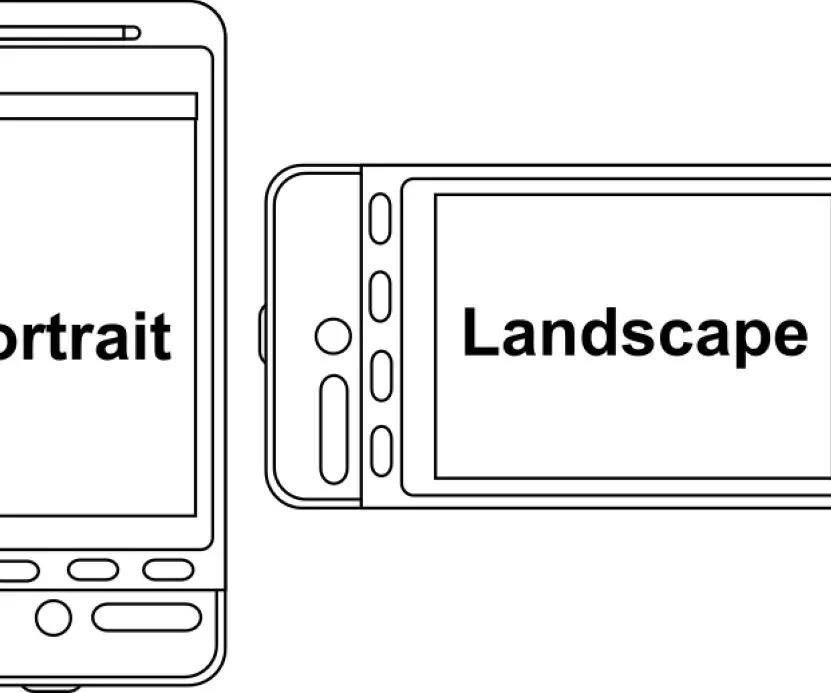
The last line shows the surprise that surprises every beginner: rotating the screen destroys the activity and creates a new one because the configuration (orientation, language, font scale, dark mode) changed and the resources may differ.
2.4 Configuration changes and saving state
Three levels of state survive different events:
| What | Survives rotation? | Survives process death? | Use for |
|---|---|---|---|
| Fields in the Activity | No | No | Nothing important |
onSaveInstanceState Bundle |
Yes | Yes (while the task is alive) | Small UI state: scroll position, typed text, selected tab |
| ViewModel (Jetpack) | Yes | No | Screen data and logic, loaded data, ongoing requests |
| Persistent storage (Unit 4) | Yes | Yes | The user's real data |
A ViewModel is created for the activity's scope and survives configuration changes, so the data loaded from the network is not fetched again after a rotation; combine it with onSaveInstanceState (or SavedStateHandle) for process death.
Declaring android:configChanges="orientation|screenSize" makes the system not recreate the activity, but you then handle the change manually; this is discouraged except for specific cases such as video players.
2.5 Tasks, back stack and launch modes
A task is the stack of activities a user visits while doing one job; pressing Back pops the top.
Launch modes in the manifest or Intent flags change how new instances are handled: standard (a new instance every time, even if one is already on top), singleTop (reuse the top instance if it is the same type, calling onNewIntent), singleTask (one instance in the task, clearing the activities above it) and singleInstance (alone in its own task).
A notification that opens a chat screen should typically use singleTop so that tapping repeatedly does not pile up copies.
2.6 Services, receivers and providers in outline
- A started service runs until it stops itself; a bound service offers an interface to clients and lives while they are bound; a foreground service shows an ongoing notification and may run long tasks (music, navigation). Modern Android restricts background services heavily, so deferrable work uses WorkManager (Unit 5).
- A BroadcastReceiver is a short-lived callback (it must finish quickly); many system broadcasts must now be registered at runtime and not in the manifest to protect battery. Local broadcasts and observable flows replace most in-app broadcasts.
- A ContentProvider offers a table-like interface over a URI such as
content://contacts/people/5; apps query it through a ContentResolver. Apps rarely write their own, but the Contacts, MediaStore and Calendar providers are used constantly, andFileProvidershares files safely.
2.7 Seeing the lifecycle: states, stacks and intents
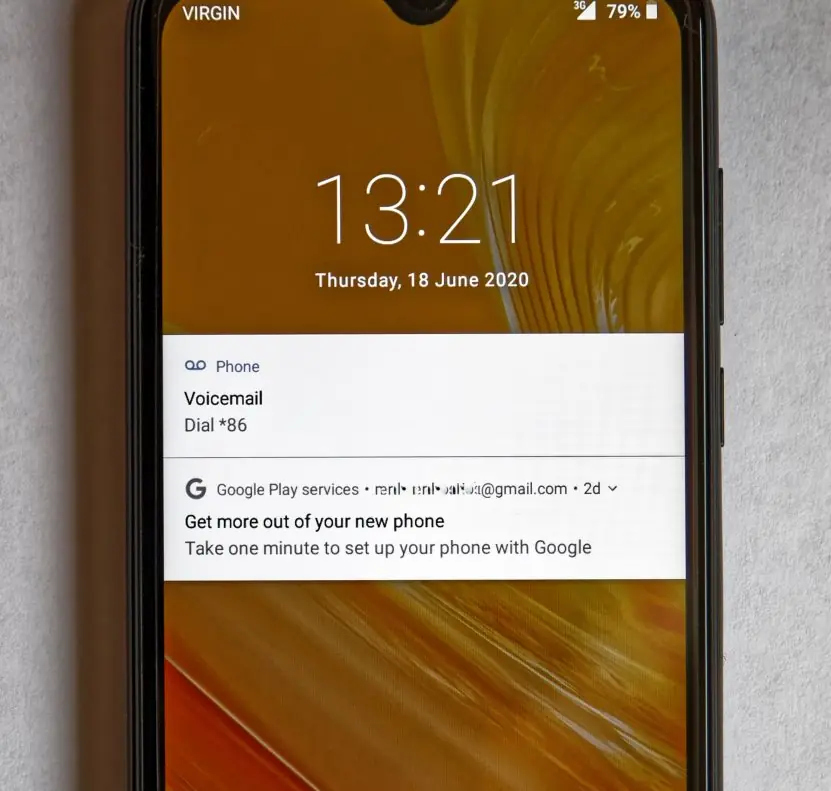
The lifecycle is easiest to learn from pictures, because it is a set of states joined by callbacks. The plate below shows a real notification on a phone (the visible end of an Intent) next to the three nested lifetimes of an Activity.
The figures that follow draw the state machine, the back stack in the four scenarios of section 2.3, the way the system matches an implicit Intent, what each kind of state survives, and the launch modes.


2.7.1 Eight rules for writing lifecycle-safe Activities
- Do the setup once in onCreate. Inflate the layout, create the ViewModel and connect the click listeners in onCreate, because it runs once for each new instance. Doing this work in onResume repeats it every time the user returns. The Nagarik App style of home screen with ten tiles is built this way, and it then opens quickly on every return.
- Start and stop what the user sees in onStart and onStop. Animations, a map view or a live price feed should begin when the screen becomes visible and end when it is hidden. A stock-price screen that keeps updating after the user has left wastes battery and mobile data. Pairing every start with a stop prevents leaks.
- Use onResume and onPause for exclusive resources. The camera, the microphone and a sensor listener must be released as soon as the activity loses focus, since another app may need them. onPause must be quick, because the next activity cannot appear until it returns. A QR scanner for Fonepay payments opens the camera in onResume and closes it in onPause.
- Save small UI state in onSaveInstanceState. Typed text, the selected tab and the scroll position are small enough to place in the Bundle. They are restored when Android recreates the activity after a rotation or after killing the process. A half-filled loan application form that loses its text is a common cause of bad reviews.
- Keep screen data in a ViewModel. A ViewModel lives through rotation, so the loaded list is not fetched again from the network. This saves data for users on prepaid packs and removes the flicker of a reload. Combine it with a saved-state handle when the data must also survive process death.
- Never hold an Activity in a long-lived object. A static field, a singleton or a background thread that holds a reference to an old Activity stops the system from freeing its views, which is a memory leak. After each rotation another copy is kept, and a low-memory phone soon runs out. Use the application context or lifecycle-aware observers instead.
- Declare exported and launch modes deliberately. Set exported to false for every component that other apps do not need, and choose singleTop or singleTask for screens that a notification opens. This keeps other apps out of private screens and prevents duplicate screens on the back stack. A banking app that exposes an internal transfer screen has a security hole.
- Test with rotation, Back and a killed process. Turn on the developer option "Don't keep activities" and rotate the phone on every screen. Each test shows quickly whether the state is saved and restored. Testing only the normal path is why many apps crash when a user returns after answering a phone call.

Chapter summary
- An app is a set of components (Activity, Service, BroadcastReceiver, ContentProvider) declared in the manifest and started by the system.
- Intents are messages; explicit Intents name a class, implicit Intents describe an action matched by intent filters; extras must be small.
- The Activity lifecycle (
onCreate…onDestroy) is driven by the system; the back stack keeps stopped activities; rotation destroys and recreates the activity. - Survive rotation with ViewModel and
onSaveInstanceState; survive everything with persistent storage. - Launch modes control instance reuse; services, receivers and providers have narrow, battery-aware roles.
Practice
- Name the four component types and give one example of each.
- What does the MAIN/LAUNCHER intent filter do?
- Differentiate explicit and implicit Intents with an example of each.
- List the callbacks called, in order, when activity A starts activity B.
- Why is the activity destroyed on rotation and how can you keep the typed text?
- Which state survives rotation but not process death?
- Why should you pass an ID rather than a large object in an Intent extra?
- Describe
singleTop. - Compare started, bound and foreground services.
- What replaced most background services for deferrable work?
Answers and worked solutions
1. Activity (login screen), Service (music playback), BroadcastReceiver (battery low), ContentProvider (contacts).
2. It marks the activity as the app's entry point to appear in the launcher.
3. Explicit: Intent(this, DetailActivity::class.java). Implicit: ACTION_VIEW with a web URL, matched to a browser by its intent filter.
4. A.onPause, B.onCreate, B.onStart, B.onResume, A.onStop (then A.onSaveInstanceState on current versions).
5. A configuration change may change resources, so the system recreates the activity; keep text with onSaveInstanceState (or let the view restore its state) and the loaded data in a ViewModel.
6. A ViewModel's data.
7. Extras travel through Binder, which has a size limit and copies the data; an ID lets the next screen load the data from its source.
8. If the activity is already on top, the existing instance receives the new Intent in onNewIntent instead of a new instance being created.
9. Started: runs until stopped. Bound: serves clients while bound. Foreground: long-running with a visible notification.
10. WorkManager (with JobScheduler underneath).
Model answers: medium (5 marks) and long (10 marks) questions
Q1 (5 marks). Distinguish explicit and implicit Intents with an example of each and show how an app declares that it can receive an implicit Intent.
Introduction. An Intent is a message object that asks the system to start a component or deliver a broadcast (section 2.2, Figure 2.3).
- Explicit Intent. It names the exact component class, so no search is needed:
Intent(this, DetailActivity::class.java)withputExtra("note_id", 42). It is used inside one app, for example to open the detail screen of a note. - Implicit Intent. It names an action and data, not a class:
Intent(Intent.ACTION_DIAL, Uri.parse("tel:+9779800000000")). The system compares it with the intent filters in every installed manifest. One match starts at once, several matches show a chooser, and none throws ActivityNotFoundException, which the code must catch. - Declaring a filter. An Activity receives implicit Intents by listing an
<intent-filter>in the manifest with an<action>(for exampleandroid.intent.action.SEND), a<category>(DEFAULT) and<data android:mimeType="text/plain"/>. The MAIN and LAUNCHER filter is the same mechanism that makes the app appear on the home screen. - Security. Components not meant for other apps carry
android:exported="false". A PendingIntent should be created immutable, so that another app cannot change its contents.
| Point | Explicit | Implicit |
|---|---|---|
| Names | Component class | Action and data |
| Used for | Inside your app | Other apps and system features |
| Resolution | Direct | Intent-filter matching and chooser |
Conclusion. Use explicit Intents for your own screens and implicit Intents to reuse other apps (browser, dialler, share sheet), with the filter in the manifest as the receiving side.
Q2 (5 marks). Write the sequence of lifecycle callbacks when Activity A starts, opens Activity B, and the user presses Back; then count the callbacks.
Introduction. Each state change calls one callback, and the back stack decides which instance is created or restarted (section 2.3, Figures 2.1 and 2.2).
- A starts:
A.onCreate → A.onStart → A.onResume(3 callbacks). A is Resumed and interactive. - A opens B:
A.onPause → B.onCreate → B.onStart → B.onResume → A.onStop → A.onSaveInstanceState(6 callbacks). A is paused first so that B can appear; A is stopped only after B is fully visible, then it saves its state. B is pushed on the back stack above A. - Back from B:
B.onPause → A.onRestart → A.onStart → A.onResume → B.onStop → B.onDestroy(6 callbacks). A does not call onCreate because the instance was kept; it passes through onRestart. B is popped and destroyed. - Total: 3 + 6 + 6 = 15 callbacks for the whole trip.
Check. The visible lifetime of A (onStart to onStop) is interrupted once, while the entire lifetime (onCreate to onDestroy) is not.
Conclusion. The key points are that A is paused before B appears and is only stopped, not destroyed; hence Back restarts A at onRestart.
Q3 (10 marks). Explain the Activity lifecycle with a neat diagram. How can an Activity keep its state across rotation and process death?
Introduction. An Activity is one screen with a user interface. Because the user can leave it at any time and because Android may destroy it to recover memory, the system moves it through states and calls one callback at each change (Figure 2.1).
- onCreate. Called once when the activity is created: inflate the layout, create the ViewModel, restore saved state from the Bundle.
- onStart. The activity becomes visible; start things the user sees.
- onResume. The activity is in the foreground and interactive; start the camera, sensors and animations.
- onPause. Focus is lost (a dialog or another activity partly covers it); release exclusive resources and save light state quickly.
- onStop. The activity is no longer visible; release heavy resources and write data.
- onRestart and onDestroy. onRestart precedes onStart when a stopped activity returns; onDestroy is the last call when the activity is finished or destroyed by the system.
- Nested lifetimes. The entire lifetime lies between onCreate and onDestroy, the visible lifetime between onStart and onStop, and the foreground lifetime between onResume and onPause (Plate 2.1b).
- Configuration change. Rotation, a language change or dark mode destroys and recreates the activity so that new resources can be loaded. A rotation therefore runs 7 callbacks (Figure 2.2).
Keeping state. Fields in the activity are lost; the saved-state Bundle holds small UI state (text, scroll position) and survives rotation and process death while the task is alive; a ViewModel keeps loaded data across rotation but not process death; persistent storage (SharedPreferences/DataStore, SQLite, Room) keeps the user's real data (Figure 2.4).
| State holder | Rotation | Process death | Typical use |
|---|---|---|---|
| Activity field | Lost | Lost | Nothing important |
| Saved-state Bundle | Kept | Kept | Typed text, selected tab |
| ViewModel | Kept | Lost | Loaded list, requests |
| Persistent storage | Kept | Kept | Notes, settings, orders |
Conclusion. A well-written activity starts and stops work in matching callback pairs, keeps screen data in a ViewModel, puts small UI state in the Bundle and the user's data in storage, so it behaves correctly when the user rotates the phone or takes a call.
Q4 (5 marks). A task has the stack A, B, C (C on top). State the stack after launching C and then B in the standard, singleTop and singleTask modes.
Introduction. Launch modes decide whether a new instance is created (section 2.5, Figure 2.5).
- standard. Always creates a new instance. Launching C gives A, B, C, C (4 entries); launching B on that stack gives 5 entries.
- singleTop. Reuses the top instance when it is the same type and calls
onNewIntent. Launching C leaves A, B, C (3 entries). Launching B is different: B is not on top, so a new B is created and the stack becomes A, B, C, B. - singleTask. Allows one instance in the task. Launching B finds the existing B, clears the activities above it and calls
onNewIntent: the stack becomes A, B (2 entries). - Use. A chat screen opened from notifications uses singleTop or singleTask, so that the user does not collect many copies; a home screen often uses singleTask.
Conclusion. Standard gives 4 entries, singleTop 3 and singleTask 2 in the scenarios shown, which is why the mode matters for the Back button.