Unit 1 · 14 teaching hours · 65 min read
Computer Network and Communication
What the syllabus asks for 9
- Concept of telecommunication: bandwidth, throughput, broadband, mobile generations (3G, 4G, 5G), data packets, frequency and communication modes (simplex, half duplex, full duplex)
- Communication media: guided media (twisted pair and CAT6, coaxial, optical fibre) and unguided media (radio wave, microwave, infrared, satellite, Wi-Fi, Bluetooth)
- Connectors: RJ-45, RJ-11, BNC, fibre connectors (ST, SC, SMA) and the media converter
- Networking devices: NIC, repeater, hub, switch, router, modem, wireless access point and gateway
- Network topology: bus, ring, star, mesh and tree/hybrid
- Networks by coverage: PAN, LAN, MAN and WAN
- Network architecture: client-server and peer-to-peer
- IP addressing: IPv4 and IPv6, private and public addresses, static and dynamic addresses, checking an IP address and default gateway
- Internet, intranet and extranet
When you send a video to a friend in Dharan, pay a bill with eSewa or join an online class, your data crosses several networks in less than a second. This unit explains how that happens: how signals travel through cables and through the air, which devices pass them along, how computers are arranged and given addresses, and how the Internet differs from the private networks inside schools and companies. Almost everything here is asked as a definition, a difference or a diagram, so learn the tables as carefully as the text.
In the CDC specification grid this unit carries 11 of the 50 marks: three MCQs (3 marks), two short questions (2 × 2 = 4 marks) and one long question (4 marks). The MCQs test single facts: a full form, which device or command does what, the length of an IPv4 address. Short questions want a definition with an example, or two clear differences (bandwidth and throughput, guided and unguided media, Internet and intranet). The long question is either "types of broadband / topologies / networks, with features", or a scenario: plan the network for a school, a home or an office and justify each device. The marker gives one mark for each correct key point, so write points, not paragraphs.
1.1 Concept of telecommunication
Telecommunication is the sending and receiving of information — voice, text, pictures, video or computer data — over a distance by electronic means: electrical signals in wires, radio waves through the air, or light in optical fibre. The word joins the Greek tele (far) and the Latin communicare (to share), so it means "sharing from far away".
Every telecommunication link, from a landline call to a 4G video stream, has the same five parts.
| Component | Meaning | Example: sending a photo on Viber |
|---|---|---|
| Sender (source) | the device that creates and sends the message | your phone |
| Message | the information being sent | the photo |
| Medium (channel) | the path the signal travels along | Wi-Fi, then optical fibre, then the mobile network |
| Receiver | the device that accepts the message | your friend's phone |
| Protocol | the rules both sides follow | TCP/IP and the app's own rules |
When devices are joined so that they can exchange data in this way, they form a network. The rest of this section defines the words used to describe how fast and how well such a link works.
Bandwidth
Bandwidth is the maximum amount of data a communication link can carry in one second. It is a property of the link — the cable, the radio channel or the plan you buy from an Internet Service Provider (ISP) — in the same way that the number of lanes is a property of a highway.
Bandwidth is measured in bits per second. In networking the prefixes are decimal, the small letter b means bit, and the capital B means byte (1 byte = 8 bits).
| Unit | Full form | Value |
|---|---|---|
| bps | bits per second | 1 bit each second |
| kbps | kilobits per second | 1,000 bps |
| Mbps | megabits per second | 1,000,000 bps |
| Gbps | gigabits per second | 1,000,000,000 bps |
Radio engineers also use "bandwidth" for the width of a frequency band in hertz: a Wi-Fi channel, for example, is 20 MHz wide. A wider band can carry more bits per second, which is why the two meanings share one word.
Throughput
Throughput is the amount of data actually delivered successfully in one second. It is what an Internet speed test measures, in the same units as bandwidth.
Throughput can never be more than the bandwidth, and it is usually less, because of
- many users sharing the same link at the same time (congestion);
- distance, walls and interference that weaken a wireless signal;
- damaged data that has to be sent again;
- the extra address information that travels with every packet of data.
A third measure, latency (delay), is the time a piece of data takes to reach the other end, in milliseconds (ms). For video calls and online games a low latency matters as much as a high throughput.
| Bandwidth | Throughput |
|---|---|
| maximum possible data rate of a link | data rate actually achieved |
| fixed by the cable, channel or plan | changes from moment to moment |
| does not depend on how busy the link is | falls when the link is busy or the signal is weak |
| like the number of lanes on a highway | like the number of vehicles that actually pass in a minute |
| example: a 50 Mbps fibre plan | example: a speed test that reads 42 Mbps |
A "100 Mbps" plan is 100 megabits per second, but a download window shows megabytes per second. Divide by 8: a perfect 100 Mbps link delivers at most 12.5 MB per second. Forgetting the factor of 8 is the commonest mistake in transfer-time questions.
Problem. A school buys a 40 Mbps fibre connection. (a) What is the shortest possible time to download a 750 MB video? (b) A speed test shows that the real throughput is 32 Mbps. How long does the download actually take, and what percentage of the bandwidth is being achieved? (Take 1 MB = 1,000,000 bytes, as network calculations do.)
Solution. First change the file size into bits: 750 MB × 8 = 6,000 Mb (megabits).
(a) Time = data ÷ rate = 6,000 Mb ÷ 40 Mbps = 150 s, that is 2 minutes 30 seconds.
(b) Time = 6,000 ÷ 32 = 187.5 s, that is 3 minutes 7.5 seconds. Percentage achieved = 32 ÷ 40 × 100% = 80%.
Problem. A student copies a 180 MB file from the school server in exactly one minute. Find the throughput.
Solution. 180 MB × 8 = 1,440 Mb. Throughput = 1,440 Mb ÷ 60 s = 24 Mbps.
Broadband
Broadband is a high-speed Internet connection that is always on and carries a large amount of data at once.
Before broadband, homes used dial-up: a modem dialled a telephone number before every session, reached at most 56 kbps and kept the telephone line busy. Broadband is hundreds of times faster, stays connected, and leaves the telephone free.
| Type | Medium | Main features | Typical use |
|---|---|---|---|
| DSL (Digital Subscriber Line) | ordinary copper telephone line | moderate speed that falls with distance from the telephone exchange; phone and Internet work together | older home connections |
| Cable | coaxial cable of a cable-TV network | faster than DSL; neighbours on one line share the speed | homes already wired for cable TV |
| Fibre (FTTH: fibre to the home) | optical fibre right into the building | the fastest and most stable; hundreds of Mbps or more; immune to electrical noise | the usual home and office connection in Nepal's towns today |
| Satellite | radio link through a satellite | works anywhere with a clear view of the sky; long delay; heavy rain can interrupt it | remote villages, ships, aircraft |
| Wireless (mobile) | radio: 4G, 5G, fixed wireless | no cable needed; speed depends on signal strength and the number of users | phones, MiFi devices, places without cables |
Mobile generations: 3G, 4G and 5G
A generation ("G") is a major new version of mobile-phone technology, arriving roughly once every ten years. 1G (1980s) carried analogue voice and 2G (1990s) added digital voice and SMS. The three that matter now are:
| 3G | 4G (LTE) | 5G | |
|---|---|---|---|
| First commercial service | Japan, 2001 | Sweden and Norway, 2009 | South Korea and USA, 2019 |
| ITU target peak speed | at least 2 Mbps (stationary) | 1 Gbps stationary, 100 Mbps moving | 20 Gbps download |
| Delay (latency) | high | low | very low (designed for about 1 ms) |
| What it made possible | mobile web browsing, picture messages, video calls | HD video streaming, online classes, cloud apps, calls over data (VoLTE) | augmented and virtual reality, self-driving cars, millions of IoT sensors |
| In Nepal | widely available | Nepal Telecom from 1 January 2017, Ncell from 1 June 2017 | tested by Nepal Telecom; commercial launch still awaited in 2026 |
4G gave Nepal fast mobile Internet in every province. 5G is faster still, has almost no delay and can serve a very large number of devices in a small area, which is what smart cities and the Internet of Things (Unit 5) need.
Data packets
A data packet is a small unit of data into which a large message is broken before it is sent across a network. Each packet travels separately and the packets are put back together at the destination.
Every packet has three parts:
| Part | Contains |
|---|---|
| Header | source (sender's) address, destination (receiver's) address, packet number, protocol information |
| Payload | one piece of the actual message — on an Ethernet LAN at most about 1,500 bytes |
| Trailer | an error-checking code so the receiver can detect a damaged packet |
Sending data this way is called packet switching. The packets may take different routes and arrive out of order; the receiver uses the packet numbers to rebuild the message and asks again for any packet that is missing or damaged. Because the link is shared packet by packet, many users can use it at once, a broken route affects only a few packets, and long-distance transfer becomes fast and reliable.
Problem. A 3 MB photo (3,000,000 bytes) is sent in packets that each carry 1,460 bytes of data. How many packets are needed, and how much data is in the last one?
Solution. 3,000,000 ÷ 1,460 = 2,054.79…, so 2,054 full packets are not enough and 2,055 packets are needed. The first 2,054 carry 2,054 × 1,460 = 2,998,840 bytes, so the last packet carries 3,000,000 − 2,998,840 = 1,160 bytes.
Frequency
The frequency of a signal is the number of complete waves (cycles) it makes in one second. It is measured in hertz (Hz): 1 kHz = 1,000 Hz, 1 MHz = 1,000,000 Hz and 1 GHz = 1,000,000,000 Hz.
The textbook describes frequency as "how often data signals are sent over a channel in one second". That is not quite right. Frequency belongs to the wave that carries the data (a 2.4 GHz Wi-Fi wave vibrates 2.4 billion times a second). How many bits are sent each second is the data rate, measured in bps.
Frequency decides how a signal behaves. A higher frequency has a shorter wavelength, can carry more data, but has a shorter range and is stopped more easily by walls and rain. A lower frequency travels farther and passes through walls better but carries less data. This is why 5 GHz Wi-Fi is faster than 2.4 GHz Wi-Fi in the same room but weaker one floor up.
| Technology | Frequency | Use |
|---|---|---|
| AM (medium-wave) radio | 531–1602 kHz in Asia | long-distance radio |
| FM radio | 88–108 MHz | every FM station in Nepal |
| RFID cards and NFC | 13.56 MHz | ID cards, tap-to-pay cards |
| RFID stock tags | 860–960 MHz | tracking goods in shops and warehouses |
| 4G mobile in Nepal | 900 and 1800 MHz bands | Nepal Telecom's first 4G (2017) used 1800 MHz |
| Wi-Fi | 2.4 GHz and 5 GHz (6 GHz in Wi-Fi 6E and 7) | wireless LAN at home and school |
| Bluetooth | 2.4–2.4835 GHz | earbuds, speakers, smartwatches |
| Microwave oven | 2.45 GHz | heating food (not communication) |
| 5G millimetre wave | about 24–71 GHz | very fast 5G over very short distances |
Problem. Radio waves travel at c = 3\times10^8 m/s. Find the wavelength of (a) 2.4 GHz Wi-Fi, (b) 5 GHz Wi-Fi and (c) an FM station at 100 MHz. Which Wi-Fi band reaches better through walls?
Solution. Wavelength \lambda = \frac{c}{f}.
(a) \lambda = \frac{3\times10^8}{2.4\times10^9} = 0.125 m = 12.5 cm.
(b) \lambda = \frac{3\times10^8}{5\times10^9} = 0.06 m = 6 cm.
(c) \lambda = \frac{3\times10^8}{1\times10^8} = 3 m.
The 2.4 GHz band, with the longer wave, passes through walls and floors better and reaches farther; the 5 GHz band carries more data over a shorter range.
Communication modes
Data communication is the exchange of data between two devices over a medium. According to the direction in which data can flow, there are three modes of communication.
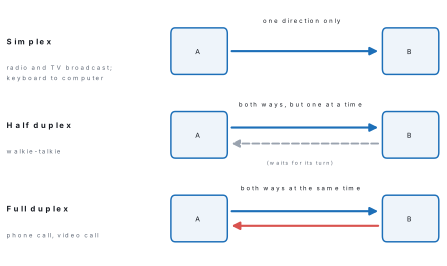
| Mode | Direction of data | Can both sides send? | Examples |
|---|---|---|---|
| Simplex | one way only (unidirectional) | no — the receiver can never reply | radio and TV broadcasting, keyboard to computer, a loudspeaker announcement |
| Half duplex | both ways, one way at a time | yes, but they take turns | walkie-talkie, police wireless handset |
| Full duplex | both ways at the same time (bidirectional) | yes, together | mobile or landline phone call, video call, a switch port |
"Half duplex — both directions but one at a time, e.g. walkie-talkie" earns both marks of a 2-mark answer. A definition without an example usually earns only one.
1.2 Communication media: guided and unguided
Communication media (also called transmission media) are the paths through which signals travel from the sender to the receiver. They are of two types: guided (wired or bounded) media, which carry the signal along a cable, and unguided (wireless or unbounded) media, which carry it through air or space without a cable.
Guided media
1. Twisted-pair cable. Pairs of insulated copper wires are twisted around each other. The twisting cancels much of the electrical interference that one pair picks up from its neighbours and from outside. UTP (unshielded twisted pair) is used in almost every LAN; STP (shielded twisted pair) adds a foil screen for electrically noisy places such as factories. Telephone lines also use twisted pairs. Twisted-pair cables are sold in categories:
| Category | Speed | Frequency rating | Note |
|---|---|---|---|
| CAT5e | 1 Gbps up to 100 m | 100 MHz | older LANs |
| CAT6 | 1 Gbps up to 100 m; 10 Gbps up to about 55 m | 250 MHz | tighter twists, better insulation and often a plastic spline between the pairs, so less interference |
| CAT6A | 10 Gbps up to 100 m | 500 MHz | data centres and new buildings |
A single run of twisted-pair Ethernet cable may be at most 100 m long.
2. Coaxial cable. A single copper core is surrounded by an insulating layer, a braided copper shield and an outer plastic jacket. Because the shield surrounds the core on every side, coaxial cable resists interference well. It is used for cable TV, for CCTV cameras, to connect dish antennas, and in older Ethernet networks.
3. Optical fibre cable. A hair-thin core of very pure glass (or plastic) is surrounded by glass cladding that bends light less strongly. Light pulses sent into the core strike the boundary at a shallow angle and are reflected back every time (total internal reflection), so the light stays in the core even when the cable curves. A buffer coating, strength fibres and a jacket protect the glass. Light travels in glass at about 200,000 km/s, two-thirds of its speed in a vacuum.
Single-mode fibre has a very thin core (about 9 µm) and a laser source and carries data for tens of kilometres; ISPs use it for their main lines. Multimode fibre has a thicker core (50 or 62.5 µm), uses cheaper light sources and serves shorter links inside buildings and campuses. Most of Nepal's Internet traffic enters the country through fibre links from India, and since 12 January 2018 also from China through the Rasuwagadhi–Kerung border.
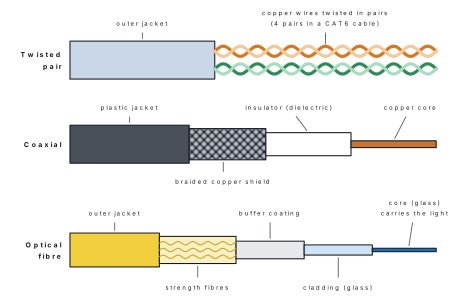
| Feature | Twisted pair (CAT6) | Coaxial | Optical fibre |
|---|---|---|---|
| Signal carried | electrical | electrical | light |
| Conductor | 4 pairs of copper wires | one copper core | glass or plastic core |
| Typical speed | up to 1 Gbps (10 Gbps on short runs) | hundreds of Mbps | 10 Gbps and far beyond |
| Distance without a repeater | 100 m | a few hundred metres | tens of kilometres |
| Interference | some, reduced by twisting | low, blocked by the shield | none — light ignores electrical noise and lightning |
| Cost and handling | cheapest, easy to fit | moderate | most expensive; needs special tools to join |
| Connector | RJ-45 | BNC, F-type | ST, SC, LC, SMA |
| Typical use | LAN cabling, telephone lines | cable TV, CCTV | ISP backbones, FTTH, links between buildings |
Unguided media
Unguided media send electromagnetic waves through air or space, so no cable is needed. They are what make mobile phones, Wi-Fi and satellite TV possible. Because every wireless user shares the same airwaves, the government regulates who may use which frequency; Nepal's mobile operators, for example, use frequencies licensed through the Nepal Telecommunications Authority (NTA).
1. Radio waves (roughly 3 kHz to 1 GHz) spread out in all directions, pass through walls and travel long distances. AM and FM radio, mobile phones and walkie-talkies use them.
2. Microwaves (roughly 1 to 300 GHz) travel in straight lines, so the sending and receiving dish antennas must be in line of sight. Towers on hilltops relay microwave signals over hops of a few tens of kilometres, which made them useful in Nepal's hills where laying cable is hard. Heavy rain can weaken them.
3. Infrared waves carry data only a few metres, need a clear line of sight and cannot pass through walls. A TV remote control is the everyday example; because infrared stays inside one room, it is also hard to eavesdrop on.
4. Satellite communication uses an artificial satellite as a microwave relay station in space. A ground station sends the signal up — the uplink — and the satellite sends it back down to a wide area — the downlink — on a different frequency. A geostationary satellite, 35,786 km above the equator, turns with the Earth and appears fixed in the sky, so dish antennas never need to move. The first commercial communications satellite, Early Bird (Intelsat I), went into service in 1965. Satellites carry direct-to-home (DTH) television, weather images, GPS navigation and Internet to remote areas, but because the signal travels about 72,000 km up and down, each one-way trip takes about a quarter of a second. Nepal's own first satellite, the small research satellite NepaliSat-1, was launched in 2019.
5. Wi-Fi (Wireless Fidelity, the IEEE 802.11 standards) connects devices to a LAN by radio in the 2.4 GHz and 5 GHz bands, usually over 30–50 m indoors. A router or access point sends and receives the signals. Modern Wi-Fi uses channel bonding (joining two neighbouring channels into one wider, faster channel) and beamforming (aiming the signal towards each device instead of spreading it equally everywhere). A WPA2 or WPA3 password encrypts the data in the air.
6. Bluetooth connects devices over about 10 m using very little power, in the 2.4 GHz band. It uses frequency hopping spread spectrum (FHSS): the connection jumps between 79 narrow channels about 1,600 times a second, so interference on one channel spoils only a tiny part of the data. Earbuds, keyboards, smartwatches and car audio systems use it.
7. RFID (Radio Frequency Identification) uses radio waves to read data stored in a small tag fixed to an object. A passive tag has no battery and is powered by the reader's own signal, so it works only close to the reader; an active tag has a battery and can be read from much farther away. Library books, ID cards, contactless payment cards, toll gates and warehouse stock all use RFID.
| Guided media | Unguided media |
|---|---|
| signals travel along a physical cable | signals travel through air or space as electromagnetic waves |
| also called wired or bounded media | also called wireless or unbounded media |
| the cable gives a fixed path | no fixed path; the signal spreads out |
| little affected by weather | rain, walls and distance weaken the signal |
| more secure: a person must reach the cable to tap it | easier to intercept, so encryption is needed |
| devices cannot move freely | devices can move (mobility) |
| examples: twisted pair, coaxial, optical fibre | examples: radio, microwave, infrared, satellite, Wi-Fi, Bluetooth |
The textbook's table says guided media connect "close devices" and unguided media connect "devices far away". Both claims break easily: an optical fibre crosses whole countries, while infrared and Bluetooth reach only a few metres. In a "differences" answer use the points in the table above instead.
1.3 Connectors: RJ-45, RJ-11, BNC, fibre connectors and the media converter
A connector is the plug or socket at the end of a cable that joins the communication medium to the port of a device such as a computer, switch or router, keeping each wire (or the glass fibre) exactly in place.
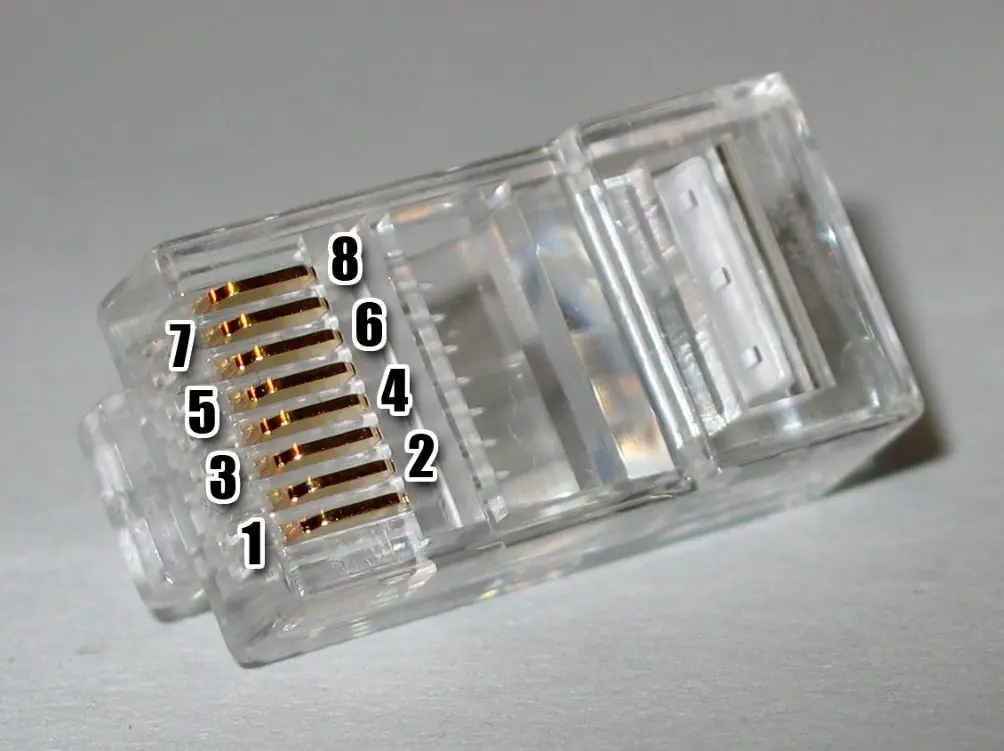
RJ-45 (Registered Jack 45). The clear plastic plug on every Ethernet cable. It has eight positions and eight contacts (8P8C), one for each of the eight wires of a twisted-pair cable, and a springy clip that locks it into the port. The order of the coloured wires follows the standard T568A or T568B.
RJ-11. The smaller plug of a telephone cable. It has six positions but usually only two or four contacts. It connects telephones and DSL modems to the phone line. An RJ-11 plug fits loosely into an RJ-45 port, but it is the wrong connector for Ethernet.
BNC (Bayonet Neill–Concelman). A round metal connector for coaxial cable that is pushed on and turned a quarter turn to lock (a bayonet joint). It is used on CCTV cameras, laboratory instruments and old coaxial Ethernet.
Fibre-optic connectors hold the glass fibre in a precise ceramic tube (the ferrule) so that the two fibre ends meet exactly:
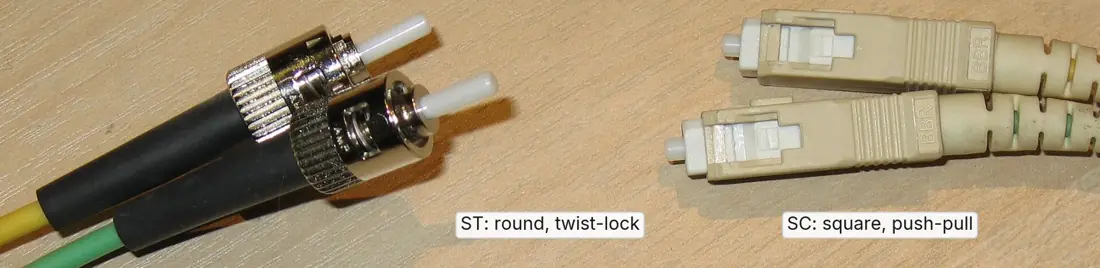
- ST (Straight Tip) — round metal body with a bayonet twist-lock;
- SC (Subscriber Connector, also called Square or Standard Connector) — square plastic body that clicks in with a push and comes out with a pull; it is the usual plug on home fibre (FTTH) equipment;
- LC (Lucent Connector) — a small push-pull connector about half the size of SC, used on the fibre modules of switches;
- SMA (SubMiniature version A) — a connector with a threaded nut that is screwed on; mainly older and industrial equipment.
The textbook expands SMA as "Screw-Mounted Adaptor". That phrase is a handy way to remember that SMA screws on, but it is not the name. SMA stands for SubMiniature version A, a connector design first made for radio equipment and later adapted for fibre.
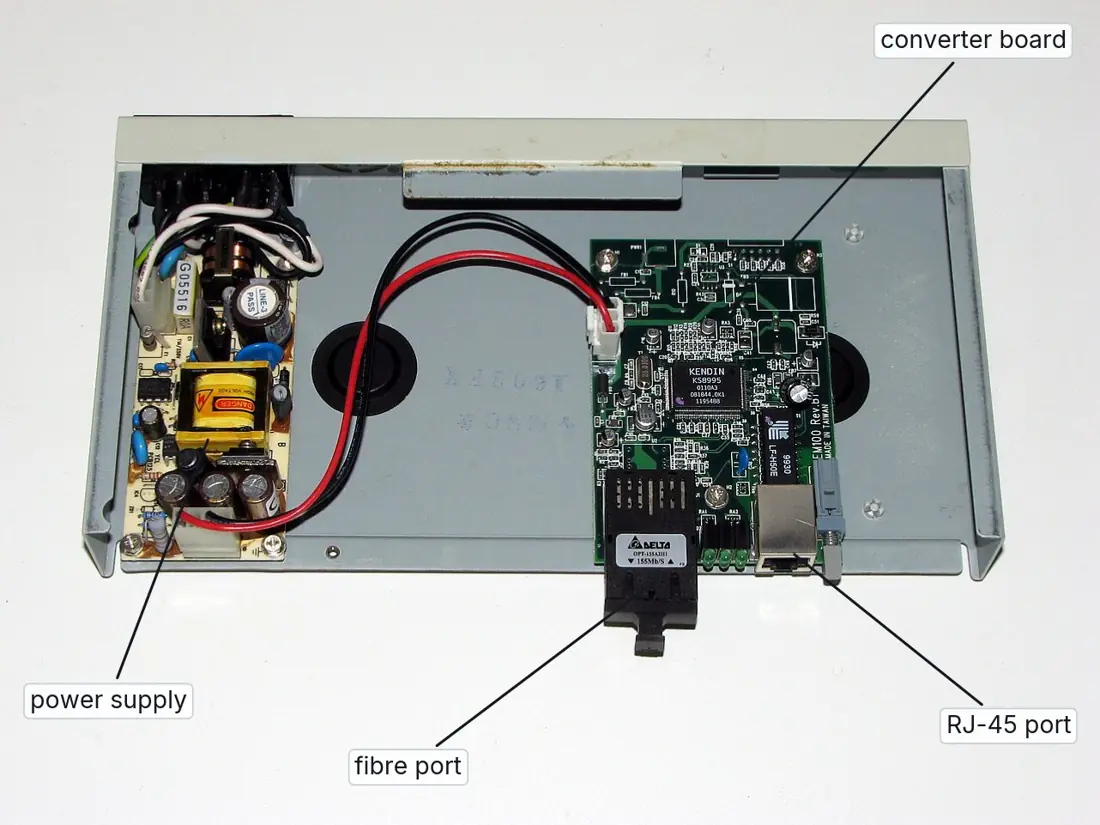
Media converter. A media converter joins two different kinds of cable, usually copper twisted pair and optical fibre. It turns the electrical signals arriving through its RJ-45 port into light pulses for the fibre port, and turns incoming light back into electrical signals. It is needed when
- a link is longer than the 100 m allowed for copper Ethernet, for example between two school buildings;
- a fibre line from an ISP or another building must join an ordinary copper switch;
- a cable must pass through a place full of electrical noise, such as near motors or high-voltage lines.
| Connector | Cable | Shape and locking | Typical use |
|---|---|---|---|
| RJ-45 | twisted pair (CAT5e, CAT6) | clear plastic, 8 contacts, clip | Ethernet: PCs, switches, routers |
| RJ-11 | telephone twisted pair | smaller plastic, 2 or 4 contacts, clip | telephones, DSL modems |
| BNC | coaxial | round metal, push and twist | CCTV, instruments, old Ethernet |
| ST | optical fibre | round metal, bayonet twist | older fibre equipment |
| SC | optical fibre | square plastic, push-pull | FTTH, patch panels |
| LC | optical fibre | small square, push-pull | switch fibre modules |
| SMA | optical fibre | threaded nut, screwed on | industrial and older equipment |
- Hold an RJ-45 plug and an SC or LC fibre connector side by side. Note that the RJ-45 has metal contacts for electricity, while the fibre connector has only a glass tip for light.
- Crimp a cable. Strip about 2–3 cm of the jacket. Untwist the pairs and arrange the wires in the T568B order: white-orange, orange, white-green, blue, white-blue, green, white-brown, brown. Trim them straight to about 1.3 cm, push them fully into the plug with the clip underneath, and squeeze the crimping tool. Do the same at the other end and check the cable with a cable tester: all eight lights should flash in order.
- Plug the cable into a PC and a switch and watch the link light come on.
- Discuss why the school's link to the ISP is fibre while the cables in the lab are copper.
1.4 Networking devices
A network is built from three kinds of component: hardware (computers, cables and the devices below), software (a network operating system such as Windows Server or Linux, and application software), and the communication medium. The devices decide where each piece of data goes.
NIC (Network Interface Card). The circuit, built into every computer and
phone or added as a card, that connects the device to the network medium — an
RJ-45 port for a cable or a radio for Wi-Fi. Every NIC carries a permanent
48-bit MAC (Media Access Control) address, written in hexadecimal such as
3C-52-82-9A-7F-10, which identifies that card on the local network.
Repeater. A signal grows weaker the farther it travels. A repeater receives the weak signal, regenerates it to full strength and sends it on, so the network can reach farther. It does not look at addresses.
Hub. A box with many ports into which computers are plugged in a star. A hub is a "multi-port repeater": whatever arrives at one port is copied to every other port. All the computers share one bandwidth and their signals can collide. Hubs are cheap and simple but have been replaced by switches.
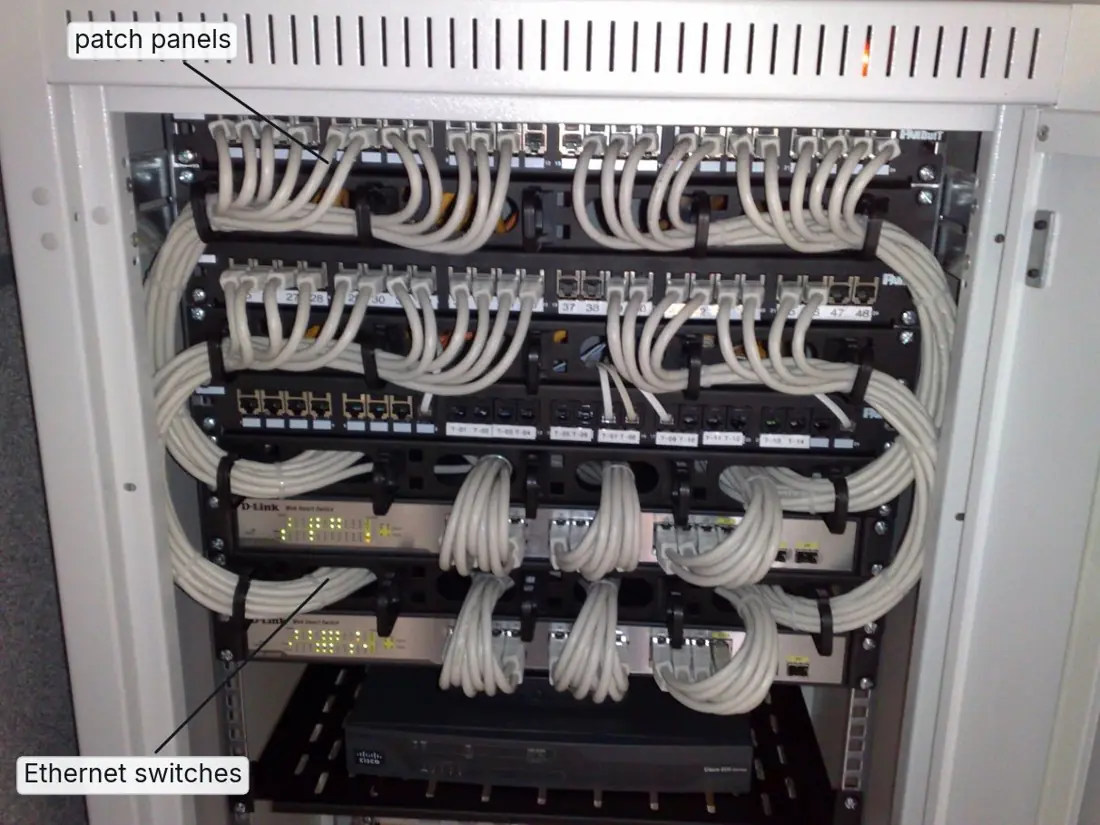
Switch. Also a multi-port box at the centre of a star, but intelligent. It reads the MAC address in each frame, learns which computer is on which port (its MAC address table), and sends the frame only to the port of the destination. Each port gets the full speed and can send and receive at the same time, so a switched LAN is faster and more private than one built on a hub.
Bridge. Joins two LAN segments that use the same protocol, inspects each frame and forwards it to the other segment only if the destination is there. In effect it is a two-port switch.
Router. Joins different networks — for example a school LAN and the ISP's network — and forwards packets between them using IP addresses. It keeps a routing table and chooses the best path for each packet. The "Wi-Fi router" in a home is really several devices in one box: a router, a small switch, a wireless access point, a DHCP server that hands out IP addresses, and a firewall.
Modem (modulator–demodulator). Converts the computer's digital signals into the form the line carries (modulation) and back again (demodulation). DSL modems work on telephone lines, cable modems on coaxial cable and 4G dongles or MiFi devices on the mobile network. On a fibre line the same job is done by an ONT (Optical Network Terminal), which converts light to electrical signals.
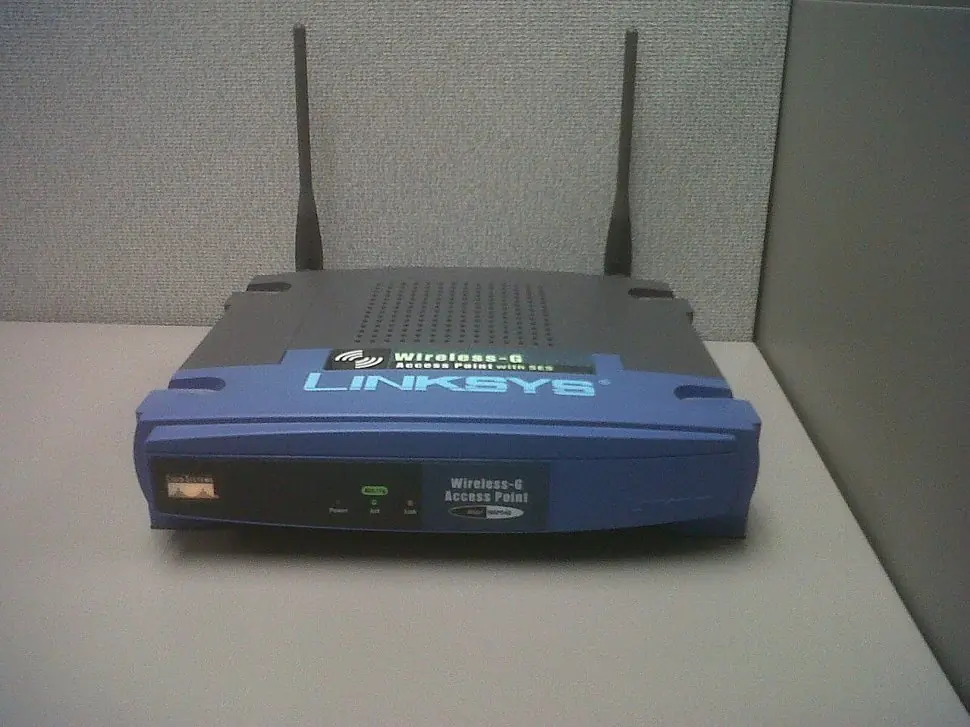
Wireless access point (WAP). Lets Wi-Fi devices join a wired LAN. It is connected to a switch by cable and broadcasts a network name (SSID); schools, hotels and offices mount several on ceilings so that the signal reaches every room.
Gateway. A device or program that connects two networks that use different protocols, translating between them — for example a VoIP gateway between telephone lines and the Internet, or an IoT gateway between sensors and a cloud server. In everyday use, the default gateway of a computer is the router address to which it sends every packet meant for another network.
| Point | Hub | Switch | Router |
|---|---|---|---|
| Job | joins computers of one LAN | joins computers of one LAN | joins different networks, e.g. a LAN and the Internet |
| How it forwards data | copies every signal to all ports | sends each frame only to the destination's port | chooses the best path to the destination network |
| Address it uses | none | MAC address | IP address |
| Speed and traffic | all ports share one bandwidth; collisions | full bandwidth on every port; no collisions | depends on its links |
| Intelligence | none | learns MAC addresses | routing table, NAT, DHCP, firewall |
| Today | obsolete | in every LAN | at the edge of every network |
Visit your school's computer lab, an ISP office, a telecom office or a bank branch. (1) Find the router, the switches, any modem or ONT and the wireless access points, and write one line on what each does. (2) Identify the cables: CAT6 patch cords with RJ-45 plugs, coaxial cable, and fibre patch cords with SC or LC plugs. (3) Make a two-column list of the wired and the wireless parts of the network, and draw how they are joined.
1.5 Network topology
Network topology is the pattern in which the computers and devices of a network are connected. The physical topology is the layout of the cables and devices; the logical topology is the path that data actually follows.
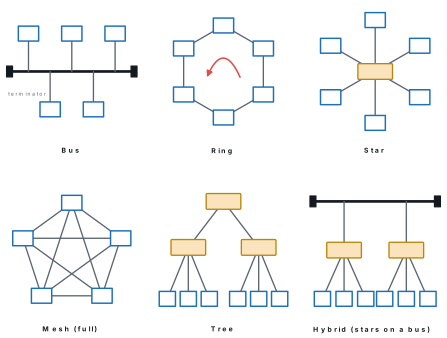
Bus topology. All nodes are attached to one main cable, the bus or backbone. A terminator at each end absorbs the signal so that it does not bounce back. A signal sent by one node travels along the whole bus and every node checks whether it is the addressee. A bus needs the least cable and is cheap for a few computers, but a single break in the backbone stops the whole network, faults are hard to find, and more nodes mean more collisions.
Ring topology. Each node is connected to the next and the last to the first, forming a closed loop. Data travels round the ring in one direction, from node to node; each node checks the address, regenerates the signal like a repeater and passes it on. In a token ring only the node holding a special message, the token, may send, so there are no collisions. But one broken cable or switched-off node can stop the whole ring (unless a second ring is laid in the opposite direction), and adding a node means breaking the ring.
Star topology. Every node has its own cable to a central switch (or, in old networks, a hub). It is the topology of almost every LAN today. A faulty cable affects only its own computer, nodes can be added or removed without disturbing the others, and faults are easy to trace. It needs more cable than a bus, and if the central switch fails, the whole star stops.
Mesh topology. Nodes are joined by many links, so there are several paths between any two of them. In a full mesh every node is linked to every other: n nodes need \frac{n(n-1)}{2} links and each node needs n-1 ports. A mesh keeps working when a link fails and carries heavy traffic, but it is the most expensive. The routers of the Internet's backbone form a (partial) mesh, and "mesh Wi-Fi" systems use the same idea at home.
Tree topology. Star networks arranged in levels under a root: a main switch feeds the switches of each floor or building, which feed the computers. A school with several buildings is usually wired this way. It is easy to extend branch by branch, but if the root fails, the branches below it are cut off.
Hybrid topology. A combination of two or more topologies — stars joined by a bus or ring backbone, or a tree with a mesh core. Most real networks are hybrid: each department keeps its own star while the backbone uses whatever suits the distance and the budget. A hybrid network grows easily and one failure rarely stops everything, but it is more complex to design and manage.
| Topology | Cable needed | Effect of one failure | Troubleshooting | Cost | Typical use |
|---|---|---|---|---|---|
| Bus | least | backbone break stops all | hard | lowest | very small, old networks |
| Ring | low | one break can stop all | hard | low | older networks; dual-ring city fibre |
| Star | more | only that node is cut off (switch failure stops all) | easy | moderate | almost every LAN |
| Mesh | most | traffic takes another path | moderate | highest | Internet backbone, mesh Wi-Fi |
| Tree | more | that branch is cut off | moderate | moderate | schools, offices on several floors |
| Hybrid | depends | usually local | depends | depends | large organisations |
The textbook says a ring "uses fibre optic cable", "is not affected by high traffic or by adding more nodes" and "is cheap to set up and expand". A ring can use any cable (the classic Token Ring used twisted pair); every extra node adds delay to every message; and adding a node means opening the ring, which stops the network while it is done. Do not copy those three points into an answer.
Problem. Six computers are to be connected. (a) How many cables and ports does a full mesh need? (b) How many does a star need?
Solution. (a) Links = \frac{n(n-1)}{2} = \frac{6\times5}{2} = 15 cables, and each computer needs n-1 = 5 network ports. (b) A star needs one cable per computer, 6 cables, and one switch with at least 6 ports; each computer needs only 1 port. This is why LANs are built as stars: the mesh's reliability costs far more cable and hardware.
1.6 Networks by coverage: PAN, LAN, MAN and WAN
A computer network is a group of two or more computers and devices connected by wired or wireless media to exchange data and to share hardware, software and other resources.
A network lets users share hardware (one printer or scanner for a whole office), share data and software, communicate (email, chat, video calls, the Internet), keep centralised control of users and security, and make central backups. It offers services such as file, print, message, application and database services. Networks are classified by the area they cover.
PAN (Personal Area Network). Connects the devices of one person within about 10 m: a phone with earbuds and a smartwatch over Bluetooth, or a laptop using a phone's hotspot. It is easy to set up and needs little configuration.
LAN (Local Area Network). Connects computers in one room, building or campus, up to about a kilometre across. It is privately owned (by the school or office), fast (100 Mbps to 10 Gbps), has very few errors, and today is almost always a star of switches. A LAN whose devices join by Wi-Fi is a WLAN (wireless LAN). A school's computer lab is a LAN; a LAN spread over a university's buildings is sometimes called a CAN (campus area network).
MAN (Metropolitan Area Network). Covers a city or a valley, from a few to about 50 km. It usually joins many LANs, is owned by one large organisation or a service provider, and links the LANs to the wider Internet. A cable-TV network across Kathmandu Valley, an ISP's fibre ring around a city, or a bank joining its branches within one city are MANs.
WAN (Wide Area Network). Covers a country, a continent or the whole world. It joins LANs and MANs through links owned by many organisations — telephone companies, ISPs and satellite operators — mainly optical fibre on land and under the sea, with satellite and microwave links where cables cannot go. Compared with a LAN its data rate per user is lower and its delay higher. The Internet is the largest WAN; a bank linking branches in every province, or Nepal Telecom's national network, are others.
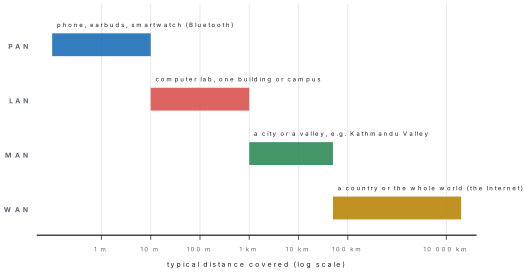
| Feature | PAN | LAN | MAN | WAN |
|---|---|---|---|---|
| Coverage | about 10 m around one person | room, building, campus (up to about 1 km) | city or valley (up to about 50 km) | country, continent, world |
| Ownership | one person | one organisation | one big organisation or a provider | many organisations |
| Speed | low to moderate | highest | high | lower per user |
| Delay and errors | low | lowest | moderate | highest |
| Media | Bluetooth, USB, infrared | twisted pair, Wi-Fi, fibre | fibre, microwave | fibre, satellite, microwave |
| Example | phone + earbuds | school computer lab | cable-TV network in a city | the Internet |
The textbook says that "LANs commonly use topologies such as bus and ring" and that WAN computers are connected "through wireless technology or media as satellite communication". Both were true decades ago. Today LANs are switched stars, and WANs run mainly over optical fibre, with satellites serving the places fibre cannot reach.
1.7 Network architecture: client–server and peer-to-peer
Network architecture describes how the computers of a network share the work: whether some of them provide services for the rest, or all of them are equal.
In a client–server network one or more powerful computers called servers provide services (files, printing, email, websites, databases), and the other computers, called clients, request and use those services. In a peer-to-peer (P2P) network every computer is equal: each one can share its own files and printer with the others and use theirs, without a dedicated server. A small P2P network is also called a workgroup.
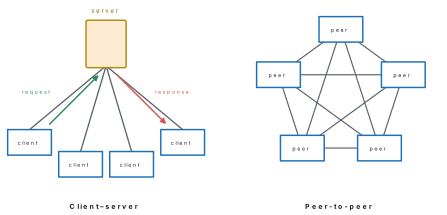
| Point | Client–server | Peer-to-peer |
|---|---|---|
| Control | central: the server and an administrator control access | none: each user controls their own shared resources |
| Server | one or more dedicated servers | no dedicated server |
| Security | strong, managed in one place | weak; depends on every user |
| Backup | central backup of the server | each computer must be backed up separately |
| Cost | high (server hardware, software, administrator) | low |
| Failure | if the server fails, its services stop for everyone | one computer failing affects only its own shared resources |
| Size | scales to thousands of users | best for about 10 computers or fewer |
| Operating system | server OS: Windows Server, Ubuntu Server, UNIX | ordinary OS: Windows 11, macOS, Ubuntu |
| Example | school result system, online banking, websites | small office workgroup, Bluetooth file sharing |
Network protocols
A protocol is a set of rules that computers follow to communicate over a network: how data is formatted, addressed, sent, checked and received. Two devices can talk only if they follow the same protocol.
The first host-to-host protocol of ARPANET, the network that grew into the Internet, was NCP (Network Control Program). ARPANET carried its first message on 29 October 1969 — "LO", because the system crashed before "LOGIN" was complete — and replaced NCP with TCP/IP on 1 January 1983.
| Protocol | Full form | What it does |
|---|---|---|
| TCP/IP | Transmission Control Protocol / Internet Protocol | the basic protocols of the Internet: IP addresses and routes packets, TCP checks that every packet arrives and in order |
| HTTP | HyperText Transfer Protocol | transfers web pages (HTML documents) from a web server to a browser |
| HTTPS | HyperText Transfer Protocol Secure | HTTP with encryption, so passwords and payments cannot be read in transit |
| DHCP | Dynamic Host Configuration Protocol | gives each device an IP address, subnet mask and default gateway automatically |
| DNS | Domain Name System | turns a name such as www.google.com into the IP address of the server |
| SMTP | Simple Mail Transfer Protocol | sends email from your mail program to the mail server and between servers |
| POP3 / IMAP | Post Office Protocol 3 / Internet Message Access Protocol | collect email from the mail server |
| FTP | File Transfer Protocol | transfers files between computers |
| Telnet | Teletype Network | remote login to another computer's command line (unencrypted; SSH is its secure replacement) |
1.8 IP addressing
An IP (Internet Protocol) address is a logical number given to every device on a network that identifies the device and lets data be routed to it. The MAC address is fixed in the network card and is used only inside the local network; the IP address is assigned by the network and is used to deliver packets across networks.
IPv4
An IPv4 address is 32 bits long, written as four decimal numbers called
octets, each from 0 to 255, separated by dots — dotted-decimal
notation, for example 192.168.1.10. Each octet is 8 bits, so
2^{32} = 4,294,967,296 (about 4.3 billion) addresses are possible. That is
fewer than the number of devices now online; the central pool of free IPv4
addresses ran out in 2011, and networks survive by giving private addresses
inside and sharing one public address through NAT (Network Address
Translation) on the router.
Problem. (a) Write 192.168.1.10 in binary. (b) Which of these are not
valid IPv4 addresses: 10.0.0.300, 172.20.5.1, 256.1.1.1?
Solution. (a) Convert each octet to 8 bits:
192 = 11000000, 168 = 10101000, 1 = 00000001, 10 = 00001010, so the address is
11000000.10101000.00000001.00001010 — 32 bits.
(b) An octet can only be 0 to 255, so 10.0.0.300 and 256.1.1.1 are
invalid; 172.20.5.1 is valid.
IPv6
IPv6 was designed to replace IPv4. Its addresses are 128 bits long,
written as eight groups of four hexadecimal digits separated by colons, for
example 2001:0db8:85a3:0000:0000:8a2e:0370:7334. That gives
2^{128} \approx 3.4\times10^{38} addresses — enough for every device that
will ever be built. Two rules shorten an address: leading zeros in a group may
be dropped, and one run of consecutive all-zero groups may be replaced by
::. So the address above is written 2001:db8:85a3::8a2e:370:7334.
| Point | IPv4 | IPv6 |
|---|---|---|
| Length | 32 bits | 128 bits |
| Written as | 4 decimal octets with dots | 8 hexadecimal groups with colons |
| Number of addresses | 2^{32}\approx4.29\times10^{9} | 2^{128}\approx3.4\times10^{38} |
| Configuration | manual or by DHCP | automatic (stateless auto-configuration), DHCPv6 or manual |
| Header | 20–60 bytes, variable | 40 bytes, fixed and simpler |
| Security (IPsec) | can be added | designed into the standard |
| Broadcast | used | not used; multicast instead |
| NAT | widely needed | not needed |
| Example | 192.168.1.1 |
2001:db8::1 |
The textbook says IPv4 provides no encryption or authentication. The security system for IP, IPsec, works with IPv4 as well; the difference is that it was built into the IPv6 design from the start. Most encryption you actually use (HTTPS) works the same way on both.
Problem. Write 2001:0db8:0000:0000:0000:ff00:0042:8329 in its shortest
form. How many times more addresses does IPv6 have than IPv4?
Solution. Drop leading zeros: 2001:db8:0:0:0:ff00:42:8329. Replace the
run of three zero groups by ::: 2001:db8::ff00:42:8329.
Ratio = \frac{2^{128}}{2^{32}} = 2^{96} \approx 7.9 × 10²⁸ times.
Private and public, static and dynamic addresses
Private addresses are reserved for use inside LANs. They can be repeated in every home and school, and routers on the Internet do not forward them. Public addresses are globally unique and are assigned by ISPs (in our region, from the pool managed by APNIC); every device visible on the Internet needs one.
| Private IPv4 range | Number of addresses |
|---|---|
| 10.0.0.0 to 10.255.255.255 | about 16.8 million |
| 172.16.0.0 to 172.31.255.255 | about 1 million |
| 192.168.0.0 to 192.168.255.255 | 65,536 |
Two other special addresses: 127.0.0.1 (loopback) always means "this
computer", and an address beginning 169.254 means a computer asked for an
address by DHCP and got no reply.
| Static IP address | Dynamic IP address |
|---|---|
| typed in manually and never changes | given automatically by a DHCP server for a lease period |
| needs planning to avoid two devices getting the same address | no planning; the server never repeats an address |
| used for servers, network printers, CCTV recorders, routers | used for phones, laptops and most PCs |
| example: a printer fixed at 192.168.1.20 | example: a phone that gets 192.168.1.101 when it joins Wi-Fi |
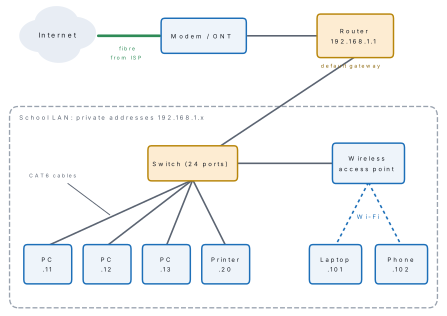
Checking an IP address and the default gateway
A device's subnet mask (usually 255.255.255.0 in a small LAN) tells it
which addresses are on its own network. For any other address it sends the
packet to the default gateway, the address of the router — the door out of
the LAN.
On a Windows computer open Command Prompt and type ipconfig. A laptop on
Wi-Fi shows something like this (your numbers will differ):
Wireless LAN adapter Wi-Fi:

   Connection-specific DNS Suffix  . :
   Link-local IPv6 Address . . . . . : fe80::1c2b:7d4e:9a10:3f21%12
   IPv4 Address. . . . . . . . . . . : 192.168.1.105
   Subnet Mask . . . . . . . . . . . : 255.255.255.0
   Default Gateway . . . . . . . . . : 192.168.1.1
Read it: the IPv4 address 192.168.1.105 is private; the router is at
192.168.1.1; the computer also has an IPv6 address beginning fe80, which is
used only on the local link. ipconfig /all adds the MAC address ("Physical
Address") and the line "DHCP Enabled: Yes", which means the address is
dynamic. To see your public address, search "what is my IP" in a
browser: you will see the single address that your router shares with every
device in the house. On Android open Settings → Wi-Fi → the connected network
→ details.
| Command | What it does | What to look for |
|---|---|---|
ping google.com |
sends four small test packets and times the replies | "Reply from …" lines and "Lost = 0 (0% loss)" mean the host is reachable |
ipconfig |
shows this computer's IP address, subnet mask and gateway | an address starting 169.254 means DHCP failed |
tracert google.com |
lists every router (hop) on the path to the destination | the number of hops, and where the delay suddenly grows |
nslookup google.com |
asks the DNS server for the IP address of a name | the "Addresses" lines are the server's IP addresses |
A sample ping (the address and times will differ on your computer):
Pinging google.com [142.250.193.78] with 32 bytes of data:
Reply from 142.250.193.78: bytes=32 time=38ms TTL=117
Reply from 142.250.193.78: bytes=32 time=37ms TTL=117
Reply from 142.250.193.78: bytes=32 time=41ms TTL=117
Reply from 142.250.193.78: bytes=32 time=38ms TTL=117

Ping statistics for 142.250.193.78:
    Packets: Sent = 4, Received = 4, Lost = 0 (0% loss),
The name google.com was first turned into an IP address by DNS; the "time"
of about 38 ms is the round-trip latency.
Problem. For each address say whether it is private or public:
10.12.0.7, 172.20.5.1, 172.32.1.1, 192.168.10.25, 8.8.8.8.
Solution. 10.12.0.7 — private (10.x.x.x). 172.20.5.1 — private
(172.16 to 172.31). 172.32.1.1 — public, because 32 is outside 16–31.
192.168.10.25 — private. 8.8.8.8 — public (it is Google's public
DNS server).
1.9 Internet, intranet and extranet
The Internet is the worldwide network of networks, joined by the TCP/IP protocols and open to anyone. An intranet is a private network inside one organisation that uses Internet technologies (TCP/IP, web pages, email) but is open only to the organisation's own staff. An extranet is the part of an organisation's private network that is opened, with passwords and controls, to selected outsiders such as customers, suppliers or partners.
The Internet offers the World Wide Web, email, file transfer (FTP), chat (IRC and messaging apps), remote login (Telnet, SSH), video calls, online shopping, banking and cloud storage. A bank's internal portal where staff check circulars and apply for leave is an intranet; the same bank's portal where its merchants check their QR-payment settlements is an extranet. A school whose results and attendance pages can be seen only from inside the school is running an intranet; if parents may log in from home to see their own child's records, that part becomes an extranet.
| Point | Internet | Intranet | Extranet |
|---|---|---|---|
| What it is | global network of public, private, academic, business and government networks | private network of one organisation | private network opened in a controlled way to outsiders |
| Who can use it | anyone | the organisation's staff only | staff plus selected partners, suppliers or customers |
| Purpose | share information and connect people worldwide | share information and resources inside the organisation | share specific information with partners |
| Security | least secure; users need firewalls and antivirus | most secure, behind the firewall | secure, but must balance access for outsiders |
| Example | websites, Google, Facebook, YouTube | company portal, school staff portal | supplier ordering portal, parents' result portal |
Textbook exercises: model answers
1. Full forms. (a) DSL — Digital Subscriber Line. (b) bps — bits per second. (c) LAN — Local Area Network. (d) TCP/IP — Transmission Control Protocol / Internet Protocol. (e) IPv6 — Internet Protocol version 6. (f) ISP — Internet Service Provider. (g) RFID — Radio Frequency Identification. (h) CAT6 — Category 6 (twisted-pair cable). (i) NCP — Network Control Program (also called Network Control Protocol). (j) DNS — Domain Name System.
2. Multiple choice — answers
i. (d) — DSL, fibre and cable are all broadband connections.
ii. (b) — throughput is the data actually transferred per second.
iii. (b) — a packet is a small unit of data sent over a network.
iv. (a) — fibre is a cable; infrared, microwave and laser beams are wireless.
v. (c) — Earth to satellite is the uplink; satellite to Earth is the downlink.
vi. (c) — RJ-45 ends twisted-pair Ethernet cables.
vii. (b) — the connection pattern is the topology.
viii. (c) — in a star every device is cabled to a central hub or switch.
ix. (c) — a WAN joins LANs over large areas.
x. (d) — IRC (chat), Telnet (remote login) and email are all Internet services.
xi. (c) — FTP is the File Transfer Protocol.
xii. (b) — IPv4 addresses are 32 bits (IPv6 are 128).
xiii. (c) — an IP address identifies one device on a network.
xiv. (c) — SMTP sends email; HTTP carries web pages.
xv. (c) — a repeater regenerates weak signals.
3. Short questions — model answers
a. Broadband is an always-on, high-speed Internet connection that carries a large amount of data at once. Dial-up had to dial a number before each session, was limited to 56 kbps and kept the telephone line busy; broadband is hundreds of times faster, always connected, and leaves the phone free.
b. Bandwidth is the maximum amount of data a link can carry per second. It is measured in bits per second: bps, kbps, Mbps and Gbps.
c. A data packet is a small unit into which a message is broken for sending. Its header holds the source and destination addresses and a sequence number, its payload holds part of the message, and its trailer holds an error check; the receiver reassembles the packets in order.
d. Frequency is the number of complete cycles a signal's wave makes in one second, measured in hertz (kHz, MHz, GHz). Each service uses its own frequency band, for example 88–108 MHz for FM radio and 2.4 GHz for Wi-Fi.
e. A repeater receives a weakened signal, regenerates it to full strength and retransmits it, so data can travel farther than one cable or radio link allows.
f. A computer network is two or more computers and devices connected by wired or wireless media to share data and resources. It lets users share printers, files and an Internet connection, communicate by email and video call, and keep data backed up and secured centrally.
g. Because it gives mobility (phones and laptops move freely), needs no cabling so it is quick and cheap to install, reaches places where cables are hard to lay, and modern Wi-Fi, 4G and 5G are now fast enough for video and online classes.
h. RJ-45 is a clear plastic 8P8C plug with eight gold contacts and a locking clip, crimped onto twisted-pair cable. It connects computers, switches, routers and access points in Ethernet LANs.
i. A media converter joins copper twisted-pair cable to optical fibre by converting electrical signals into light and back. It is used when a link must run farther than 100 m or a fibre line must join a copper switch.
j. Bandwidth is the maximum data rate a link can carry; throughput is the rate actually achieved. Bandwidth is fixed by the link or plan, while throughput changes with traffic, distance and interference and is always less than or equal to bandwidth.
k. The Wi-Fi adapter of the laptop or phone turns data into radio waves in the 2.4 GHz or 5 GHz band. The router or access point receives them and passes the data on through its wired connection; replies come back as radio waves the same way. A WPA2/WPA3 password encrypts the data in the air.
l. The sending computer breaks the data into packets carrying the source and destination addresses. Its NIC sends them as signals over the medium; a switch forwards them inside the LAN using MAC addresses, and routers forward them from network to network using IP addresses. The receiver puts the packets back in order and asks again for any that are missing.
m. In a ring, data travels in one direction from one node to the next. Each node reads the destination address, keeps the data if it is the addressee, and otherwise regenerates the signal and passes it on until it reaches the destination.
n. Direct-to-home (DTH) television, which brings TV channels straight to a small dish on the house. (GPS navigation and weather forecasting are other uses.)
o. Guided media — for example optical fibre (also twisted pair, coaxial). Unguided media — for example Wi-Fi (also radio, microwave, satellite).
4. Long questions — model answers
i. Communication media. Communication (transmission) media are the paths through which signals travel from sender to receiver. Guided media carry signals along a cable: twisted pair (cheap, used in LANs, up to 100 m), coaxial (shielded, used for cable TV and CCTV) and optical fibre (light in a glass core, very fast, tens of kilometres, immune to interference). Unguided media carry electromagnetic waves through air or space: radio waves (all directions, long range), microwave (line of sight between dishes), infrared (a few metres, e.g. TV remote), satellite (relay in space for TV, GPS and remote Internet), Wi-Fi and Bluetooth. Guided media are more secure and less affected by weather; unguided media allow mobility and need no cables.
ii. LAN and MAN.
| LAN | MAN |
|---|---|
| covers a room, building or campus (up to about 1 km) | covers a city or valley (up to about 50 km) |
| owned by one organisation such as a school | owned by a large organisation or a service provider |
| highest speed, fewest errors | lower speed and more delay than a LAN |
| twisted pair, Wi-Fi and some fibre | mostly optical fibre and microwave |
| cheap to set up and maintain | costly to set up |
| example: school computer lab | example: cable-TV network across Kathmandu |
iii. Client–server and peer-to-peer. In client–server, dedicated servers provide services and clients request them; in peer-to-peer every computer is equal and shares its own resources. Client–server has central control and security, central backup, high cost, a single point of failure at the server and room for thousands of users. Peer-to-peer has no central control, weak security, separate backups, low cost, no single point of failure, and suits about ten computers or fewer. (See the full table in §1.7.)
iv. A school with three buildings. The school needs a campus LAN built as a tree (hybrid) topology. Each building gets its own star: a switch with CAT6 cables to its computers and an access point for Wi-Fi. The three building switches are joined to a core switch in the server room by optical fibre (through media converters or fibre ports), because the buildings are more than 100 m apart and fibre is immune to lightning and electrical noise between buildings. Communication: every device is on one LAN, so email, chat and the school's intranet work at LAN speed. File sharing: a file server in the server room (client–server) holds shared folders and is backed up centrally. Internet access: one router with a firewall connects the core switch to the ISP's fibre line and shares the connection with all three buildings through NAT, with DHCP giving every device an address.
v. A home network. The ISP's fibre ends at an ONT, which connects to a Wi-Fi router (router, 4-port switch, access point, DHCP and firewall in one). Two desktop PCs are connected to the router's LAN ports with CAT6 cables (wired, for a fast and stable link); the third PC, if it is a laptop, and the mobile phone connect by Wi-Fi; the printer joins by Wi-Fi or a cable and is given a static IP such as 192.168.1.20 so that every computer can always find it. The router hands dynamic IP addresses to the other devices and shares one public IP address through NAT. A strong WPA2/WPA3 password protects the Wi-Fi. If more wired ports are needed, a small switch is added. The layout is the same as the school LAN in the figure of §1.8, on a smaller scale.
vi. Small office: client–server or peer-to-peer? For a small office of five or six computers, peer-to-peer is usually more suitable. Cost: no server or server software to buy and no administrator to pay. Management: each user shares a folder or the printer in a few clicks. Security: weaker than client–server, but acceptable if the office holds little confidential data and uses good passwords. Scalability: poor beyond about ten computers. So if the office expects to grow quickly or stores sensitive customer records, client–server is the better choice, because it gives central security, central backup and room to grow.
vii. A school lab of 10 computers. Use a star topology with a 16-port switch at the centre: ten CAT6 cables (each under 100 m) from the computers, one cable to a printer, and one uplink cable to the router, which connects to the ISP and acts as the default gateway and DHCP server. Each PC gets an address such as 192.168.1.11 to 192.168.1.20. When PC 1 sends a file to PC 2, the switch forwards the frames only to PC 2's port using its MAC address; when PC 1 opens a website, the packets go through the switch to the router and out to the Internet. A star is chosen because one faulty cable affects only one computer, computers are easy to add, and faults are easy to find.
Case studies — suggested answers
1. A lab of 36 computers. A star topology with a 48-port gigabit switch (or two 24-port switches joined in a tree), CAT6 cables, and one uplink to the router for Internet access, forming one LAN. A switch delivers files instantly between any two computers at full speed, one damaged cable affects only one computer, and a faulty computer is found by checking one cable and one port.
2. Wi-Fi slow on the first floor. Likely reasons: the signal weakens with distance and through concrete floors and walls, especially in the 5 GHz band; the router is in a corner, low down or inside a cabinet; neighbouring Wi-Fi networks, microwave ovens and Bluetooth devices interfere in the 2.4 GHz band; many devices share the bandwidth. Solutions: place the router high in a central spot; use the 2.4 GHz band upstairs; change to a less crowded channel; add a Wi-Fi repeater, a mesh node or, best of all, a second access point connected to the router by a CAT6 cable.
3. Upgrading an office in Birgunj. Replace the old devices with a modern router, a gigabit switch, Wi-Fi 6 access points and CAT6 cabling; take a fibre (FTTH) connection now. 5G would bring far higher throughput, very low latency for video meetings and cloud software, and room for many devices at once, including IoT sensors. Since commercial 5G had not yet been launched in Nepal in 2026, the office should use fibre or 4G LTE today and choose a router that can later take a 5G connection.
Chapter summary
- Telecommunication is exchanging information over a distance electronically; every link has a sender, message, medium, receiver and protocol.
- Bandwidth is the maximum data rate of a link; throughput is the rate actually achieved; time = data in bits ÷ rate, and 1 byte = 8 bits.
- Broadband (DSL, cable, fibre, satellite, wireless) is always-on and fast; 3G → 4G → 5G brought mobile Internet, then HD streaming, then very low latency for IoT. 4G reached Nepal in 2017.
- Data travels in packets (header, payload, trailer). Frequency is cycles per second in hertz; \lambda = \frac{c}{f}.
- Modes: simplex (one way), half duplex (both ways, one at a time), full duplex (both ways together).
- Guided media: twisted pair (CAT6, 100 m), coaxial, optical fibre (light, tens of km). Unguided: radio, microwave, infrared, satellite (uplink and downlink), Wi-Fi, Bluetooth, RFID.
- Connectors: RJ-45 (Ethernet, 8 pins), RJ-11 (telephone), BNC (coaxial), ST, SC, LC and SMA (fibre); a media converter joins copper and fibre.
- Devices: NIC (MAC address), repeater, hub (copies to all), switch (MAC, one port), bridge, router (IP, best path), modem/ONT, access point, gateway (different protocols).
- Topologies: bus, ring, star, mesh (\frac{n(n-1)}{2} links), tree, hybrid. Coverage: PAN, LAN, MAN, WAN. Architecture: client–server or peer-to-peer.
- IPv4: 32 bits, dotted decimal; IPv6: 128 bits, hexadecimal with
colons. Private ranges 10.x, 172.16–31.x, 192.168.x; static or dynamic (DHCP);
check with
ipconfig. Internet (public), intranet (staff only), extranet (selected outsiders).
Practice questions
Group A — Multiple choice (1 mark each)
- A student's plan is 50 Mbps but a speed test reads 38 Mbps. The 38 Mbps is the [1]abandwidthbthroughputcfrequencydlatency
- A walkie-talkie works in [1]asimplex modebhalf-duplex modecfull-duplex modedbroadcast mode
- Which medium carries data as pulses of light? [1]aCAT6bcoaxial cablecoptical fibredSTP cable
- The connector on a telephone-line cable is [1]aRJ-45bRJ-11cBNCdSC
- Which device sends a frame only to the port of the destination computer? [1]ahubbrepeatercswitchdmodem
- In which topology does the failure of the central device stop the whole network? [1]abusbringcstardmesh
- How many cables are needed to join 8 computers in a full mesh? [1]a8b16c28d56
- Which is a private IPv4 address? [1]a8.8.8.8b172.32.0.5c192.168.10.25d1.1.1.1
- Which command shows a Windows computer's IP address, subnet mask and default gateway? [1]apingbipconfigctracertdnslookup
- An IPv6 address is written as [1]afour decimal numbers with dotsbeight hexadecimal groups with colonsc32 binary digitsdsix hexadecimal pairs with hyphens
- A company lets its suppliers log in to check orders and stock. This network is an [1]aInternetbintranetcextranetdPAN
- Which protocol gives devices their IP addresses automatically? [1]aDNSbDHCPcFTPdSMTP
Answers to Group A
1. (b) — the measured rate is throughput; 50 Mbps is the bandwidth.
2. (b) — both sides talk, but only one at a time.
3. (c) — fibre carries light; the others carry electrical signals.
4. (b) — RJ-11 is the telephone plug; RJ-45 is for Ethernet.
5. (c) — a switch reads the MAC address; a hub copies to every port.
6. (c) — every node depends on the central switch.
7. (c) — \frac{8\times7}{2}=28.
8. (c) — 192.168.x.x is private; 172.32 is outside 172.16–172.31.
9. (b) — ipconfig shows the address details; ping tests reachability.
10. (b) — 128 bits in eight groups of four hexadecimal digits.
11. (c) — controlled access for selected outsiders is an extranet.
12. (b) — DHCP is the Dynamic Host Configuration Protocol.
Group B — Short answer (2 marks each)
- Differentiate between bandwidth and throughput with two points. [2]
- A 600 MB file is downloaded on a 20 Mbps connection. Find the shortest possible download time. [2]
- Give two reasons why optical fibre, not CAT6, should join two school buildings 400 m apart. [2]
- What is a gateway? How is it different from a router? [2]
- Write two differences between a hub and a switch. [2]
- Write the IPv6 address
2001:0db8:0000:0000:0000:0000:0000:0001in its shortest form and state the length of an IPv6 address in bits. [2] - Differentiate between a static and a dynamic IP address, with one use of each. [2]
- What is a data packet? Name two items carried in its header. [2]
Answers to Group B
1. Bandwidth is the maximum data rate of a link; throughput is the rate actually achieved. Bandwidth is fixed by the link or plan; throughput varies with traffic and signal quality and is never more than the bandwidth.
2. 600 MB × 8 = 4,800 Mb; time = 4,800 ÷ 20 = 240 s = 4 minutes.
3. CAT6 is limited to 100 m per run, while fibre carries data for kilometres; and fibre carries light, so it is immune to electrical interference and lightning between buildings (it is also faster).
4. A gateway connects two networks that use different protocols and translates between them. A router connects networks that use the same protocol (IP) and only chooses the path; a home router is the "default gateway" of its LAN because it is the way out to other networks.
5. A hub copies every signal to all ports, while a switch sends each frame only to the destination's port. On a hub all ports share one bandwidth and collide; on a switch every port gets the full bandwidth.
6. 2001:db8::1; an IPv6 address is 128 bits long.
7. A static address is set manually and never changes — used for a network printer or a server. A dynamic address is given automatically by a DHCP server for a period — used for phones and laptops joining Wi-Fi.
8. A data packet is a small unit of data into which a message is broken for transmission across a network. Its header carries the source address, the destination address and the packet's sequence number (any two).
Group C — Long answer (4 marks each)
- What is network topology? Explain star and mesh topologies with diagrams, giving one advantage and one disadvantage of each. [1+3]
- A school has two buildings 300 m apart. Building A has a lab of 30 computers; Building B has an office with 5 computers and a printer; teachers want Wi-Fi in both. Suggest the media, devices and topology, giving a reason for each choice. [4]
- Define IP address. Differentiate between IPv4 and IPv6 in any three points. [1+3]
- Explain PAN, LAN, MAN and WAN with one example of each. [4]
Answers to Group C
1. Topology is the pattern in which the computers and devices of a network are connected (1 mark). Star: every node has its own cable to a central switch (draw a switch with six computers around it). Advantage: a faulty cable affects only one computer and faults are easy to find. Disadvantage: if the central switch fails, the whole network stops. Mesh: nodes are joined by many links, in a full mesh every node to every other (draw five nodes with all ten links). Advantage: data takes another path if a link fails. Disadvantage: very expensive — n nodes need \frac{n(n-1)}{2} cables and n-1 ports each.
2. Building A: a star — a 48-port switch with CAT6 cables to the 30 PCs (each run under 100 m), because a switch is fast and one bad cable affects one PC only. Building B: a small switch for the 5 PCs and the printer, the printer given a static IP so everyone can find it. Between buildings: optical fibre with a media converter (or fibre ports) at each end, because 300 m is beyond copper's 100 m limit and fibre is immune to lightning and interference. Internet and Wi-Fi: one router with a firewall connected to the ISP, acting as default gateway and DHCP server, and a wireless access point in each building connected to its switch. The result is a tree (hybrid) topology forming one campus LAN.
3. An IP address is a logical number given to every device on a network
that identifies it and lets packets be routed to it (1 mark). Any three: IPv4 is
32 bits, IPv6 is 128 bits; IPv4 is written in dotted decimal (192.168.1.1),
IPv6 in hexadecimal groups with colons (2001:db8::1); IPv4 gives about
4.3 × 10⁹ addresses, IPv6 about 3.4 × 10³⁸; IPv4's header is 20–60 bytes,
IPv6's is a fixed 40 bytes; IPv6 configures itself automatically and does not
need NAT.
4. PAN: devices of one person within about 10 m, e.g. a phone and its Bluetooth earbuds. LAN: computers in one room, building or campus, owned by one organisation, very fast, e.g. a school computer lab. MAN: a network across a city or valley joining many LANs, e.g. a cable-TV or ISP network in Kathmandu Valley. WAN: a network across a country or the world, using links of many organisations, e.g. the Internet.
Practise more: Computer Science question bank