Unit 16 · Number System, Graphics and Multimedia · 30 min read
Computer Graphics
What the syllabus asks for 5
- Computer graphics: meaning and uses
- Raster and vector graphics
- Graphics software: Paint, GIMP, Inkscape and Canva
- Drawing and editing a picture
- Image file formats: BMP, JPEG, PNG, GIF and SVG
Every picture you see on a screen is computer graphics: a photo on Facebook, a Daraz sale banner, the icons on your phone, a cartoon on NTV, the map in a GPS app and the diagrams in an E-Paath lesson. This lesson explains what computer graphics are and where they are used, the two ways a computer can store a picture (raster and vector), the programs used to make and edit pictures, the main drawing and editing tools, and the image file formats you meet every day. Grade 9 and 10 build on these words, so learn them exactly.
In the 50-mark school paper this lesson usually gives one or two objective questions (a full form such as JPEG, PNG, GIF or SVG; which program is a vector editor; what a pixel is), one or two short questions (define pixel or resolution; two uses of computer graphics; two differences between raster and vector graphics; the use of a Paint tool) and sometimes a long question (raster and vector graphics with examples and four differences; the five image formats; or the steps to draw and save a picture in Paint). Write differences as matched pairs, one point of raster against the same point of vector.
16.1 Computer graphics: meaning and uses
Computer graphics are pictures, drawings, charts, designs and animations that are created, stored, edited and displayed with the help of a computer. The word is also used for the branch of computer science that deals with making them.
A computer shows a picture by lighting up thousands of tiny dots on the screen, or by printing tiny dots of ink on paper. Graphics can be grouped in three ways.
| Grouped by | Kinds | Examples |
|---|---|---|
| Dimension | 2D (two-dimensional): flat, with width and height only | photos, posters, icons, cartoons |
| 3D (three-dimensional): with width, height and depth; can be turned and seen from any side | game characters, a 3D model of a house, an animated film | |
| Interaction | Interactive: the user controls what the picture does | video games, a GPS map you can zoom, a flight simulator |
| Non-interactive (passive): the user only watches | a TV advertisement, a printed poster, a film | |
| How it is stored | Raster and vector | explained in section 16.2 |
Computer graphics are used in almost every field.
| Field | How graphics are used | Example |
|---|---|---|
| Graphic design and printing | posters, banners, logos, greeting cards, books, magazines | a Dashain greeting card, the school notice-board poster |
| Advertising | product photos, banners, hoardings, social-media adverts | a Daraz festival-sale banner |
| Entertainment | cartoons, animated films, special effects, video games | mobile games, animated films |
| Education | diagrams, charts, animations and simulations | E-Paath lessons by OLE Nepal, science diagrams |
| Engineering and architecture | CAD (computer-aided design) drawings of buildings, roads, bridges and machines | the house plan a municipality approves before building |
| Maps and GIS | digital maps, weather maps, satellite images | Google Maps, a map of flood-hit districts |
| Medicine | X-ray, CT-scan, MRI and ultrasound images; 3D models of organs | a CT scan on a hospital screen |
| Business and science | graphs and charts of data | census charts, share-price graphs |
| Using a computer | icons, buttons and windows of the graphical user interface | the Start menu and app icons |
For "write any two uses of computer graphics", name the field and give a real example: "Advertising: festival-sale banners on websites" earns the mark; "for advertisement" alone may not.
16.2 Raster and vector graphics
A computer can store a picture in two completely different ways: as a grid of coloured dots, or as a list of shapes.
Raster graphics
Raster graphics, pixel and resolution
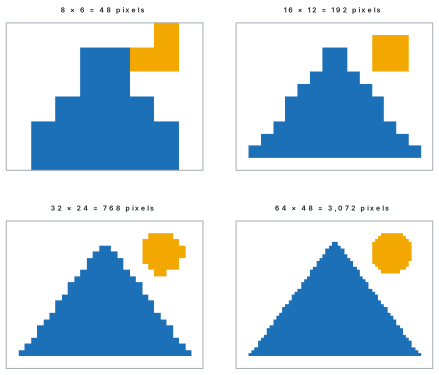
A raster graphic (also called a bitmap) is a picture made of a grid of tiny coloured squares called pixels. A pixel (short for picture element) is the smallest unit of a digital picture; each pixel holds exactly one colour. The resolution of a raster picture is its number of pixels, written as width × height, for example 1920 × 1080.
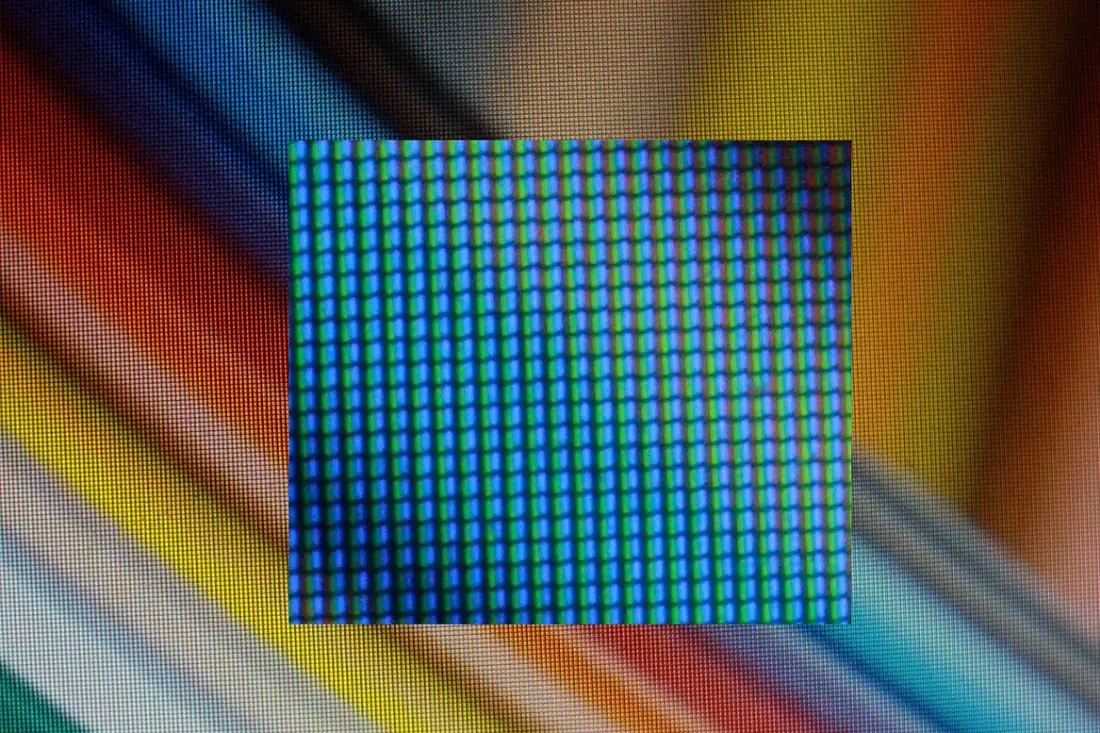
A photograph from a phone, a scanned certificate, a screenshot and a picture painted in Paint are all raster graphics. A screen is itself a grid of pixels: each one is made of three tiny lights, red, green and blue.
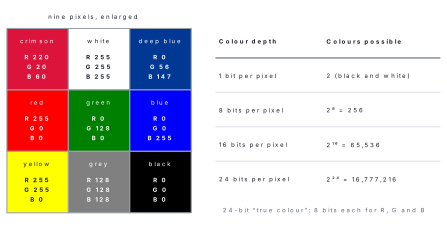
How a pixel stores its colour. Every colour on a screen is a mix of red, green and blue light (RGB). In ordinary pictures each of the three is a number from 0 (off) to 255 (full brightness). (255, 0, 0) is pure red, (255, 255, 255) is white and (0, 0, 0) is black. The crimson and deep blue of the national flag can be shown with mixes such as (220, 20, 60) and (0, 56, 147).
Colour depth (bit depth) is the number of bits used to store the colour of one pixel. With n bits a pixel can have 2^n different colours.
More pixels show more detail, but they also need more memory. The figure below shows one small drawing stored at four resolutions.
The memory an uncompressed raster picture needs follows directly from its pixels:
Problem. (a) A laptop screenshot is 1366 × 768 pixels in 24-bit colour. How many pixels does it have, and how much memory does it need without compression? (b) An old 640 × 480 picture uses 8-bit colour. How many colours can it show, and how many KB does it need? (Take 1 KB = 1024 bytes and 1 MB = 1024 KB.)
Solution. (a) Pixels = 1366 × 768 = 1,049,088 pixels. 24 bits = 3 bytes per pixel, so size = 1,049,088 × 3 = 3,147,264 bytes. In KB: 3,147,264 ÷ 1024 = 3,073.5 KB; in MB: 3,073.5 ÷ 1024 ≈ 3.0 MB.
(b) 8 bits give 2⁸ = 256 colours. Pixels = 640 × 480 = 307,200; at 1 byte per pixel the size is 307,200 bytes = 307,200 ÷ 1024 = 300 KB.
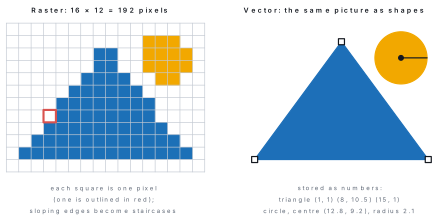
When a raster picture is enlarged too much, its pixels become visible as small blocks and its edges look like steps. This is called pixelation.
Vector graphics
A vector graphic stores a picture as a list of shapes — points, straight lines, curves, circles and filled areas — each described by numbers such as coordinates, sizes and colours. The computer redraws the shapes at whatever size is needed, so a vector picture stays smooth and sharp at any size.
Logos, icons, fonts, maps, diagrams, cartoons and engineering drawings are usually made as vector graphics. A school logo drawn as a vector looks equally sharp on an ID card and on a 6-metre banner, because the computer redraws the circle and the letters at the new size instead of stretching dots.
| Point | Raster (bitmap) graphics | Vector graphics |
|---|---|---|
| Made of | a grid of pixels | shapes described by numbers: points, lines, curves |
| When enlarged | becomes blurred or pixelated | stays smooth and sharp at any size |
| File size | depends on the number of pixels; photos give large files | depends on the number of shapes; usually small |
| Best for | photographs and realistic pictures with many shades | logos, icons, fonts, maps, diagrams, cartoons |
| Editing | pixel by pixel, or by selecting areas | shape by shape: move, resize or recolour one object |
| Software | Paint, GIMP, Adobe Photoshop | Inkscape, Adobe Illustrator, CorelDRAW |
| File formats | BMP, JPEG, PNG, GIF | SVG, AI, EPS, CDR (and PDF) |
Students often think that making a small photo "bigger" in Paint makes it clearer. It does not: the computer only spreads the same pixels over a larger area, so the picture becomes blocky or blurred. Detail can only come from a camera or scanner with more pixels. A vector picture is different, because its shapes are redrawn sharp at every size.
Problem. Say whether each should be made as a raster or a vector graphic, with a reason: (a) a photo of Phewa Lake; (b) the school logo for ID cards and a large banner; (c) a map of the seven provinces of Nepal that will be printed in many sizes; (d) a scanned copy of a citizenship certificate; (e) a set of app icons.
Solution. (a) Raster — a photograph has millions of slightly different colours, which only pixels can record. (b) Vector — it must stay sharp from small to very large sizes. (c) Vector — borders and labels are lines and text that must stay sharp when enlarged. (d) Raster — a scanner records the paper as pixels. (e) Vector — simple shapes that are shown at many sizes.
16.3 Graphics software: Paint, GIMP, Inkscape and Canva
Graphics software is application software used to create, edit, view and print pictures. Painting and photo-editing programs work on pixels (raster graphics); drawing or illustration programs work on shapes (vector graphics); online design tools give ready-made templates that anyone can change.
Paint
Microsoft Paint is a simple raster program that has come with Windows since 1985, so it is on almost every school computer. It has tools for freehand drawing, shapes, text, colours, selecting, cropping, resizing, rotating and flipping (section 16.4 explains them). It opens and saves BMP, JPEG, PNG, GIF and TIFF files; its usual choice is PNG. The Paint of Windows 11 can also work with layers, keep transparent backgrounds and remove the background of a photo with one click. Paint is ideal for beginners and quick jobs, but it has no filters or advanced photo tools.
GIMP
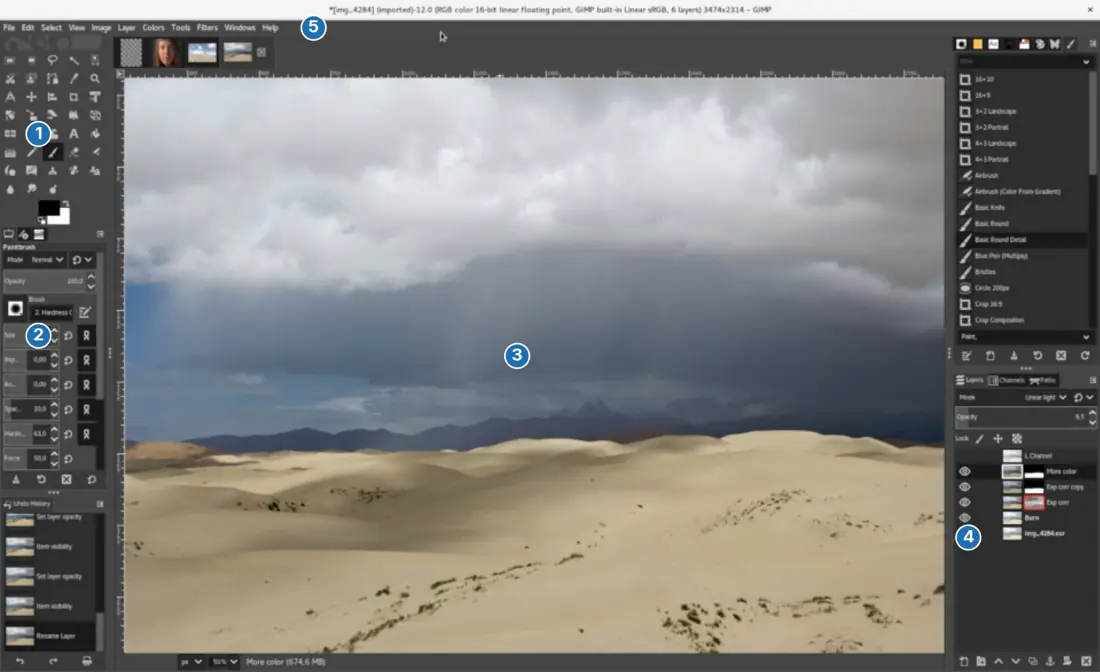
GIMP (GNU Image Manipulation Program) is a free and open-source raster editor for Windows, macOS and Linux, and a free alternative to Adobe Photoshop. It is used to retouch and correct photos, cut out objects, join pictures, add text and apply filters such as blur and sharpen. Its work is organised in layers. GIMP saves its own project format, XCF, which keeps the layers, and exports finished pictures as JPEG, PNG, GIF, TIFF and other formats. GIMP 3.0 was released in March 2025.
Inkscape
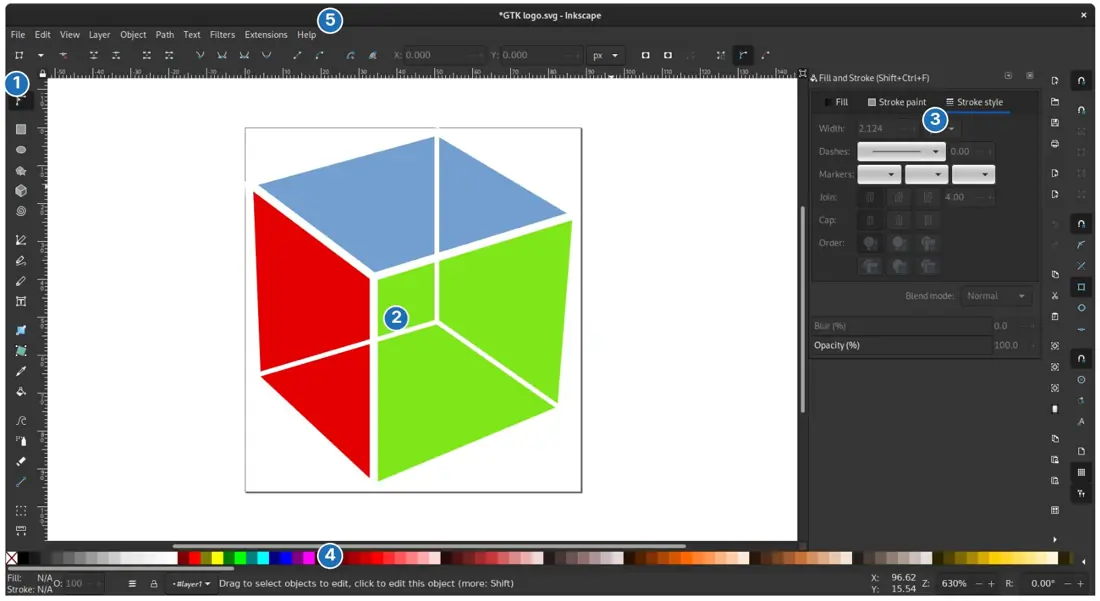
Inkscape is a free and open-source vector editor for Windows, macOS and Linux, a free alternative to Adobe Illustrator and CorelDRAW. Its native format is SVG (Scalable Vector Graphics). It has tools for rectangles, ellipses, stars and polygons, a pen tool for curves, text, gradients, and a node tool for moving the points of a shape. Finished work can be exported as PNG for the web or PDF for printing. It is the right program for logos, posters, badges, diagrams and maps.
Canva
Canva is an online design platform, used in a web browser or as a phone app, made by an Australian company that started in 2013. It offers thousands of ready-made templates for posters, greeting cards, certificates, social-media posts and presentations. You pick a template, then drag and drop your own photos, text, icons and shapes onto it. The basic plan is free and the Pro plan adds more templates and tools for a fee. Canva needs an Internet connection, and designs are kept online and downloaded as PNG, JPG, PDF or MP4.
| Point | Paint | GIMP | Inkscape | Canva |
|---|---|---|---|---|
| Type | raster | raster | vector | online design tool (templates) |
| Cost | free with Windows | free and open source | free and open source | free plan; Pro plan paid |
| Needs Internet | no | no | no | yes |
| Layers | in Windows 11 Paint | yes | yes | yes (arranged objects) |
| Own file format | PNG by default | XCF | SVG | saved online |
| Best for | simple drawings, quick edits | photo editing, cut-outs, effects | logos, posters, diagrams, maps | quick posters, cards and posts from templates |
| Paid programs of the same kind | — | Adobe Photoshop | Adobe Illustrator, CorelDRAW | Adobe Express |
Other programs you may meet are Pixlr (an online photo editor), Krita (free digital painting), Blender (free 3D modelling and animation) and AutoCAD (paid CAD drawings for engineers).
Ask what the picture is made of. A photograph to correct or crop: a raster editor (GIMP, or Paint for simple jobs). A logo or poster that must stay sharp at any size: a vector editor (Inkscape). A good-looking card in ten minutes with an Internet connection: Canva.
16.4 Drawing and editing a picture
Every Windows computer has Paint, so we learn the tools there; GIMP has the same tools with more options. Open Paint from the Start menu (type "Paint"). The window has a title bar with the file name, a File menu, a toolbar (the Home tab of older versions) with groups of tools, the white canvas you draw on, and a status bar at the bottom that shows the position of the pointer and the size of the canvas in pixels.
| Group | Tool | What it does |
|---|---|---|
| Image | Select (rectangle or free-form) | marks a part of the picture to move, copy, cut or delete |
| Crop (Ctrl+Shift+X) | keeps only the selected part and throws away the rest | |
| Resize and skew (Ctrl+W) | changes the size in per cent or pixels; skew slants the picture | |
| Rotate / Flip | turns the picture 90° or 180°, or makes a mirror image | |
| Tools | Pencil | draws thin freehand lines, like a sharp pencil |
| Fill with colour (bucket) | fills a closed area with the chosen colour | |
| Text (A) | adds words in a chosen font, size and colour | |
| Eraser | rubs out part of the picture | |
| Colour picker (dropper) | copies a colour from the picture so you can use it again | |
| Magnifier | zooms in for detail work and out again | |
| Brushes | Brushes | freehand strokes in styles such as calligraphy, airbrush and oil |
| Shapes | Shapes | line, curve, oval, rectangle, rounded rectangle, polygon, triangle, arrows, star, callout; with Outline and Fill choices |
| Size | Size | thickness of lines, brushes and the eraser |
| Colours | Colour 1 and Colour 2 | Colour 1 is used with the left mouse button, Colour 2 with the right |
| Edit colours | mixes any colour by giving its red, green and blue numbers |
Three habits make drawing easier. Hold Shift while drawing an oval or a rectangle to get a perfect circle or square, and while drawing a line to keep it straight across, straight down or at 45°. Press Ctrl+Z to undo a mistake and Ctrl+Y to redo it. Save often with Ctrl+S: File → Save as, choose the format (PNG, JPEG, BMP or GIF), type a name and click Save.
The Fill tool pours colour into the area under the pointer until it meets a line. If the outline of a mountain or a house has even a one-pixel gap, the colour "leaks" through it and floods the background. Use Ctrl+Z, zoom in with the Magnifier, close the gap with the Pencil, then fill again.
Problem. List the steps and the tools used to make a card showing green
hills, a kite in the sky and the words "Happy Dashain", and save it as
dashain.png.
Solution.
1. Open Paint. Set the canvas to 1200 × 800 pixels with Image properties
(Ctrl+E).
2. Fill with colour the canvas light blue for the sky.
3. Draw the hills with the Curve shape, from the left edge of the canvas to
the right edge, so that the area below the curve is closed; Fill it with
green.
4. Draw the kite with the Diamond shape, fill it red, and add its string
with the Curve tool.
5. Choose the Text tool, click on the sky, pick a large font and colour and
type "Happy Dashain".
6. Check the details with the Magnifier; correct mistakes with Ctrl+Z
or the Eraser.
7. File → Save as → PNG picture, type dashain, click Save.
Editing a photograph
Editing usually means cropping away what is not needed, resizing for the web or an e-mail, rotating a sideways photo, and correcting brightness and contrast. Paint can crop, resize, rotate and flip; GIMP can also correct colours (Colors → Brightness-Contrast), sharpen or blur (Filters), and remove small spots with the healing tool.
A layer is like a clear plastic sheet laid over a picture. Each part of the picture — the background photo, a cut-out, the text — can be put on its own layer, so it can be moved, changed, hidden or deleted without disturbing the others. GIMP, Inkscape and Windows 11 Paint all use layers.
- In Paint, draw the greeting card of Worked example 16.3.
- Save it twice: as
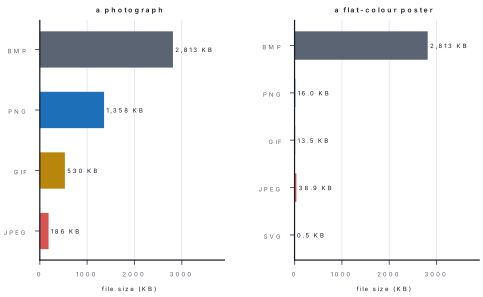
card.pngand ascard.jpg. Right-click each file in File Explorer, choose Properties and write down the two sizes. - Open a phone photograph in Paint and save it as PNG and as JPEG too. Compare the four sizes with the bar chart in section 16.5. Which format won for the drawing, and which for the photograph?
- Zoom the photograph with the Magnifier to 800% until you see its pixels.
16.5 Image file formats: BMP, JPEG, PNG, GIF and SVG
An image file format is the way the data of a picture is arranged inside a file; the extension after the dot (.jpg, .png) shows it. Compression makes a file smaller. Lossless compression keeps every pixel exactly; lossy compression throws away small details that the eye hardly notices, so the file becomes much smaller but can never be returned to the original.
| Format | Full form | Type | Compression | Colours | Transparency | Animation | Best for |
|---|---|---|---|---|---|---|---|
| BMP | Bitmap (Windows bitmap) | raster | none: very large files | up to 16.7 million | no | no | simple Windows programs |
| JPEG (JPG) | Joint Photographic Experts Group | raster | lossy | 16.7 million | no | no | photographs |
| PNG | Portable Network Graphics | raster | lossless | 16.7 million | yes | no | logos, screenshots, diagrams, pictures with text |
| GIF | Graphics Interchange Format | raster | lossless, but only 256 colours | 256 | yes (on or off only) | yes | short animations, stickers, simple icons |
| SVG | Scalable Vector Graphics | vector | stored as text instructions, no pixels | any | yes | yes, on web pages | logos, icons, maps on websites |
BMP stores the colour of every pixel one after another, so a 24-bit 1200 × 800 picture needs 2,813 KB whatever it shows. JPEG is the format of almost every camera and phone photo: it shrinks photographs ten to twenty times. PNG is lossless, keeps sharp edges and text crisp, and can have a transparent background, so a logo can sit on any colour. GIF (introduced in 1987) can only hold 256 colours but can store several pictures in one file and play them as an animation. SVG is a text file of shapes, an open standard of the World Wide Web Consortium (W3C); web browsers draw it directly.
Other formats you will see: WebP (a modern web format, smaller than JPEG and PNG), TIFF (high-quality scans and printing), HEIC (photos on iPhones), PDF (documents and posters, may contain both pixels and shapes), and the project formats XCF (GIMP), PSD (Photoshop) and AI (Illustrator).
GIF compression is lossless; a photo saved as GIF looks worse only because its millions of colours are cut down to 256. And JPG and JPEG are the same format: old versions of Windows allowed only three letters after the dot. One real loss to remember: every time a JPEG is edited and saved again, it is compressed again and loses a little more detail, so keep the original.
Problem. Choose a format for each job and give a reason: (a) photos of the school sports day for the school's Facebook page; (b) the school logo with a transparent background for the website; (c) a small moving "Happy Tihar" sticker; (d) a logo that a printing press will enlarge for a banner; (e) a screenshot of a program, with small text, for a lab manual.
Solution. (a) JPEG — photographs compress best with lossy compression and load quickly. (b) PNG — lossless and supports transparency. (c) GIF — it can store a short animation. (d) SVG — a vector stays sharp at any size. (e) PNG — lossless, so the small letters stay crisp; JPEG would blur them.
Objective questions ask the full forms. Learn them with one more fact each: BMP — Bitmap, uncompressed; JPEG — Joint Photographic Experts Group, lossy, photos; PNG — Portable Network Graphics, lossless, transparency; GIF — Graphics Interchange Format, 256 colours, animation; SVG — Scalable Vector Graphics, vector.
Chapter summary
- Computer graphics are pictures, drawings, charts and animations made, stored, edited and shown by computer; they may be 2D or 3D, interactive or non-interactive. Uses: design, advertising, entertainment, education, CAD, maps, medicine, charts and the GUI.
- Raster (bitmap) graphics are grids of pixels; resolution is width × height in pixels; colour depth n bits gives 2^n colours (24-bit = 16,777,216). Uncompressed size = width × height × bits ÷ 8 bytes.
- Each pixel's colour is a mix of red, green and blue, each 0–255.
- Vector graphics store shapes as numbers and stay sharp at any size; raster pictures pixelate when enlarged.
- Paint (raster, with Windows), GIMP (free raster editor, XCF, layers), Inkscape (free vector editor, SVG) and Canva (online templates, free and Pro plans).
- Paint tools: select, crop, resize and skew, rotate/flip, pencil, fill, text, eraser, colour picker, magnifier, brushes, shapes, size, Colour 1 and 2.
- BMP uncompressed; JPEG lossy, photos; PNG lossless, transparency; GIF 256 colours, animation; SVG vector.
Practice questions
Group A — Objective (1 mark each)
- The smallest unit of a raster picture is a [1]abitbpixelcvectordlayer
- Which of these is a vector graphics program? [1]aPaintbGIMPcInkscapedPixlr
- The full form of PNG is [1]aPortable Network GraphicsbPicture Network GroupcPortable New GraphicsdPrinted Network Graphics
- Which format can store a short animation? [1]aBMPbJPEGcGIFdTIFF
- A photograph from a phone camera is usually saved as [1]aSVGbJPEGcGIFdXCF
- A picture that stays sharp however much it is enlarged is a [1]araster graphicbbitmapcvector graphicdscanned image
- With 24-bit colour a pixel can show [1]a256 coloursb65,536 coloursc16,777,216 coloursd24 colours
- In Paint, the tool that fills a closed area with colour is [1]aPencilbFill with colourcColour pickerdMagnifier
- Which format normally stores a picture without any compression? [1]aBMPbJPEGcPNGdGIF
- A resolution of 1920 × 1080 means [1]a1920 coloursb1920 pixels across and 1080 pixels downc1920 KBd1080 dots per inch
- JPEG makes photographs small by using [1]alossless compressionblossy compressioncvector shapesdonly 256 colours
- An online design tool with ready-made templates for posters and cards is [1]aCanvabInkscapecBMPdWindows
- Which is an example of interactive graphics? [1]aa printed posterba video gameca TV advertisementda newspaper photo
Answers to Group A
1. (b) — a pixel (picture element) is the smallest unit of a digital picture.
2. (c) — Inkscape edits shapes; Paint, GIMP and Pixlr edit pixels.
3. (a) — Portable Network Graphics.
4. (c) — GIF can hold several frames and play them in turn.
5. (b) — JPEG's lossy compression suits photographs.
6. (c) — vector shapes are redrawn at every size.
7. (c) — 2^{24} = 16,777,216.
8. (b) — the bucket fills the area under the pointer up to its outline.
9. (a) — BMP stores every pixel one after another.
10. (b) — resolution is width × height in pixels.
11. (b) — JPEG throws away detail the eye hardly notices.
12. (a) — Canva works online with templates.
13. (b) — the player controls what the picture does.
Group B — Short answer (2 marks each)
- Define computer graphics. Write any two of its uses. [2]
- What is a pixel? What does a screen resolution of 1366 × 768 mean? [2]
- Write any two differences between raster and vector graphics. [2]
- Write the full forms of BMP, JPEG, GIF and SVG. [2]
- Name two free graphics programs and say whether each one is a raster or a vector program. [2]
- What are the uses of the Fill with colour tool and the Colour picker tool in Paint? [2]
- Differentiate between lossy and lossless compression, with one format of each. [2]
- Find the size in KB of an uncompressed 800 × 600 picture in 24-bit colour (1 KB = 1024 bytes). [2]
- What is a layer in GIMP? Give one advantage of using layers. [2]
- What is colour depth? How many colours can an 8-bit picture show? [2]
Answers to Group B
1. Computer graphics are pictures, drawings, charts and animations created, stored, edited and displayed with a computer. Uses (any two): advertising banners; animated films and games; CAD drawings of buildings; digital maps; X-ray and CT images in hospitals; diagrams in e-learning lessons.
2. A pixel (picture element) is the smallest unit of a digital picture, holding one colour. A resolution of 1366 × 768 means the screen has 1366 pixels across and 768 pixels down, 1,049,088 pixels in all.
3. Raster graphics are made of pixels, while vector graphics are made of shapes described by numbers. A raster picture blurs or pixelates when enlarged, while a vector picture stays sharp at any size. (Also: raster suits photographs, vector suits logos and diagrams.)
4. BMP — Bitmap; JPEG — Joint Photographic Experts Group; GIF — Graphics Interchange Format; SVG — Scalable Vector Graphics.
5. GIMP — a raster (photo-editing) program; Inkscape — a vector (drawing) program. (Paint, which comes free with Windows, is also raster.)
6. Fill with colour pours the chosen colour into a closed area, such as the inside of a circle. The Colour picker copies a colour from the picture and makes it the current colour, so the same shade can be used again.
7. Lossless compression makes a file smaller while keeping every pixel exactly, e.g. PNG (or GIF). Lossy compression throws away small details to make the file much smaller, and the original cannot be got back, e.g. JPEG.
8. Pixels = 800 × 600 = 480,000. 24 bits = 3 bytes, so size = 480,000 × 3 = 1,440,000 bytes = 1,440,000 ÷ 1024 = 1,406.25 KB (about 1.37 MB).
9. A layer is like a transparent sheet laid over a picture; each part of the picture can be on its own layer. Advantage: one part, such as the text, can be moved, changed or hidden without disturbing the rest of the picture.
10. Colour depth is the number of bits used to store the colour of one pixel. An 8-bit picture can show 2^8 = 256 colours.
Group C — Long answer (4 marks each)
- What are raster and vector graphics? Explain each with two examples and write any four differences between them. [4]
- Describe the image formats BMP, JPEG, PNG, GIF and SVG: give the type, the kind of compression and one use of each. [4]
- Write the steps to draw a greeting card in Paint using shapes, colours and text, and to save it as a PNG file. Name the tools you use. [4]
- Compare Paint, GIMP, Inkscape and Canva in a table: type, cost, need for the Internet and best use. [4]
- A camera takes photos of 4000 × 3000 pixels in 24-bit colour.(a) How many pixels does a photo have?(b) What is its uncompressed size in MB?(c) Saved as JPEG it is 3.5 MB; how many times smaller is that?(d) How many such JPEG photos fit on a 16 GB memory card? (1 KB = 1024 bytes, 1 MB = 1024 KB, 1 GB = 1024 MB) [1+1+1+1]
Answers to Group C
1. Raster graphics are pictures made of a grid of pixels, each holding one colour; examples: a phone photograph, a scanned certificate. Vector graphics store pictures as shapes — points, lines, curves and filled areas — described by numbers; examples: a school logo, a map of Nepal's provinces. Differences (any four): (1) raster is made of pixels, vector of shapes; (2) raster pixelates when enlarged, vector stays sharp; (3) raster files of photos are large, vector files are usually small; (4) raster suits photographs, vector suits logos, icons and diagrams; (5) raster is edited in Paint or GIMP, vector in Inkscape or Illustrator; (6) raster formats are BMP, JPEG, PNG, GIF, vector formats SVG, AI, EPS.
2. BMP (Bitmap): raster, uncompressed, very large files; used by simple Windows programs. JPEG (Joint Photographic Experts Group): raster, lossy compression, 16.7 million colours, no transparency; used for photographs. PNG (Portable Network Graphics): raster, lossless, supports transparency; used for logos, screenshots and diagrams. GIF (Graphics Interchange Format): raster, lossless but only 256 colours, supports animation; used for stickers and short animations. SVG (Scalable Vector Graphics): vector, stored as text instructions, sharp at any size; used for logos, icons and maps on websites.
3. (1) Open Paint from the Start menu and set the canvas size with Image properties (Ctrl+E). (2) Fill the background with the Fill with colour tool. (3) Draw hills, a kite or a house with the Shapes tools (curve, polygon, oval, rectangle), choosing Size and Colour 1; hold Shift for a perfect circle or square. (4) Fill each closed shape with colour. (5) Add the greeting with the Text tool, choosing font, size and colour. (6) Correct mistakes with Ctrl+Z or the Eraser, using the Magnifier for detail. (7) Save: File → Save as → PNG picture → type the name → Save.
4.
| Point | Paint | GIMP | Inkscape | Canva |
|---|---|---|---|---|
| Type | raster | raster | vector | online templates |
| Cost | free with Windows | free, open source | free, open source | free plan, paid Pro |
| Internet | not needed | not needed | not needed | needed |
| Best use | simple drawings and quick edits | photo editing and effects | logos, posters, diagrams | quick cards, posters and posts |
5. (a) 4000 × 3000 = 12,000,000 pixels (12 megapixels). (b) 12,000,000 × 3 bytes = 36,000,000 bytes; ÷ 1024 ÷ 1024 ≈ 34.3 MB. (c) 34.3 ÷ 3.5 ≈ 9.8 times smaller — the effect of lossy compression. (d) 16 GB = 16 × 1024 = 16,384 MB; 16,384 ÷ 3.5 = 4,681.1, so 4,681 photos.
Practise more: Computer Science question bank