Unit 5 · Computer Fundamentals · 26 min read
Computer Software
What the syllabus asks for 5
- Software: meaning and importance; how hardware and software work together
- System software: operating system, device drivers, utility programs and language processors
- Application software: packaged and tailor-made software
- Software licences: proprietary, freeware, shareware and open-source software
- Installing, updating and removing software safely
A brand-new laptop with no software is a box of metal, plastic and glass: it cannot even show a picture on its screen. Everything a computer does — starting up, showing a desktop, printing an essay, playing a song, paying a bill — is done by software. This lesson explains what software is and why it matters, the two big families of software (system and application), the licences that decide whether you may copy or change a program, and how to install, update and remove software safely.
Expect definitions with examples: software, system software, application software, operating system, device driver, utility program, language processor. The commonest differences asked are system vs application software, compiler vs interpreter, packaged vs tailor-made software and open-source vs proprietary software; freeware and shareware come as short notes. Newer papers also ask how to install or uninstall a program safely, step by step. Learn two named examples for every type.
5.1 Software: meaning and importance; how hardware and software work together
Software is a set of programs, together with the data and instructions they need, that tells the computer's hardware what to do and how to do it. A program is one set of step-by-step instructions written in a programming language.
Software cannot be touched, but without it hardware cannot do anything.
Importance of software
- It makes hardware work: it switches devices on, reads the keyboard, shows pictures on the screen and sends pages to the printer.
- It lets people use the computer without knowing electronics, through icons, menus and touch.
- It makes one computer versatile: install a new program and the same machine becomes a typewriter, a cinema, a calculator or a classroom.
- It solves real problems in every field — results in schools, accounts in banks, records in hospitals, tickets in airlines.
- Updates to software fix mistakes, close security holes and add features without changing the hardware.
How hardware and software work together
Software is arranged in layers. You talk to an application; the application asks the operating system; the operating system uses a device driver; the driver controls the hardware.
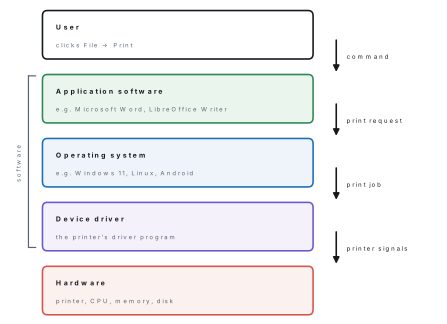
Even switching on a computer uses the layers. A small program stored permanently in a chip on the motherboard — the firmware, called BIOS or UEFI — checks the hardware and loads the operating system from the disk into RAM. The operating system then loads the device drivers, shows the desktop and waits for you to open an application. This start-up process is called booting.
Problem. Rina types a letter in LibreOffice Writer and clicks Print. Describe what each layer of software and hardware does until the page comes out.
Solution. (1) User: Rina gives the command File → Print and chooses the printer and number of copies. (2) Application software (Writer): prepares the pages and passes them to the operating system as a print request. (3) Operating system (Windows or Linux): puts the job in the print queue and sends it to the right printer's driver. (4) Device driver: translates the pages into the exact commands and dots that this model of printer understands. (5) Hardware (printer): receives the signals and prints the letter.
5.2 System software: operating system, device drivers, utility programs and language processors
System software is the group of programs that controls and manages the computer's hardware and provides a base on which application software runs. It starts working when the computer is switched on and keeps running until it is shut down.

1. Operating system
The operating system (OS) is the most important system software. It controls all the hardware, manages memory and files, runs other programs and gives the user a way to work with the computer. Examples: Windows 11, macOS, Linux (Ubuntu, Fedora), Android and iOS. Lesson 6 is about operating systems.
2. Device drivers
A device driver is a small program that lets the operating system communicate with and control one particular hardware device, such as a printer, scanner, graphics card, sound card, webcam or Wi-Fi adapter.
Every device has its own driver, written by its maker. Most common drivers come with the operating system, so a mouse or pen drive works as soon as it is plugged in (plug and play). For other devices — many printers, scanners and graphics cards — the driver must be installed from the maker's website or from the disc in the box, or the device will not work. In Windows, Device Manager (right-click the Start button → Device Manager) lists every device; a yellow warning sign beside a device means its driver is missing or not working.
3. Utility programs
A utility program (utility software) is system software that performs a specific task of maintaining, protecting or improving the computer and its data.
| Utility | What it does | Examples |
|---|---|---|
| Antivirus | finds and removes viruses and other malware | Microsoft Defender (Windows Security), Avast, Kaspersky |
| Backup | copies files so they can be restored after a loss | File History, OneDrive or Google Drive backup |
| File compression | makes files smaller, packs many into one ZIP file | 7-Zip, WinRAR, Windows' built-in ZIP |
| Disk cleanup | deletes temporary and unwanted files to free space | Disk Cleanup, Storage Sense, BleachBit |
| Disk defragmenter | rearranges the pieces of files on a hard disk so they are read faster | Defragment and Optimize Drives |
| System monitor | shows running programs and how busy the CPU and memory are | Task Manager (Ctrl + Shift + Esc) |
4. Language processors
Computers understand only machine language — instructions written in 0s and 1s. People write programs in easier languages such as Python, C or QBASIC. A language processor (translator) converts them.
A language processor is system software that translates a program written in assembly language or a high-level language (the source program) into machine language (the object program) that the computer can carry out. There are three types: assembler, compiler and interpreter.
- An assembler translates a program written in assembly language
(short codes such as
ADDandMOV) into machine language. - A compiler translates the whole high-level program into machine language at once, producing a separate program file that can then be run again and again without translating. C and C++ use compilers.
- An interpreter translates and runs a high-level program one line at a time, and stops at the first line with an error. Python and QBASIC use interpreters.
| Compiler | Interpreter |
|---|---|
| translates the whole program at once | translates and runs one line at a time |
| lists all the errors after translating | stops at the first error it meets |
makes a separate machine-language file (e.g. an .exe) |
makes no separate file; needs the source every time |
| the finished program runs fast | runs more slowly, as each line is translated each time |
| e.g. C, C++ compilers | e.g. Python, QBASIC interpreters |
Problem. A 100-line program has a mistake on line 40. What happens if it is translated by (a) a compiler, (b) an interpreter?
Solution. (a) The compiler reads all 100 lines first and reports the error on line 40 (and any other errors) in a list. No part of the program runs until every error is corrected and the program is compiled again. (b) The interpreter runs lines 1 to 39, so their output appears on the screen, and then stops at line 40 with an error message. After the mistake is corrected, it runs again from line 1.
5.3 Application software: packaged and tailor-made software
Application software is software designed to help the user do a particular task, such as writing a letter, calculating marks, making a presentation, browsing the web, editing photos or playing games. It runs on top of the operating system.
Packaged software
Packaged software (general-purpose or ready-made software) is made by a software company for a very large number of users with similar needs and is sold or given away as a finished product. You can buy, download and use it straight away.
| Kind of work | Examples of packaged software |
|---|---|
| Word processing | Microsoft Word, LibreOffice Writer, Google Docs |
| Spreadsheet | Microsoft Excel, LibreOffice Calc, Google Sheets |
| Presentation | Microsoft PowerPoint, LibreOffice Impress, Canva |
| Web browsing | Google Chrome, Mozilla Firefox, Microsoft Edge |
| Graphics and photo editing | Adobe Photoshop, GIMP, Canva |
| Audio and video | VLC media player, Audacity |
| Communication | Zoom, Viber, WhatsApp, Microsoft Teams |
| Accounting | Tally Prime |
A set of related packaged programs sold together is a suite, for example Microsoft 365 (Word, Excel, PowerPoint, Outlook) and LibreOffice (Writer, Calc, Impress, Draw, Base).
Tailor-made software
Tailor-made software (customized or bespoke software) is developed for one particular organization or person, to fit their own way of working exactly, just as a tailor stitches a suit to one person's measurements.
Examples: the school management system of a particular school (students' records, fees, attendance and report cards in its own format); a hospital management system; the core banking system of a bank; the result processing software of an examination board; the billing system of a water or electricity office; and government apps such as the Nagarik App, built for the Government of Nepal.
| Packaged software | Tailor-made software |
|---|---|
| made for many users with common needs | made for one organization's own needs |
| ready to use immediately | takes time to design, write and test |
| cheaper, because its cost is shared by many buyers | costly, because one client pays for it all |
| may have features you never use and lack some you need | has exactly the features the client asked for |
| updated by the maker for everyone | changed only when the client asks |
| e.g. MS Word, Excel, VLC | e.g. a school's result system, a bank's core system |
Today much application software comes as mobile apps (installed on Android or iOS phones) or web applications, which run inside a browser without installing anything — for example Gmail and Google Docs.
Problem. Classify each as system software (state the type) or application software (packaged or tailor-made): (a) Windows 11; (b) the driver for an Epson printer; (c) Microsoft Excel; (d) the Python interpreter; (e) a program written for Shree Janata School to print report cards in its own format; (f) Microsoft Defender; (g) VLC media player; (h) 7-Zip.
Solution. (a) System — operating system. (b) System — device driver. (c) Application — packaged. (d) System — language processor (interpreter). (e) Application — tailor-made. (f) System — utility (antivirus). (g) Application — packaged. (h) System — utility (file compression).
| System software | Application software |
|---|---|
| controls and manages the hardware | helps the user do a particular task |
| starts when the computer starts and runs until shut-down | runs only when the user opens it |
| needed for the computer to work at all | the computer works without it, but does nothing useful for you |
| installed with the computer (mostly with the operating system) | installed by the user as needed |
| the user rarely works with it directly | the user works with it directly |
| e.g. Windows, Android, drivers, antivirus, compiler | e.g. Word, Chrome, games, a school's result software |
5.4 Software licences: proprietary, freeware, shareware and open-source software
When you install software you are not buying the program itself, only the right to use it under certain conditions. Those conditions are its licence.
A software licence is a legal agreement between the owner of a program and its user that states how the software may be used, copied, shared or changed. The text you must accept during installation is called the End-User Licence Agreement (EULA).
Proprietary software (commercial or closed-source software) is owned by a company that keeps its source code secret. You must buy a licence to use it, and you may not copy, share or change it. Examples: Microsoft Windows, Microsoft 365 (Office), Adobe Photoshop, macOS, Tally Prime, AutoCAD.
Freeware is software that can be used free of cost for as long as you like, but the owner keeps the copyright and the source code is closed: you may not change it or sell it. Examples: Google Chrome, Zoom (basic plan), Adobe Acrobat Reader, WhatsApp, Viber.
Shareware is software you may try free for a limited time or with some features locked, and then must pay for to keep using fully ("try before you buy"). Examples: WinRAR (40-day trial), Internet Download Manager (30-day trial), WinZip.
Open-source software is software whose source code is open for anyone to read, use, change and share, under a licence such as the GNU GPL. It is usually free of cost and is improved by programmers all over the world. Examples: Linux (Ubuntu, Fedora), LibreOffice, Mozilla Firefox, VLC media player, GIMP, Audacity, Python, Moodle and the core of Android.
| Licence type | Cost | Can use freely? | Can see source code? | Can change and share? | Examples |
|---|---|---|---|---|---|
| Proprietary | must buy | only with a paid licence | no | no | Windows, MS Office, Photoshop |
| Shareware | free trial, then pay | only during the trial | no | no | WinRAR, IDM, WinZip |
| Freeware | free | yes | no | no | Chrome, Zoom, Acrobat Reader |
| Open source | usually free | yes | yes | yes, under its licence | Linux, LibreOffice, Firefox, VLC |
Both may cost nothing, but freeware keeps its source code secret and may not be changed, while open-source code is public and may be changed and shared. Google Chrome is freeware; Mozilla Firefox is open source. Also, "free to download" does not make a paid program free: a cracked copy of Windows or Photoshop from a random website is pirated — illegal under Nepal's Copyright Act, 2059, which protects computer programs and can punish a first offence with a fine of up to one lakh rupees, up to six months in jail, or both — and it very often hides a virus.
Problem. A school lab has 30 computers. Suppose a proprietary office suite costs Rs 9,500 per computer. (a) What will licences for the whole lab cost? (b) What would LibreOffice cost? (c) Give one advantage of each choice.
Solution. (a) 30 × Rs 9,500 = Rs 2,85,000. (b) LibreOffice is open source, so it costs Rs 0 for any number of computers, and it may be copied legally. (c) The proprietary suite is the one most offices use and comes with the maker's support; LibreOffice saves the whole cost, can be installed on students' home computers too, and still opens and saves Word, Excel and PowerPoint files.
5.5 Installing, updating and removing software safely
Installing means copying a program onto the computer and setting it up so that it runs. Updating replaces it with a newer version. Uninstalling removes it completely.
Before you install
- Check the system requirements — the operating system version, RAM and free disk space the program needs — against your computer.
- Download only from the official source: the Microsoft Store, Google Play, Apple's App Store, a Linux software centre, or the maker's own website.
- Never install cracked or pirated software or apps from unknown links; they are illegal and are the commonest way viruses get in.
- You may need an administrator password to install programs.
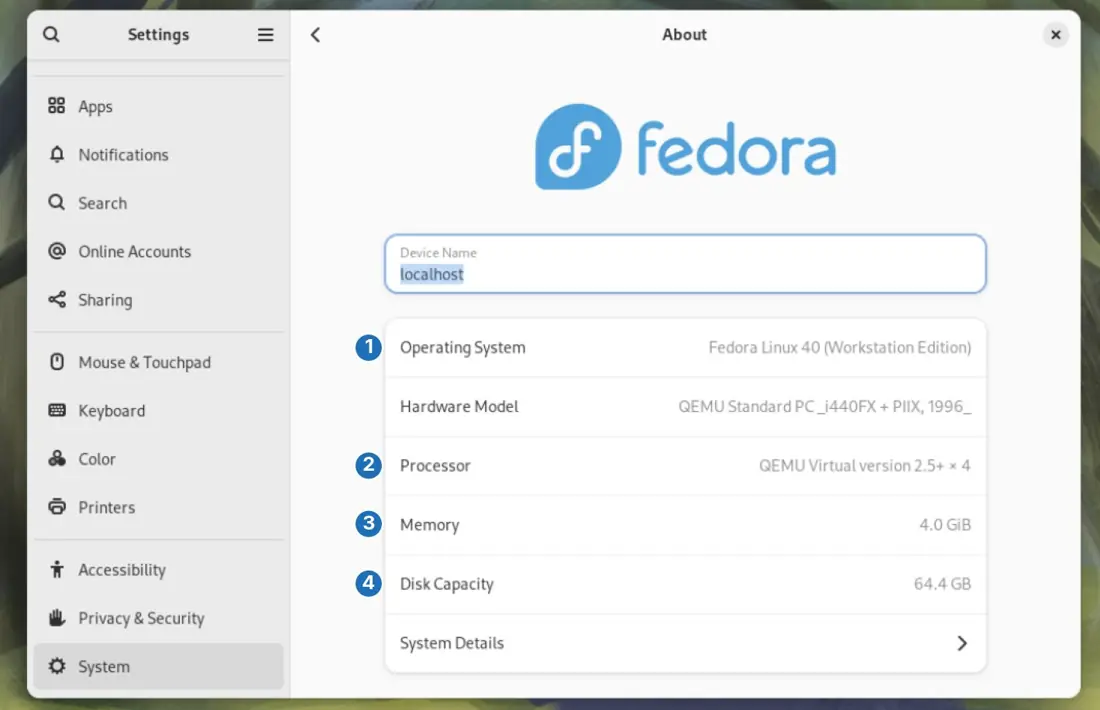
Installing a program on Windows 11
- Open the Microsoft Store, search for the program and click Get (or Install). The Store installs it for you.
- Or download the installer (a
.exeor.msifile) from the maker's official website and double-click it. - Windows asks, "Do you want to allow this app to make changes to your device?" Check that the publisher's name is the real maker, then click Yes.
- Read the licence agreement and accept it.
- Choose Custom setup where offered and untick extra programs, toolbars or offers you did not ask for.
- Click Install, wait, then Finish. The program appears in the Start menu.
On an Android phone, open Google Play, search, check the developer's name, ratings and the permissions the app asks for, and tap Install. Do not install APK files from unknown sources.
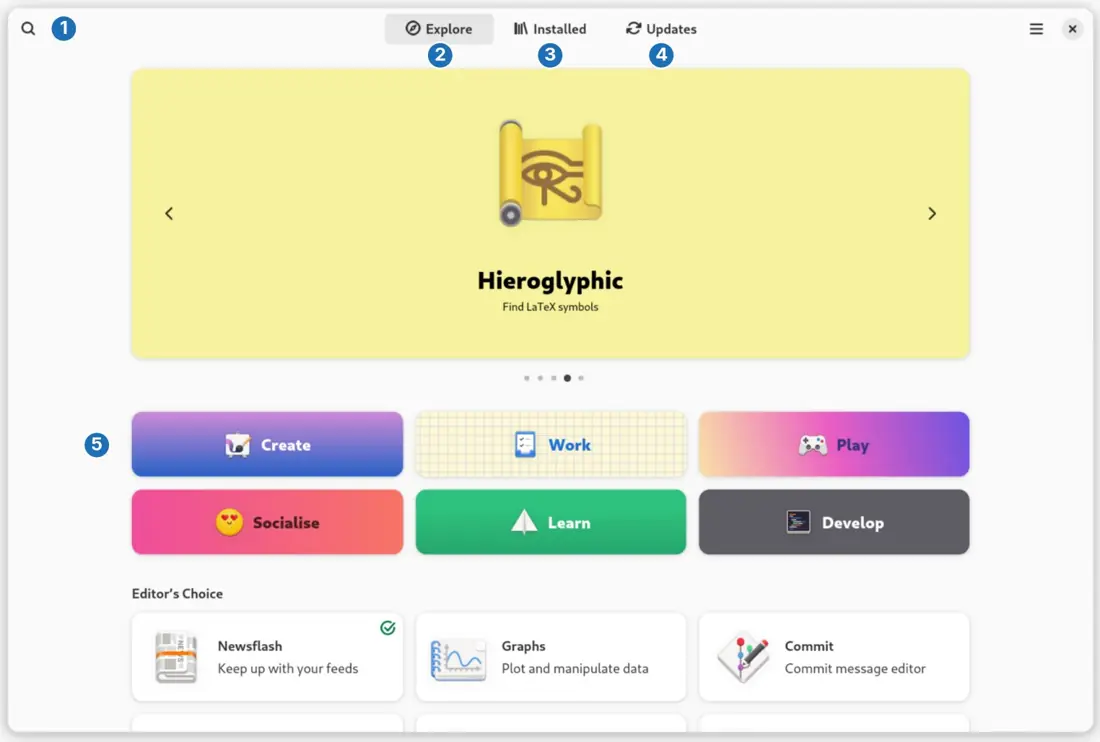
Updating
Updates fix bugs, close security holes that attackers use, and add new features. Keep automatic updates switched on.
- Windows: Settings → Windows Update → Check for updates.
- Microsoft Store apps: open the Store → Downloads at the bottom left (called Library in older versions) → Check for updates.
- Android apps: Google Play → tap your profile picture → Manage apps & device → Update all.
- Update device drivers from Windows Update or the maker's website.
Software that no longer receives security updates is unsafe to use online. Microsoft stopped ordinary support for Windows 10 on 14 October 2025, so computers that still run it should be moved to a supported system.
Removing (uninstalling)
- Windows 11: Settings → Apps → Installed apps → click the three dots (⋯) beside the program → Uninstall → confirm. (Control Panel → Programs and Features also works.)
- Android: touch and hold the app's icon → App info → Uninstall.
- Linux: in the software centre, open Installed and click Uninstall.
Deleting a program's icon from the desktop removes only the shortcut; the program stays on the disk. Deleting the program's folder by hand is also wrong: it leaves settings and files behind and can stop other programs from working. Always use the Uninstall command.
Problem. Bikash's laptop has 20 GB of free disk space. He wants to install a video editor that needs 6 GB and a game that needs 18 GB. (a) Can he install both? (b) If not, how much space must he free, and how could he do it?
Solution. (a) Space needed = 6 + 18 = 24 GB, but only 20 GB is free, so no. (b) He must free at least 24 − 20 = 4 GB — in practice a few GB more, because programs need room for updates and temporary files. He can uninstall programs he no longer uses (Settings → Apps → Installed apps), run Disk Cleanup, empty the Recycle Bin, and move old videos to a pen drive or cloud storage.
Make a table of ten programs on your school computer or a phone at home. For each, write: name, maker, system or application (and its type), licence type (proprietary, freeware, shareware or open source) and where it came from. Then open the update settings (Windows Update, or Google Play → Manage apps & device) and note how many updates are waiting. Discuss in class: which of the programs could the school replace with an open-source one?
For "differentiate between compiler and interpreter" (or any pair), write two or three matching pairs of points and one example of each. For "write a short note on utility software", give the definition, three jobs it does and three named examples.
Chapter summary
- Software is a set of programs that tells the hardware what to do; it makes the computer usable, versatile and useful. It works in layers: user → application → operating system → device driver → hardware.
- System software manages the computer: the operating system, device drivers (one for each device), utility programs (antivirus, backup, compression, disk cleanup) and language processors.
- Assembler: assembly → machine code. Compiler: whole program at once, separate file, fast. Interpreter: line by line, stops at the first error.
- Application software does the user's tasks: packaged (ready-made for many users — Word, Chrome, VLC) or tailor-made (built for one organization — a school's result system).
- Licences: proprietary (buy; code secret), freeware (free; code secret), shareware (free trial, then pay), open source (free; code open to change and share). Piracy is illegal.
- Install only from official sources, check requirements, keep software updated, and remove programs with Uninstall, not by deleting icons.
Practice questions
Group A — Objective (1 mark each)
- A set of programs that tells the hardware what to do is called [1]ahardwarebsoftwarecfirmware onlyddata
- Which of these is system software? [1]aMicrosoft WordbWindows 11cVLC media playerda game
- A program that lets the operating system control a printer is a [1]acompilerbdevice drivercutilitydspreadsheet
- Which is a utility program? [1]aantivirusbPowerPointcChromedTally
- A translator that runs a program one line at a time is [1]aa compilerban assemblercan interpreterda driver
- Assembly language is translated into machine language by [1]aan assemblerban interpreterca browserdan operating system
- Software made for one particular organization is [1]apackaged softwarebtailor-made softwarecfreewaredshareware
- Software that can be used free for 30 days and must then be bought is [1]afreewarebopen sourcecsharewaredproprietary only
- Which of these is open-source software? [1]aMicrosoft OfficebLibreOfficecAdobe PhotoshopdWinRAR
- Google Chrome is an example of [1]afreewarebsharewarecopen-source softwaredtailor-made software
- The safe way to remove a program from Windows 11 is [1]adelete its desktop iconbdelete its foldercSettings → Apps → Installed apps → Uninstalldempty the Recycle Bin
- Using a cracked copy of a paid program is called [1]aupdatingbsoftware piracycopen sourcingdcompiling
Answers to Group A
1. (b) — software tells the hardware what to do.
2. (b) — the operating system is system software.
3. (b) — each device needs its own driver.
4. (a) — antivirus protects the computer; the others are applications.
5. (c) — an interpreter works line by line.
6. (a) — the assembler handles assembly language.
7. (b) — tailor-made (customized) software.
8. (c) — shareware: try, then buy.
9. (b) — its source code is open.
10. (a) — free to use but its code is closed.
11. (c) — always use the Uninstall command.
12. (b) — piracy is illegal under the Copyright Act.
Group B — Short answer (2 marks each)
- What is software? Write two reasons why it is important. [2]
- Differentiate between system software and application software. [2]
- What is a device driver? Why is it needed? [2]
- What is a utility program? Name any three. [2]
- Differentiate between a compiler and an interpreter in two points. [2]
- Differentiate between packaged and tailor-made software, with one example of each. [2]
- What is open-source software? Give two examples. [2]
- Differentiate between freeware and shareware. [2]
- Write the steps to uninstall a program in Windows 11. [2]
- Why should software be updated regularly? Give two reasons. [2]
Answers to Group B
1. Software is a set of programs that tells the computer's hardware what to do. It is important because hardware cannot work without it, and because it makes the computer versatile — the same machine does many tasks by running different software. (Also: lets people use the computer easily; solves problems in every field.)
2. System software controls and manages the hardware and runs whenever the computer is on (e.g. Windows, drivers). Application software helps the user do a particular task and runs only when opened (e.g. MS Word, Chrome).
3. A device driver is a small program that lets the operating system communicate with and control one particular device, such as a printer or graphics card. Without the right driver, the operating system cannot use the device, so it will not work.
4. A utility program is system software that maintains, protects or improves the computer and its data. Examples: antivirus (Microsoft Defender), file compression (7-Zip), disk cleanup, backup, Task Manager.
5. A compiler translates the whole program at once and makes a separate machine-code file; an interpreter translates and runs one line at a time and makes no file. A compiler lists all errors after translating; an interpreter stops at the first error. (E.g. C uses a compiler; Python an interpreter.)
6. Packaged software is ready-made for many users with common needs and is cheaper, e.g. Microsoft Excel. Tailor-made software is written for one organization's own needs and is costlier, e.g. a school's own result-processing system.
7. Open-source software is software whose source code is open for anyone to use, read, change and share under its licence; it is usually free. Examples: Linux, LibreOffice, Firefox, VLC, Python (any two).
8. Freeware can be used free of cost with no time limit (but its code is closed), e.g. Google Chrome. Shareware can be used free only for a trial period or with limited features and must then be bought, e.g. WinRAR.
9. Open Settings → Apps → Installed apps; find the program, click the three dots (⋯) beside it and choose Uninstall; confirm by clicking Uninstall again and follow any instructions.
10. Updates fix bugs (mistakes) in programs and close security holes that viruses and hackers use; they also add new features and keep the software working with new hardware and files.
Group C — Long answer (4 marks each)
- What is system software? Explain its four types with examples. [1+3]
- Explain how hardware and software work together when you print a document, with a diagram. [4]
- Explain proprietary, freeware, shareware and open-source software with an example of each. [4]
- Describe how to install software safely on a Windows computer, and give two precautions. [4]
- A hospital wants(a) to type letters,(b) to keep its own patient, ward and billing records in its own format,(c) to protect its computers from viruses and(d) to run its new X-ray printer. Name the type of software needed for each, with an example. [4]
Answers to Group C
1. System software is the group of programs that controls and manages the hardware and provides a base for application software (1 mark). Operating system: manages hardware, memory, files and programs and gives the user an interface — Windows 11, Linux, Android. Device drivers: let the OS control one device — a printer or graphics card driver. Utility programs: maintain and protect the computer — antivirus, backup, disk cleanup, 7-Zip. Language processors: translate programs into machine language — assembler, compiler (C), interpreter (Python).
2. Draw the layer diagram (Figure 1): user → application software → operating system → device driver → hardware. The user clicks Print in the word processor; the application prepares the pages and sends a print request to the operating system; the OS queues the job and passes it to the printer's driver; the driver converts it into commands that this model of printer understands; the printer hardware prints the page. Each layer communicates only with the next.
3. Proprietary: owned by a company, code secret, must buy a licence, cannot copy or change — Microsoft Windows, MS Office. Freeware: free of cost to use, but code closed and cannot be changed — Google Chrome, Zoom. Shareware: free for a trial period or with limited features, then must be bought — WinRAR, Internet Download Manager. Open source: source code open; anyone may use, change and share it, usually free — Linux, LibreOffice, Firefox.
4. Steps: check the system requirements; download from the Microsoft Store or the maker's official website; run the installer; at the "allow this app to make changes" prompt check the publisher and click Yes; accept the licence; choose Custom setup and untick unwanted extra programs; click Install, then Finish. Precautions (any two): never install cracked or pirated software; download only from official sources; keep the antivirus on; check free disk space first; be careful of extra toolbars and offers.
5. (a) Packaged application software, a word processor — MS Word or LibreOffice Writer. (b) Tailor-made application software — a hospital management system written for that hospital. (c) Utility software, an antivirus — Microsoft Defender or Kaspersky. (d) System software, a device driver — the X-ray printer's driver from its maker.
Practise more: Computer Science question bank