Unit 6 · Computer Fundamentals · 31 min read
Operating System
What the syllabus asks for 6
- Operating system: meaning and functions
- Types of operating system: single-user and multi-user, CUI and GUI, desktop and mobile
- Common operating systems: Windows, Linux, macOS, Android and iOS
- Working with Windows: desktop, taskbar, Start menu, windows and dialog boxes
- File management: files, folders, paths and extensions; copy, move, rename and delete; Recycle Bin
- Settings: date and time, display, user accounts, installing and removing programs
When you press the power button, a logo appears, then a desktop or a home screen, and the computer waits for you. The program that does all this, and quietly keeps working until you shut down, is the operating system. It decides which program uses the processor, finds room in memory, saves your files, talks to the printer and asks for your password. This lesson explains what an operating system does, its types, the common ones you will meet, and then the practical skills every computer user needs: working with Windows, managing files and folders, and changing the basic settings.
Expect: define an operating system and write four functions; differences between CUI and GUI, and between single-user and multi-user or desktop and mobile operating systems; two features of Windows, Linux, Android; the parts of the Windows desktop, taskbar and a window; file, folder, path and extension, including writing the path of a file from a folder tree; the difference between copy and move; and what the Recycle Bin does. Practical questions ask for steps: rename a file, restore a deleted file, set the time zone, add a user.
6.1 Operating system: meaning and functions
An operating system (OS) is the system software that controls and manages all the hardware and software of a computer and provides an interface between the user and the computer. It is the first program loaded into memory when the computer starts, and it keeps running until the computer is shut down.
An operating system works like the manager of a busy office, or a traffic police officer at a crossroads: it does not do the users' own work, but without it nobody could work at all. Every other program asks the OS for what it needs.
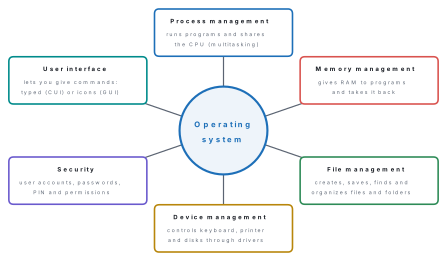
Functions of an operating system
- Process management. A running program is a process. The OS starts and stops processes and divides the CPU's time among them so quickly that several seem to run at once — this is multitasking (a song plays while you type).
- Memory management. It gives each program a part of the RAM, keeps programs from using each other's part, and takes the memory back when a program closes.
- File management. It creates, names, saves, copies, moves, deletes and finds files, and keeps them organized in folders on the disks.
- Device (input–output) management. Through the device drivers it controls the keyboard, mouse, screen, disks, printer and network, and lines up jobs such as several documents waiting to print.
- Security and user management. It keeps separate user accounts, checks passwords, PINs, fingerprints or face sign-in, decides who may open which files, and runs a firewall against attacks.
- User interface. It lets people give commands and see results, either by typing commands or with windows, icons, menus and touch.
- Booting and error handling. It loads itself when the computer starts and shows a message when something goes wrong, such as a disk being full.
Problem. Name the OS function at work in each case: (a) a pen drive is
plugged in and its icon appears in File Explorer; (b) you listen to music while
writing in Word; (c) your laptop asks for a PIN before showing the desktop;
(d) you save essay.docx in the Documents folder; (e) a game is closed and the
memory it used becomes free for other programs.
Solution. (a) Device management (the drive is detected through its driver). (b) Process management — multitasking. (c) Security — user sign-in. (d) File management. (e) Memory management.
6.2 Types of operating system: single-user and multi-user, CUI and GUI, desktop and mobile
Single-user and multi-user
A single-user operating system lets one user work on the computer at a time. MS-DOS (1981) was single-user and single-tasking: it ran one program at a time. Windows 11 on a home laptop is single-user but multitasking: one person runs many programs at once. (It can hold accounts for several family members, but only one of them works on it at a time.)
A multi-user operating system lets many users work on one computer at the same time, each from a terminal or over the network, while keeping their work separate and secure. UNIX, Linux servers and Windows Server are multi-user; a bank's or university's central computer serves hundreds of users this way.
| Single-user OS | Multi-user OS |
|---|---|
| one user works at a time | many users work at the same time |
| simple, used on personal computers and phones | complex, used on servers, mainframes and network computers |
| little need to divide resources between people | shares the CPU, memory and files among users and protects each user's work |
| e.g. MS-DOS, Windows 11 Home, Android | e.g. UNIX, Linux servers, Windows Server |
CUI and GUI
A character user interface (CUI), also called a command-line interface, is one in which the user types commands with the keyboard and the computer replies in text. A graphical user interface (GUI) is one in which the user works with pictures — windows, icons, menus and a pointer — by clicking or touching.
MS-DOS, the Linux terminal (bash) and Windows' Command Prompt and PowerShell are CUIs. Windows, macOS, Ubuntu's desktop, Android and iOS are GUIs.
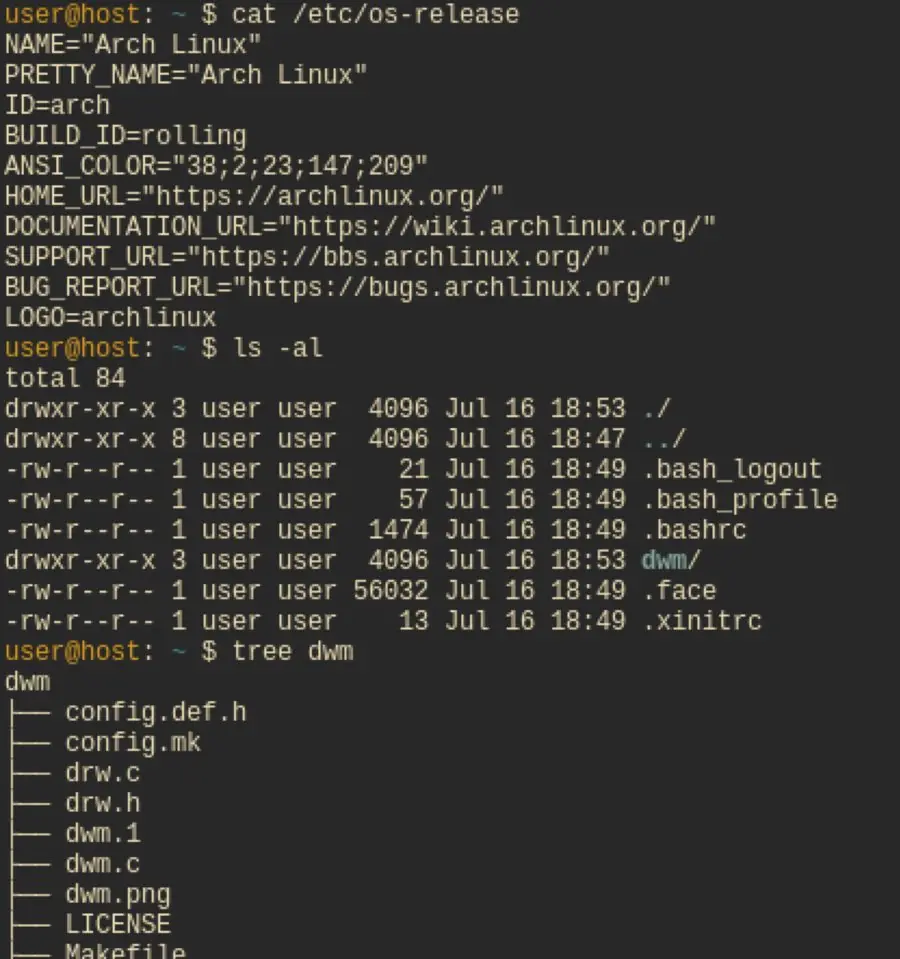
| CUI | GUI |
|---|---|
| commands are typed on the keyboard | commands are given by clicking icons, menus and buttons, or by touch |
| only text on the screen | windows, icons, pictures and colours |
| you must remember exact commands | easy to learn: you choose from what you see |
| fast for experts, uses little memory and processing power | needs more memory and processing power |
| e.g. MS-DOS, Linux terminal, Command Prompt | e.g. Windows 11, macOS, Android, Ubuntu desktop |
| Task | Windows Command Prompt | Linux terminal | GUI way |
|---|---|---|---|
| list files | dir |
ls |
open the folder |
| change folder | cd School |
cd School |
double-click the folder |
| make a folder | md School |
mkdir School |
New → Folder |
| copy a file | copy a.txt b.txt |
cp a.txt b.txt |
Ctrl + C, Ctrl + V |
| rename a file | ren a.txt c.txt |
mv a.txt c.txt |
F2 |
| delete a file | del a.txt |
rm a.txt |
Delete key |
Problem. In a Linux terminal, Sita is in her home folder. She types the
commands below. What does the computer show after each ls?
mkdir School
cd School
touch notes.txt
ls
cp notes.txt backup.txt
ls
mv notes.txt science.txt
ls
rm backup.txt
ls
Solution. mkdir makes a folder, cd enters it, and touch creates an
empty file. Then (the computer's real replies):
notes.txt
backup.txt  notes.txt
backup.txt  science.txt
science.txt
cp made a copy named backup.txt; mv renamed notes.txt to
science.txt; rm deleted backup.txt — with no Recycle Bin, so it is gone
for good.
Desktop and mobile operating systems
A desktop operating system runs on desktop and laptop computers. It is designed for a keyboard, mouse and large screen, shows many windows side by side, and runs large programs such as office suites and programming tools: Windows, macOS, Linux.
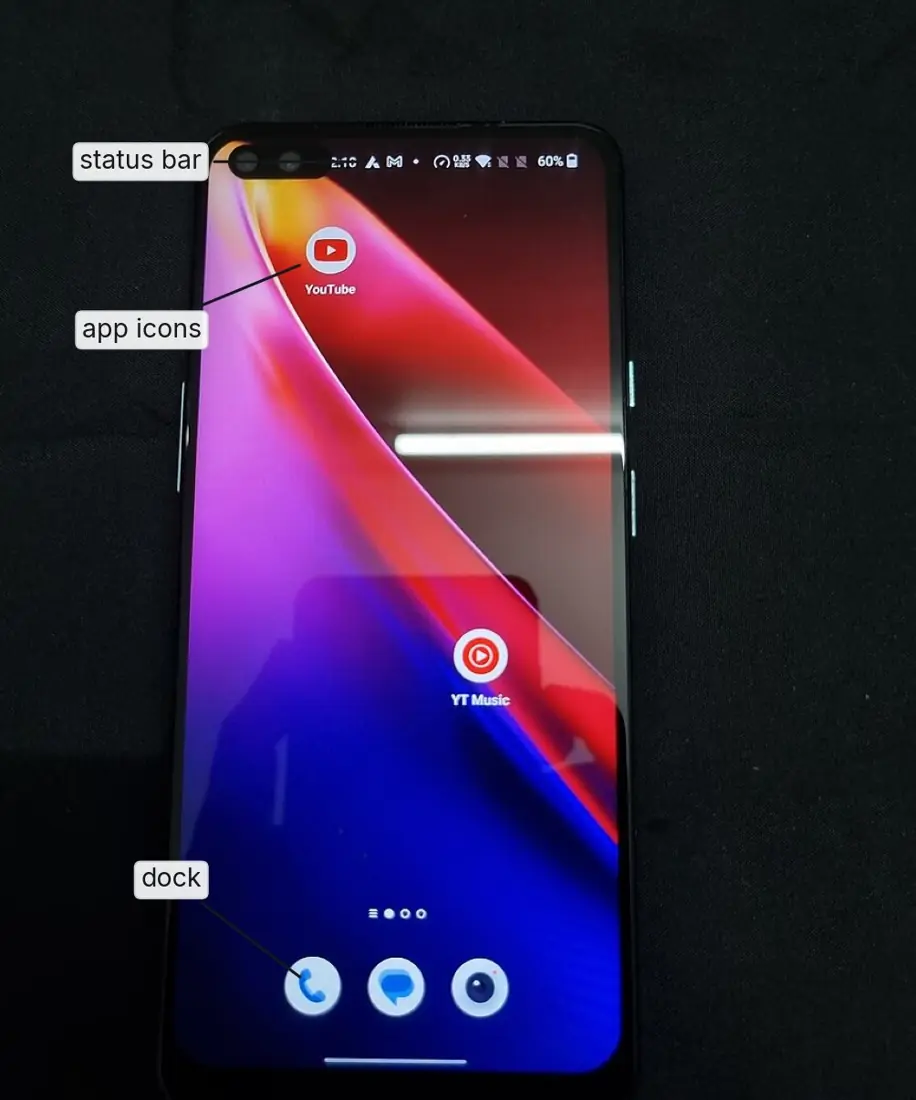
A mobile operating system runs on smartphones and tablets. It is designed for touch, small screens and long battery life; it uses the phone's camera, GPS, sensors and mobile network, and installs apps from an app store: Android and iOS (iPadOS on iPads).
6.3 Common operating systems: Windows, Linux, macOS, Android and iOS
Microsoft Windows. Made by Microsoft. Windows 1.0 came out in 1985; the current version is Windows 11 (first released in 2021, updated every year). It is proprietary and paid, has a GUI with the Start menu and taskbar, runs the largest number of programs and games, and is used on most desktop and laptop computers in the world, including most school labs and offices in Nepal. Ordinary support for Windows 10 ended on 14 October 2025.
Linux. The Linux kernel (the core of the OS) was written in 1991 by Linus Torvalds, a student in Finland, and shared as open source. It is free, can be changed by anyone and is very secure and stable. It comes in distributions (versions put together by different groups) such as Ubuntu, Fedora, Linux Mint and Debian. Linux runs most web servers and almost all the world's supercomputers, and Android is built on it.
macOS. Made by Apple for its Mac computers only (MacBook, iMac). It is proprietary, based on UNIX, known for its smooth design and security, and popular with designers, musicians and video editors. A new version comes every year.
Android. Developed by Google from a start-up it bought in 2005; the first Android phone came out in 2008. It is built on the Linux kernel, its core is open source, and phone makers such as Samsung, Xiaomi, Vivo and OnePlus use it. Apps come from the Google Play Store. Android runs on about seven out of ten smartphones in the world, and on about four out of five in Nepal. The 2026 version is Android 17.
iOS. Made by Apple for the iPhone (first released in 2007); iPads use iPadOS. It is proprietary and runs only on Apple devices; apps come only from the App Store. It is known for long software support and strong privacy controls.
| OS | Maker | Runs on | Licence | Interface | Notable point |
|---|---|---|---|---|---|
| Windows 11 | Microsoft | PCs and laptops of many brands | proprietary, paid | GUI (and CUI tools) | most widely used desktop OS |
| Linux (Ubuntu, Fedora) | Linus Torvalds and the community | PCs, servers, supercomputers | open source, free | GUI and CUI | secure; runs most servers |
| macOS | Apple | Apple Mac computers only | proprietary | GUI | used by many designers |
| Android | phones and tablets of many brands | open-source core | touch GUI | most widely used mobile OS | |
| iOS | Apple | iPhone only | proprietary | touch GUI | apps only from the App Store |
Samsung, Xiaomi and Vivo are phone makers; Android is the operating system they install. Likewise, Windows is not the computer — a Dell or HP laptop is the hardware and Windows 11 is the OS running on it. When asked to "name an operating system", never answer with a company or a phone model.
6.4 Working with Windows: desktop, taskbar, Start menu, windows and dialog boxes
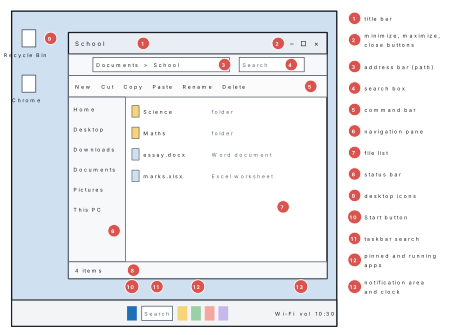
Desktop. The screen you see after signing in. It shows a background picture (wallpaper) and icons — small pictures standing for programs, files, folders and the Recycle Bin. An icon with a small curved arrow is a shortcut, a link to a program or file kept elsewhere.
Taskbar. The bar along the bottom of the screen. In Windows 11 it holds, from the middle: the Start button, the Search box, Task View (shows all open windows), pinned and running apps (a small line under an icon means the program is open), and at the right the notification area — network, volume, battery — with the clock and date.
Start menu. Opened by clicking Start or pressing the Windows key. It has a search box, Pinned apps, Recommended recent files, the list of All apps, your account picture and the Power button with Sleep, Shut down and Restart.
Windows. Each program or folder opens in a rectangular window. Its parts: the title bar with the program or file name; the minimize (–), maximize/restore (□) and close (×) buttons; a menu bar, ribbon or command bar of commands; the work area; scroll bars when the content does not fit; and a status bar at the bottom.
| To do this with a window | Do this |
|---|---|
| move it | drag its title bar |
| resize it | drag an edge or a corner |
| hide it on the taskbar | click minimize (–); click its taskbar icon to bring it back |
| fill the screen / return to normal | click maximize (□) / restore, or double-click the title bar |
| close it | click × or press Alt + F4 |
| switch between windows | click on the taskbar, or press Alt + Tab |
| put two windows side by side | drag a window to the left or right edge of the screen, or press Windows key + arrow |
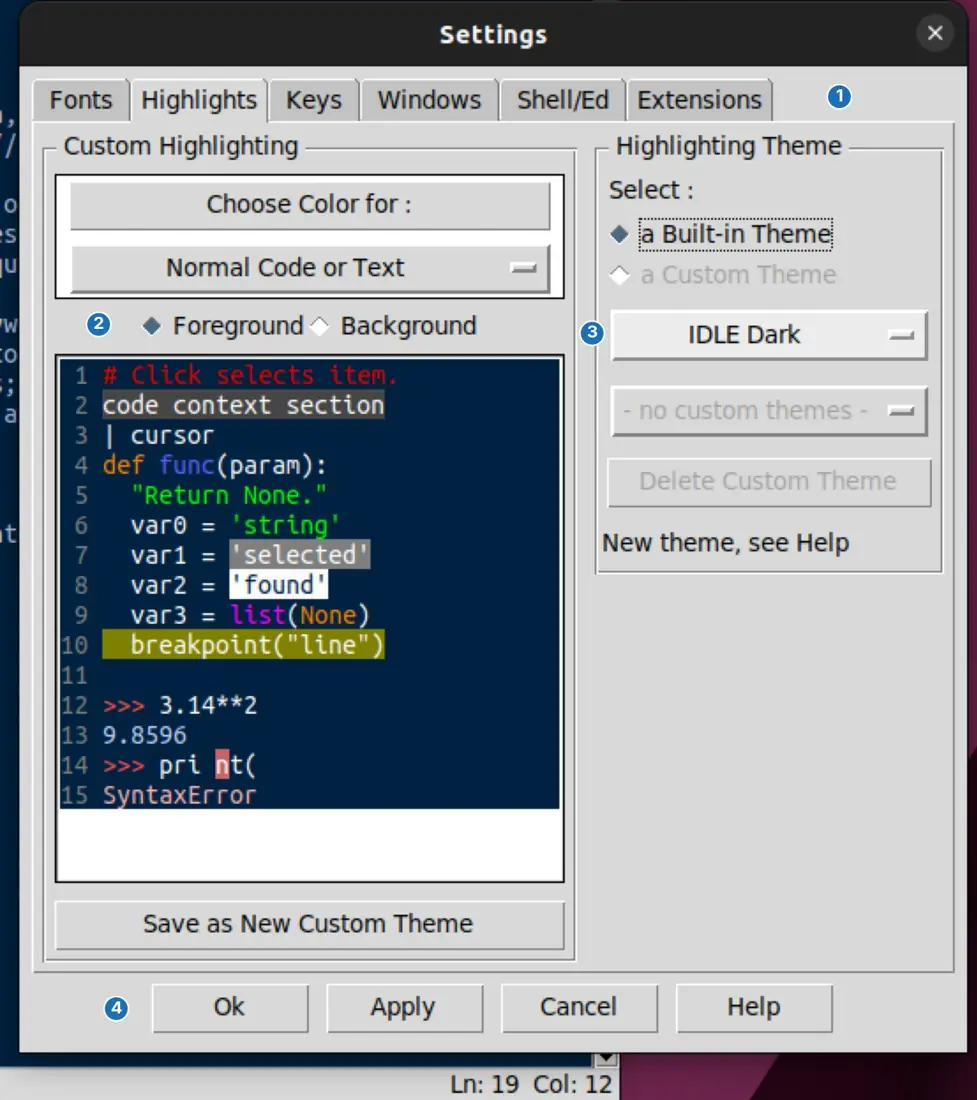
Dialog boxes. A dialog box is a small window in which a program asks you for information or a choice before it carries out a command, for example the Print or Font dialog. It contains controls:
| Control | What it does |
|---|---|
| tab | shows a different page of settings in the same dialog box |
| text box | a space in which you type, e.g. a file name |
| drop-down list | click the arrow to choose one item from a list |
| check box ☑ | switch an option on or off; you may tick several |
| option (radio) button ◉ | choose only one from a group |
| spin box | a number with up and down arrows |
| command buttons | OK (accept and close), Cancel (close without changes), Apply (accept but stay open), Help |
Windows key Start menu · Win + D show the desktop · Win + E File Explorer · Win + I Settings · Win + L lock the computer · Alt + Tab switch windows · Alt + F4 close a window · Ctrl + Shift + Esc Task Manager · Win + Shift + S screenshot of part of the screen · F2 rename.
6.5 File management: files, folders, paths and extensions; copy, move, rename and delete; Recycle Bin
A file is a named collection of related data stored on a disk — a document, a photo, a song, a program. A folder (or directory) is a named container that holds files and other folders, called subfolders, so that they can be kept organized.
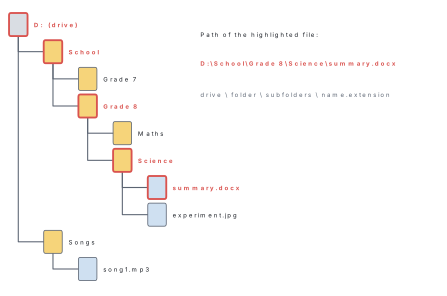
Folders inside folders form a tree. At the top of each drive is its root
folder, written C:\ or D:\.
File names and extensions. A file name has two parts joined by a dot:
the name and the extension, e.g. essay.docx. The extension (2–4
letters after the last dot) tells the operating system the type of the file
and which program opens it.
| Extension | Type of file | Opens with |
|---|---|---|
.docx / .odt |
word-processor document | Word / LibreOffice Writer |
.xlsx / .ods |
spreadsheet | Excel / LibreOffice Calc |
.pptx / .odp |
presentation | PowerPoint / LibreOffice Impress |
.pdf |
document for printing and sharing | a PDF reader or browser |
.txt |
plain text | Notepad |
.jpg, .png |
picture | Photos, any image viewer |
.mp3 |
sound | a media player |
.mp4 |
video | VLC, Media Player |
.html |
web page | a web browser |
.zip |
compressed folder | File Explorer, 7-Zip |
.exe |
program that runs on Windows | runs itself — be careful |
.py / .bas |
Python / QBASIC program | Python / QBASIC |
In Windows a file name may be up to 255 characters long but may not
contain the characters \ / : * ? " < > |. Two files in the same folder cannot
have the same name. To see extensions, open File Explorer → View → Show
→ File name extensions.
Paths
A path is the complete address of a file or folder: the drive, then
every folder from the root down to it, then the file name, separated by
backslashes (\) in Windows. Example: D:\School\Grade 8\Science\summary.docx.
Linux, Android, macOS and web addresses use the forward slash instead:
/home/sita/School/notes.txt.
Problem. Use the folder tree in the figure above. (a) Write the path of
song1.mp3. (b) Write the path of experiment.jpg. (c) A file has the path
D:\School\Grade 7\history.docx. In which folder is it, and what is its
extension?
Solution. (a) D:\Songs\song1.mp3.
(b) D:\School\Grade 8\Science\experiment.jpg.
(c) It is in the folder Grade 7, which is inside School on drive D:.
Its extension is .docx, so it is a Word document.
Working with files and folders in File Explorer
Open File Explorer with Win + E or the folder icon on the taskbar.
| Task | Steps (Windows 11 File Explorer) | Shortcut |
|---|---|---|
| Make a new folder | open the place for it → New → Folder → type a name → Enter | Ctrl + Shift + N |
| Select several files | click the first, then Ctrl + click others (or Shift + click for a range) | Ctrl + A selects all |
| Copy | select → Copy → open the destination → Paste | Ctrl + C, then Ctrl + V |
| Move | select → Cut → open the destination → Paste | Ctrl + X, then Ctrl + V |
| Rename | select → Rename (or right-click → Rename) → type the new name → Enter | F2 |
| Delete | select → Delete (the file goes to the Recycle Bin) | Delete |
| Delete permanently | select and press Shift + Delete → confirm | Shift + Delete |
| Copy | Move |
|---|---|
| the file stays in the old place and a duplicate appears in the new place | the file leaves the old place and appears only in the new place |
| uses more disk space | uses no extra space |
| Ctrl + C, Ctrl + V | Ctrl + X, Ctrl + V |
| used to make a backup on a pen drive | used to tidy files into the right folder |
When you press F2, Windows selects only the part before the dot. Change only
that. Changing .docx to .pdf does not turn a document into a PDF — it
only stops the file opening properly. And always switch on File name
extensions: a file called photo.jpg.exe is a program, not a photo, and is
a common trick to spread viruses.
The Recycle Bin
The Recycle Bin is a special folder in Windows that keeps files and folders deleted from the computer's own drives, so that they can be restored if they were deleted by mistake. They are removed for ever only when the bin is emptied.
- Restore: open the Recycle Bin from the desktop, select the file → Restore the selected items (or right-click → Restore). It returns to the folder it came from.
- Empty: right-click the Recycle Bin → Empty Recycle Bin → Yes. This frees the disk space, and the files cannot be restored from the bin any more.
- Files do not go to the Recycle Bin if they are deleted from a pen drive or memory card, from a network drive, with Shift + Delete, or if they are too large for the bin. Take care with these. (Phones keep deleted photos in a similar Trash or Recently deleted album, usually for 30 days.)
Problem. Ram's 16 GB pen drive already holds 3.2 GB. (a) Can he copy a folder of 250 photos of 4.5 MB each? (b) What about 2,000 such photos? (c) If he cuts and pastes the 250 photos instead of copying, what happens to the photos on his computer?
Solution. Free space = 16 − 3.2 = 12.8 GB. (a) 250 × 4.5 = 1,125 MB = 1,125 ÷ 1,024 ≈ 1.1 GB, so yes, easily. (b) 2,000 × 4.5 = 9,000 MB = 9,000 ÷ 1,024 ≈ 8.8 GB, still less than 12.8 GB, so yes. (c) Cut and paste moves them: they are removed from the computer and stay only on the pen drive — risky if the pen drive is lost. Copying keeps both.
6.6 Settings: date and time, display, user accounts, installing and removing programs
Windows 11 keeps its settings in the Settings app: Start → Settings, or Win + I. (The older Control Panel still exists for some tasks.)
Date and time. 1. Settings → Time & language → Date & time. 2. Turn on Set time automatically so the clock is kept correct over the internet. 3. For Time zone, choose (UTC+05:45) Kathmandu (or turn on Set time zone automatically). Nepal's time is 5 hours 45 minutes ahead of UTC. 4. Click Sync now to correct the clock at once.
Display. 1. Settings → System → Display. 2. Change Brightness, switch on Night light to reduce blue light in the evening, and choose the Scale (100%, 125%, 150%) to make text larger. 3. Keep the Display resolution marked (Recommended) for the sharpest picture. 4. To change the wallpaper or switch between light and dark mode: Settings → Personalization → Background or Colors.
User accounts. Each person who uses a computer should have their own account, with their own files and settings. 1. Settings → Accounts → Other users → Add account. 2. Enter the person's Microsoft account email, or choose I don't have this person's sign-in information → Add a user without a Microsoft account to make a local account with a user name and password. 3. To change it, click the account → Change account type → Standard user or Administrator. 4. Set up a PIN, password or fingerprint in Accounts → Sign-in options.
| Administrator account | Standard account |
|---|---|
| can install and remove programs and change any setting | can use programs and change only their own settings |
| can create and delete other accounts | cannot change other accounts |
| should be used only when needed | the safest choice for everyday use and for children |
Installing and removing programs (see Lesson 5). Install from the Microsoft Store or the maker's official website. To remove: Settings → Apps → Installed apps → ⋯ → Uninstall. To stop programs from slowing down start-up: Settings → Apps → Startup and switch off the ones you do not need.
Problem. A new computer in your school lab shows the wrong time and is used by students who keep installing games. Write the steps to (a) set the correct time for Nepal and (b) give students a safe account.
Solution. (a) Press Win + I → Time & language → Date & time → turn on Set
time automatically → set Time zone to (UTC+05:45) Kathmandu → Sync
now.
(b) Signed in as an administrator: Settings → Accounts → Other users → Add
account → I don't have this person's sign-in information → Add a user
without a Microsoft account → user name student and a password → keep its
type as Standard user. A standard user cannot install programs, so games
cannot be added without the teacher's administrator password.
On a lab computer, make this tree in your Documents folder: a folder with your name containing Grade 8, which contains Computer, Science and English. Create a short document and save it in Computer. Then (1) copy it to Science, (2) rename the copy, (3) move it to English, (4) delete it and (5) restore it from the Recycle Bin. Write the full path of the file after each step, and check each one in the address bar of File Explorer.
For "write the steps to …", number the steps and name the exact place to click, in order: Settings → Accounts → Other users → Add account. Name the shortcut key too if there is one. Three precise steps earn more than a paragraph of description.
Chapter summary
- An operating system manages all hardware and software and provides the user interface. Functions: process, memory, file and device management, security, user interface, booting.
- Single-user (one user at a time — Windows 11 Home) vs multi-user (many at once — Linux servers). CUI (typed commands — MS-DOS, Linux terminal) vs GUI (windows, icons, menus, pointer — Windows, Android). Desktop OS (Windows, macOS, Linux) vs mobile OS (Android, iOS).
- Windows (Microsoft, proprietary), Linux (Torvalds 1991, open source; Ubuntu, Fedora), macOS (Apple Macs), Android (Google, Linux-based, most-used mobile OS), iOS (iPhone).
- Windows parts: desktop, icons, taskbar (Start, Search, apps, notification area, clock), Start menu, window (title bar, minimize/maximize/close, scroll bars, status bar), dialog box (tabs, text box, list, check box, option button, OK/Cancel/Apply).
- A file has a name and an extension (
.docx,.jpg,.exe); a folder holds files; a path gives the full address, e.g.D:\School\Grade 8\summary.docx. - Copy (Ctrl + C, Ctrl + V) keeps the original; move (Ctrl + X, Ctrl + V) does not; rename with F2. Delete sends to the Recycle Bin (restore or empty); Shift + Delete and pen-drive deletions are permanent.
- Settings (Win + I): time zone (UTC+05:45) Kathmandu, display, user accounts (administrator or standard), Apps → Installed apps to uninstall.
Practice questions
Group A — Objective (1 mark each)
- The software that manages all the hardware and provides a user interface is [1]aan applicationban operating systemca compilerda driver
- Running several programs at the same time is called [1]amultitaskingbbootingcformattingdcompiling
- Which is an example of a CUI? [1]aWindows 11 desktopbMS-DOScAndroiddmacOS
- GUI stands for [1]aGeneral User InterfacebGraphical User InterfacecGraphics Utility InterfacedGuided User Input
- Which operating system is open source? [1]aWindowsbiOScLinuxdmacOS
- Android is developed by [1]aApplebMicrosoftcGoogledSamsung
- The bar at the bottom of the Windows screen with the Start button is the [1]atitle barbtaskbarcstatus bardscroll bar
- In a dialog box, the control that lets you choose only one option from a group is the [1]acheck boxboption (radio) buttonctext boxdcommand button
- In
report.pdf, the partpdfis the [1]apathbfoldercextensionddrive - The shortcut key to rename a selected file is [1]aF1bF2cF5dF12
- A file deleted with Shift + Delete [1]agoes to the Recycle Binbis deleted permanentlycis copieddis renamed
- The time zone used for Nepal is [1]aUTC+05:30bUTC+05:45cUTC+06:00dUTC+05:00
Answers to Group A
1. (b) — the operating system.
2. (a) — multitasking, managed by the OS.
3. (b) — commands are typed in MS-DOS.
4. (b) — Graphical User Interface.
5. (c) — Linux is open source.
6. (c) — Google develops Android.
7. (b) — the taskbar.
8. (b) — option (radio) buttons allow one choice.
9. (c) — the extension shows the file type.
10. (b) — F2 renames.
11. (b) — Shift + Delete skips the Recycle Bin.
12. (b) — Nepal is 5 hours 45 minutes ahead of UTC.
Group B — Short answer (2 marks each)
- Define operating system. Name two examples. [2]
- Write any four functions of an operating system. [2]
- Differentiate between CUI and GUI. [2]
- Differentiate between single-user and multi-user operating systems. [2]
- What is a mobile operating system? Name two. [2]
- Write any two features of Linux. [2]
- What is a dialog box? Name any three of its controls. [2]
- Differentiate between a file and a folder. [2]
- Write the difference between copying and moving a file. [2]
- What is the Recycle Bin? How can a deleted file be restored? [2]
Answers to Group B
1. An operating system is system software that controls and manages all the hardware and software of a computer and provides an interface between the user and the computer. Examples: Windows 11, Linux, macOS, Android, iOS (any two).
2. Any four: process management (runs programs, multitasking); memory management; file management; device management through drivers; security and user accounts; providing the user interface; booting.
3. In a CUI the user types commands and sees only text, e.g. MS-DOS; in a GUI the user clicks windows, icons and menus, e.g. Windows. A CUI needs remembered commands and little memory; a GUI is easy to learn but needs more memory and processing power.
4. A single-user OS lets one user work at a time, e.g. Windows 11 Home on a PC. A multi-user OS lets many users work on one computer at the same time through terminals or a network, keeping their work separate, e.g. Linux or UNIX servers.
5. A mobile operating system runs on smartphones and tablets; it is designed for touch, small screens and battery saving, and uses the camera, GPS and mobile network. Examples: Android and iOS.
6. Any two: open source and free; created by Linus Torvalds in 1991; very secure and stable; available in distributions such as Ubuntu and Fedora; runs most servers and supercomputers; supports multi-user use.
7. A dialog box is a small window in which a program asks the user for information or a choice before carrying out a command. Controls (any three): tabs, text box, drop-down list, check box, option button, spin box, command buttons (OK, Cancel, Apply).
8. A file is a named collection of related data, such as a document or
photo, e.g. essay.docx. A folder is a named container that holds files and
other folders to keep them organized, e.g. Documents.
9. Copying (Ctrl + C, Ctrl + V) keeps the original and makes a duplicate in the new place; moving (Ctrl + X, Ctrl + V) removes the file from the old place and puts it only in the new place.
10. The Recycle Bin is a special folder that keeps files deleted from the computer's own drives so that they can be restored. To restore: open the Recycle Bin, select the file and click Restore the selected items (or right-click → Restore); it returns to its original folder.
Group C — Long answer (4 marks each)
- What is an operating system? Explain any three functions. [1+3]
- Compare Windows, Linux and Android in a table of at least four points. [4]
- Draw a labelled sketch of a window in Windows and explain any four of its parts. [4]
- A folder tree on drive E: has a folder
Projectcontaining the foldersPhotosandReport;Reportcontainsfinal.docx, andPhotoscontainstrek.jpg.(a) Write the paths of the two files.(b) Write the steps to copytrek.jpgintoReport.(c) Write the steps to renamefinal.docxtoscience-project.docx. [4] - Write the steps to(a) change the time zone to Kathmandu and(b) create a standard user account in Windows 11. [2+2]
Answers to Group C
1. An operating system is system software that manages the hardware and software and provides the user interface (1 mark). Any three, explained: process management — starts and stops programs and shares the CPU among them, so several run at once (multitasking); memory management — allocates RAM to each program and frees it when the program closes; file management — creates, saves, names, copies, moves, deletes and finds files and folders; device management — controls input and output devices through their drivers; security — user accounts, passwords and permissions.
2.
| Point | Windows | Linux | Android |
|---|---|---|---|
| Made by | Microsoft | Linus Torvalds and the community | |
| Licence | proprietary, paid | open source, free | open-source core |
| Runs on | desktop and laptop PCs | PCs, servers, supercomputers | smartphones and tablets |
| Interface | GUI (mouse and keyboard) | GUI and CUI | touch GUI |
| Example version | Windows 11 | Ubuntu, Fedora | Android 17 |
3. Sketch a rectangle with a title bar (with the name, and –, □, × at the right), a menu or command bar below it, a work area with a vertical scroll bar and a status bar at the bottom. Any four: title bar — shows the program or file name; drag it to move the window. Minimize, maximize/restore, close — hide to the taskbar, fill the screen or return, and close. Menu bar or ribbon — holds the commands. Work area — where the document or files are shown. Scroll bars — move through content that does not fit. Status bar — shows information such as the number of items or pages.
4. (a) E:\Project\Report\final.docx and E:\Project\Photos\trek.jpg.
(b) Open File Explorer (Win + E) → open E:\Project\Photos → select
trek.jpg → press Ctrl + C → open the Report folder → press Ctrl + V.
(c) Open E:\Project\Report → select final.docx → press F2 → type
science-project (keeping .docx) → press Enter.
5. (a) Press Win + I → Time & language → Date & time → turn off Set time zone automatically if it is on → choose (UTC+05:45) Kathmandu in the Time zone list → click Sync now. (b) Settings → Accounts → Other users → Add account → I don't have this person's sign-in information → Add a user without a Microsoft account → enter a user name and password → Next. The new account is a Standard user (check under Change account type).
Practise more: Computer Science question bank