Question bank · 61 min read
Computer Science: Unit-wise Subjective Question Bank
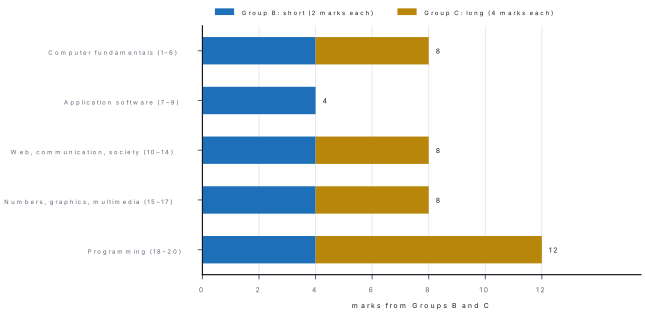
Group A is ten single marks. The other 40 marks of the Computer Science paper come from ten short questions of 2 marks (Group B) and five long questions of 4 marks (Group C), and here the marker gives one mark for each correct key point: a definition, a difference, an example, a correct step, a correct line of code, a correct output. This chapter takes the twenty lessons of the Computer Science 8 book in order. Each lesson opens with a model question answered the way a marker wants to see it, followed by 2-mark and 4-mark questions with complete answers.
Read the model question first. Then cover the solutions and write the other answers yourself, on paper, against the clock: about 4 minutes for a 2-mark question and 8 to 10 minutes for a 4-mark question. Mark yourself point by point: a 2-mark difference needs two separate, complete points; a [1+3] question needs the definition plus three explained points; a program needs CLS, input, processing, output and END. Every QBASIC program below was run in FreeBASIC and QB64 and its output is printed exactly; every number was computed twice.
Every question in this chapter is an original practice item written for the 50-mark school paper and the lessons of the Computer Science 8 book. None is claimed to have appeared in any school's examination.
24.1 Fundamentals of Computer
Problem. Define a computer. Explain the working of a computer with the IPOS cycle. [1+3]
Solution. (1) A computer is an electronic machine that accepts data (input), processes it according to a set of instructions (program), stores data and results, and gives meaningful information (output). (2) Input: data and instructions enter through input devices such as the keyboard, mouse or scanner. (3) Process: the CPU — its control unit and arithmetic logic unit — carries out the instructions on the data. (4) Output and storage: the results appear on output devices such as the monitor and printer, and data and programs are kept in storage — RAM while working, and the hard disk, SSD or pen drive permanently. Draw a block diagram: input → CPU → output, with storage joined to the CPU by arrows in both directions. One mark for the definition and one for each stage explained.
- Differentiate between data and information with one example of each. [2]
- What is GIGO? Why does it show that a computer is not intelligent? [2]
- Write any two limitations of a computer. [2]
- Write any two uses of computers in banking and one in health in Nepal. [2]
- Explain any four characteristics of a computer. [4]
- Write two positive and two negative effects of computers on society. [4]
Solutions to 24.1
1. Data are raw, unprocessed facts and figures, such as the marks 72, 85 and 90 of a student. Information is data processed into a meaningful form, such as "total 247, average 82.33, grade A".
2. GIGO means Garbage In, Garbage Out: if the input data or instructions are wrong, the output is wrong too. A computer cannot notice that its input is wrong, because it has no intelligence of its own; it only follows instructions.
3. Any two: it has no intelligence (IQ) and cannot think for itself; it has no feelings; it needs a program for every task; it needs correct input; it cannot work without electricity.
4. Banking: keeping customer accounts, ATMs, mobile and internet banking, digital payments such as eSewa and Khalti. Health: keeping patient records, X-ray and CT scanning, online appointments, telemedicine.
5. Speed: a computer does millions of operations in a second, timed in microseconds and nanoseconds. Accuracy: given correct input and program, its results are correct (GIGO). Diligence: it works for hours without getting tired or bored. Versatility: it can do many kinds of work — typing, calculating, drawing, playing music. (Storage and automation are also accepted.)
6. Positive: faster work and better services in banks and offices; easy communication and learning through the Internet. Negative: some jobs are lost to machines; health problems from long use, cyber crime and addiction to games and social media.
24.2 History of Computer
Problem. Why is Charles Babbage called the father of the computer? Describe his Difference Engine and Analytical Engine, and write about Ada Lovelace. [4]
Solution. (1) Difference Engine (1822): a machine Babbage designed to calculate tables of numbers automatically by the method of differences and print them without human mistakes. (2) Analytical Engine (1834): a general-purpose machine that was to take instructions on punched cards; it had an input unit (cards), a mill (the processing unit), a store (memory) and an output unit. (3) These are the same parts as in a modern computer, which is why Babbage is called the father of the computer, even though his engines were never finished in his lifetime. (4) Ada Lovelace wrote notes on the Analytical Engine in 1843, including a table of steps for calculating Bernoulli numbers; it is called the first published computer program, and she is called the first programmer.
- What is an abacus? What is it used for? [2]
- What were Napier's bones? Who invented them and when? [2]
- Differentiate between the Pascaline and Leibniz's stepped reckoner. [2]
- Why is the Jacquard loom important in the history of computers? [2]
- Write short notes on ENIAC and UNIVAC I. [2+2]
- Describe the history of computers in Nepal. [4]
Solutions to 24.2
1. An abacus is the oldest calculating device, a frame with beads on rods, used from about 2700 BC. It is used for counting, adding and subtracting by moving the beads; the Chinese suanpan has heaven beads worth 5 and earth beads worth 1.
2. Napier's bones were a set of numbered rods (strips) used for multiplication, by reading and adding the numbers on the rods placed side by side. They were invented by the Scottish mathematician John Napier in 1617.
3. The Pascaline (Blaise Pascal, 1642) used toothed wheels with automatic carry and could only add and subtract. The stepped reckoner (Gottfried Leibniz, 1673) could do all four operations: add, subtract, multiply and divide.
4. In 1804 Joseph Marie Jacquard's loom used punched cards to control the pattern woven into cloth. It was the first machine controlled by stored instructions on cards — the idea Babbage used for the Analytical Engine and Hollerith for his tabulator.
5. ENIAC (Electronic Numerical Integrator and Computer), 1946: the first general-purpose electronic digital computer, built in the USA with 17,468 vacuum tubes; it was huge, used a lot of electricity and was programmed by setting switches and cables. UNIVAC I (Universal Automatic Computer), 1951: the first computer sold commercially in the USA; it used vacuum tubes and magnetic tape and processed the US census.
6. (1) In 2028 BS (1971 AD) an IBM 1401, a second-generation computer, was brought to Nepal on rent (Rs 1,25,000 a month) to process the census of 2028 BS. (2) In 2031 BS the Electronic Data Processing Centre was set up; it later became the National Computer Centre (NCC). (3) In 2038 BS the ICL 2950/10 mainframe, with 64 terminals, came for the census of 2038 BS. (4) From 2039–2040 BS microcomputers such as Apple were imported by private companies; the Internet came in 2052 BS (1995), and today computers are used in every bank, office and school.
24.3 Generations of Computer
Problem. What is a generation of computers? Name the main technology of each of the five generations, with one example computer. [1+3]
Solution. (1) A generation is a stage in the development of computers marked by a major new technology, especially a new processing component; each generation is smaller, faster, cheaper and more reliable than the one before. (2)–(4):
| Generation | Period | Main technology | Example |
|---|---|---|---|
| First | about 1946–1958 | vacuum tubes | ENIAC, UNIVAC I |
| Second | about 1958–1964 | transistors | IBM 1401 |
| Third | about 1964–1975 | integrated circuits (ICs) | IBM System/360 |
| Fourth | about 1975 to now | microprocessors (VLSI) | IBM PC, laptops, smartphones |
| Fifth | present and future | artificial intelligence, parallel processing | AI systems, supercomputers |
- Write any two features of first-generation computers. [2]
- What is a transistor? Write one advantage it had over the vacuum tube. [2]
- What is an integrated circuit? Which generation used it first? [2]
- What is a microprocessor? Name the first microprocessor and its year. [2]
- Compare the second and third generations of computers in four points. [4]
- Explain fifth-generation computers: their technology, features and uses. [4]
Solutions to 24.3
1. Any two: they used vacuum tubes; they were huge, heavy and gave off great heat; they used a lot of electricity and failed often; they were programmed in machine language; their speed was measured in milliseconds.
2. A transistor is a small electronic switch made of a semiconductor (invented at Bell Labs in 1947). Compared with a vacuum tube, it is far smaller, uses less electricity, gives off less heat and is more reliable.
3. An integrated circuit (IC, or chip) is a small piece of silicon on which many transistors and other components are made together. ICs were first used in the third generation (about 1964–1975).
4. A microprocessor is a single chip that contains the whole CPU of a computer. The first was the Intel 4004, made in 1971.
5.
| Point | Second generation | Third generation |
|---|---|---|
| Main component | transistors | integrated circuits |
| Size and speed | smaller than the first; microseconds | smaller still; nanoseconds |
| Input and output | punched cards and printouts | keyboards and monitors |
| Languages and software | assembly language, FORTRAN, COBOL | high-level languages such as BASIC; operating systems with time-sharing |
6. (1) Technology: artificial intelligence (AI) — computers that learn, reason and understand language — and parallel processing, in which many processors work on parts of a problem at the same time. (2) Features: they can understand natural (spoken and written) language, recognise faces and speech, and learn from data. (3) Uses: voice assistants, translation apps, self-driving cars, medical diagnosis, robots. (4) Research continues in quantum computing; this generation is still developing.
24.4 Types of Computer
Problem. Differentiate between analog, digital and hybrid computers with one example of each. [4]
Solution.
| Point | Analog computer | Digital computer | Hybrid computer |
|---|---|---|---|
| Data handled | continuous quantities (temperature, speed, pressure) | discrete data counted as 0s and 1s | both: measures, then counts |
| Output | a reading on a scale | exact numbers and text | numbers from measured data |
| Accuracy | approximate | very accurate | accurate |
| Example | speedometer, thermometer | PC, calculator, smartphone | ECG machine, ICU monitor, petrol pump |
One mark for each correct row of points; the examples carry the fourth mark.
- What is a supercomputer? Write two uses. [2]
- Write two uses of mainframe computers. [2]
- Differentiate between a desktop and a laptop computer. [2]
- What are special-purpose computers? Give two examples. [2]
- Classify computers on the basis of size and explain each type briefly. [4]
- Which type of computer would you choose for each, and why:(a) a bank's head office serving all its branches,(b) weather forecasting,(c) a student doing homework at home,(d) a graphic designer making 3D animation? [4]
Solutions to 24.4
1. A supercomputer is the fastest and most powerful kind of computer, with thousands of processors working in parallel. Uses: weather forecasting, scientific research, space and nuclear studies, designing medicines.
2. Mainframes serve thousands of users at the same time, so they are used by banks for customer accounts and by airlines and railways for ticket booking (also by governments for census and tax records).
3. A desktop is designed to stay on a desk, with a separate monitor, keyboard and system unit, and is cheaper and easier to upgrade. A laptop has the screen, keyboard and battery in one portable unit, so it can be carried and used without mains power.
4. Special-purpose computers are made to do only one particular task; when built into a machine they are called embedded systems. Examples: the computer in a washing machine, a traffic-light controller, an ATM, a digital camera.
5. Supercomputer: the fastest and most expensive; used for weather and research. Mainframe: large, very powerful, used by thousands of users at once in banks and airlines. Minicomputer: medium-sized and multi-user, used by smaller organisations; today's servers do this job. Microcomputer: a computer built around a microprocessor for one user, such as a desktop, laptop, tablet or smartphone.
6. (a) A mainframe (or powerful servers), because thousands of branch users must reach the same accounts at once. (b) A supercomputer, because forecasting needs huge numbers of calculations very fast. (c) A microcomputer — a desktop or laptop — which is cheap and enough for one user. (d) A workstation, a powerful microcomputer with a fast processor and graphics card for design and animation.
24.5 Computer Software
Problem. What is software? Differentiate between system software and application software with two examples of each. [1+3]
Solution. (1) Software is a set of programs that tells the hardware what to do; without it a computer cannot do any work. (2)–(4):
| Point | System software | Application software |
|---|---|---|
| Purpose | runs and manages the computer itself | does a particular job for the user |
| Need | needed for the computer to work at all | installed only for the tasks needed |
| Who uses it directly | mostly the computer itself | the user |
| Examples | Windows, Linux (operating systems); device drivers; antivirus utilities | MS Word, Google Chrome, VLC media player, a school's result system |
- What is a device driver? Why is it needed? [2]
- What are utility programs? Give two examples. [2]
- Differentiate between packaged and tailor-made software. [2]
- Differentiate between freeware and shareware. [2]
- Explain the four kinds of system software. [4]
- Explain proprietary and open-source software with examples. Why is software piracy wrong? [3+1]
Solutions to 24.5
1. A device driver is a small program that lets the operating system communicate with one particular hardware device, such as a printer, webcam or graphics card. Without the right driver the device does not work, or works badly.
2. Utility programs are system programs that maintain, protect and tidy the computer. Examples: antivirus, backup software, file compression (WinRAR, 7-Zip), Disk Cleanup.
3. Packaged software is ready-made for many users and sold or given in the market, such as MS Office or VLC. Tailor-made (customised) software is built for the needs of one organisation, such as a school's result system or a bank's account system.
4. Freeware can be used free of cost for ever, but its source code is not given (for example Google Chrome, Adobe Acrobat Reader). Shareware can be tried free for a limited time or with limited features, after which the user must pay (for example WinRAR's trial).
5. Operating system: manages all hardware and software and provides the user interface (Windows, Linux). Device drivers: let the OS control each device. Utility programs: maintain and protect the computer (antivirus, backup, compression). Language processors: translate programs into machine code — assembler, compiler and interpreter.
6. Proprietary software is owned by a company; users buy a licence to use it, and the source code is secret and may not be changed or shared (MS Windows, MS Office, Adobe Photoshop). Open-source software is free to use, and its source code is open for anyone to study, change and share (Linux, LibreOffice, GIMP, Firefox). Piracy — copying or using software without a licence — is wrong because it is theft of the makers' work, it is a crime, and pirated copies often carry viruses.
24.6 Operating System
Problem. What is an operating system? Explain any three of its functions. [1+3]
Solution. (1) An operating system (OS) is the main system software that manages all the hardware and software of a computer and provides an interface between the user and the computer, for example Windows, Linux or Android. (2) Process management: it decides which program the CPU runs and for how long, so several programs can run together. (3) Memory management: it gives RAM to programs when they start and takes it back when they close. (4) File management: it creates, names, stores, copies, moves and deletes files and folders. (Device management, security through passwords, the user interface and booting are also accepted.)
- Differentiate between CUI and GUI operating systems. [2]
- What is a file extension? Write two examples with the type of file. [2]
- Differentiate between copying and moving a file, with the shortcut keys. [2]
- What is the Recycle Bin? How can a file be restored from it? [2]
- Explain single-user and multi-user, and desktop and mobile operating systems, with examples. [4]
- A file
report.docxis in a folderGrade 8, inside a folderSchool, on drive D. Write its path. Then explain how to create a folder, rename a file and delete a file in Windows. [1+3]
Solutions to 24.6
1. In a CUI (character user interface) the user types commands, as in MS-DOS or the Linux terminal; it needs commands to be remembered. In a GUI (graphical user interface) the user clicks windows, icons, menus and buttons with a mouse or a finger, as in Windows or Android; it is easy for beginners.
2. A file extension is the part of a file name after the dot that shows the type of file. Examples: .docx — a Word document; .jpg — a photograph; .mp3 — a sound file; .exe — a program (any two).
3. Copying makes a duplicate in the new place and leaves the original where it was (Ctrl + C, then Ctrl + V). Moving takes the file to the new place and removes it from the old one (Ctrl + X, then Ctrl + V).
4. The Recycle Bin is a folder where Windows keeps files deleted from the hard disk, so that they can be recovered. To restore a file, open the Recycle Bin, select the file and click Restore; it returns to its old folder. (Files deleted with Shift + Delete, or from a pen drive, skip the Recycle Bin.)
5. A single-user OS lets one person use the computer at a time (Windows 11 Home). A multi-user OS lets many users work on it at the same time, usually over a network (Linux servers, UNIX). A desktop OS runs on desktops and laptops (Windows, macOS, Linux). A mobile OS runs on smartphones and tablets and is designed for touch screens (Android, iOS).
6. Path: D:\School\Grade 8\report.docx (1 mark). Create a folder: right-click in the empty area → New → Folder, type a name and press Enter. Rename: select the file, press F2 (or right-click → Rename), type the new name and press Enter. Delete: select the file and press Delete; it goes to the Recycle Bin (3 marks).
24.7 Word Processing
Problem. What is mail merge? Write its steps and two of its uses. [1+2+1]
Solution. (1) Mail merge is a feature of a word processor that combines one main document (a letter with the same text for everyone) with a data source (a list of names, addresses, marks) to produce a separate personalised copy for every person in the list. (2) Steps in MS Word: Mailings → Start Mail Merge → Letters; Select Recipients → type a new list or use an existing one; place the cursor and Insert Merge Field (Name, Class, Marks); Preview Results; Finish & Merge → Edit Individual Documents or Print Documents. (3) Uses: a school printing result letters or invitation cards for 300 parents; a company sending the same notice to every customer.
- Write any four features of a word processor and name two word processors. [2]
- Differentiate between Save and Save As. [2]
- Differentiate between cut and copy. Write their shortcut keys. [2]
- What is Find and Replace? Write its shortcut keys. [2]
- Explain font formatting, paragraph formatting, bullets and numbering, and page layout. [4]
- What are header, footer and page numbers? How can a table and a picture be inserted into a document? [2+2]
Solutions to 24.7
1. Any four: typing and editing text; formatting text and paragraphs; spelling and grammar checking; inserting tables, pictures and shapes; headers, footers and page numbers; mail merge; saving and printing. Word processors: Microsoft Word, LibreOffice Writer, Google Docs (any two).
2. Save (Ctrl + S) stores the document under its present name and place; the first time, it asks for a name. Save As (F12 in Word) saves a copy under a new name, in a new place or in another format, keeping the old file as it was.
3. Cut (Ctrl + X) removes the selected text and keeps it on the clipboard to be pasted elsewhere; copy (Ctrl + C) keeps the text in its place and puts a copy on the clipboard. Both are pasted with Ctrl + V.
4. Find (Ctrl + F) searches the document for a word or phrase. Replace (Ctrl + H) finds a word and changes it to another, one at a time or all at once with Replace All — for example changing every "Kathmandu" to "Lalitpur".
5. Font formatting: changing the font type, size, colour and style (bold, italic, underline) of characters. Paragraph formatting: alignment (left, centre, right, justify), line spacing, indentation and space before and after. Bullets and numbering: making lists that start with symbols or numbers. Page layout: margins, orientation (portrait or landscape), page size (A4) and columns.
6. A header is text printed at the top of every page and a footer at the bottom (such as the school name or a date); page numbers number the pages automatically (Insert → Header, Footer, Page Number). A table is inserted with Insert → Table, choosing the number of rows and columns; a picture with Insert → Pictures, choosing the image file, then resizing it by its corner handles.
24.8 Spreadsheet Software
Problem. The worksheet below holds marks out of 100. Write formulas for the Total in F2, the Average in G2 and the Result in H2 ("Pass" if the average is 40 or more, otherwise "Fail"), and for the highest total in F5. Give the values the formulas show for all three students. [4]
| A | B | C | D | E | F | G | H | |
|---|---|---|---|---|---|---|---|---|
| 1 | Name | Maths | Science | English | Computer | Total | Average | Result |
| 2 | Asha | 78 | 85 | 69 | 92 | |||
| 3 | Bikash | 45 | 30 | 38 | 41 | |||
| 4 | Dolma | 90 | 88 | 95 | 97 |
Solution. F2: =SUM(B2:E2); G2: =AVERAGE(B2:E2); H2: =IF(G2>=40,"Pass","Fail"). Copy them down to rows 3 and 4 with AutoFill; the relative references change to row 3 and row 4 by themselves. F5: =MAX(F2:F4).
| Name | Total | Average | Result |
|---|---|---|---|
| Asha | 324 | 81 | Pass |
| Bikash | 154 | 38.5 | Fail |
| Dolma | 370 | 92.5 | Pass |
Highest total = 370. Check: 78 + 85 + 69 + 92 = 324 and 324 ÷ 4 = 81 ✓.
- Define workbook, worksheet, cell and range, with an example of a cell address and a range. [2]
- Differentiate between relative and absolute cell references with examples. [2]
- What is AutoFill? Give one use. [2]
- Write the functions to find(a) the smallest value and(b) the number of numeric entries in the range C2:C30. [2]
- The price of an item is in A2 and the VAT rate 13% is in cell E1. Write the formula in B2 for the VAT, which can be copied down for items in A3 to A10, and explain why it must use an absolute reference. Then find the VAT on Rs 2,500. [4]
- Name four types of chart and say which suits each:(a) monthly rainfall in Pokhara for a year,(b) the share of a family's expenses,(c) the marks of five students,(d) the population of seven provinces. [4]
Solutions to 24.8
1. A workbook is a spreadsheet file (such as marks.xlsx); a worksheet is one sheet of rows and columns inside it. A cell is the box where a row and a column meet; its address is column letter plus row number, such as B3. A range is a block of cells, such as A1:D5 (from A1 to D5).
2. A relative reference (such as A2) changes when the formula is copied: copied down one row it becomes A3. An absolute reference (such as $E$1) has dollar signs and stays the same wherever the formula is copied.
3. AutoFill fills a series or copies a formula into neighbouring cells by dragging the fill handle (the small square at the bottom-right corner of the selected cell). Use: typing 1 and 2 and dragging gives 1, 2, 3 … ; typing "Sunday" and dragging gives the days of the week; dragging a formula copies it down a column.
4. (a) =MIN(C2:C30) (b) =COUNT(C2:C30).
5. In B2: =A2*$E$1 (or =A2*$E$1/100 if E1 holds 13 rather than 13%). When the formula is copied down, A2 must change to A3, A4 … for each item, but every row must still use the one VAT rate in E1; the dollar signs keep $E$1 fixed. Without them the copied formulas would point to E2, E3 …, which are empty, giving 0. VAT on Rs 2,500 = 2,500 × 13 ÷ 100 = Rs 325.
6. Column chart — compares values side by side: (c) marks of five students. Bar chart — horizontal bars, good for long category names: (d) population of seven provinces. Line chart — shows change over time: (a) monthly rainfall. Pie chart — shows parts of a whole: (b) share of expenses.
24.9 Presentation Software
Problem. Differentiate between a slide transition and an animation. Write the steps to apply each in PowerPoint. [2+2]
Solution. (1) A transition is the effect seen when the slide show moves from one slide to the next, such as Fade or Push; it applies to the whole slide. (2) An animation is an effect on one object on a slide — a title, a picture, a chart — making it enter, be emphasised or leave, such as Fly In or Zoom. (3) Transition: select the slide → Transitions tab → choose an effect → set its duration, or click Apply To All. (4) Animation: select the object → Animations tab → choose an effect → set Start (On Click, With Previous, After Previous) and the order in the Animation Pane.
- What is presentation software? Name two examples. [2]
- What is a placeholder? What is a slide layout? [2]
- What is a slide master? Why is it useful? [2]
- Write two ways to start a slide show and the keys used. [2]
- Write the steps to make a five-slide presentation about your school with a title slide, a picture, a chart and a transition, and to run it. [4]
- Write any four rules for designing an effective presentation. [4]
Solutions to 24.9
1. Presentation software is application software used to create slides containing text, pictures, charts, audio and video and to show them one by one to an audience. Examples: Microsoft PowerPoint, LibreOffice Impress, Google Slides.
2. A placeholder is a dotted box on a slide that holds a title, text, a picture or a chart ("Click to add title"). A slide layout is the arrangement of placeholders on a slide, such as Title Slide, Title and Content, or Two Content.
3. The slide master (View → Slide Master) is the top slide that stores the design of all slides — background, fonts, colours, logo and placeholder positions. A change made on it appears on every slide at once, which saves time and keeps the slides consistent.
4. Press F5 (or Slide Show → From Beginning) to start from the first slide; press Shift + F5 (or From Current Slide) to start from the slide on screen. Esc ends the show.
5. (1) Open PowerPoint → Blank Presentation, choose a theme on the Design tab. (2) Slide 1 (Title Slide layout): type the school's name and address. (3) Add slides with Home → New Slide: history, facilities (Insert → Pictures, the school photo), results (Insert → Chart, a column chart of pass percentages), and a thank-you slide. (4) Apply a transition from the Transitions tab → Apply To All; save as school.pptx; run with F5.
6. Any four: use one simple theme throughout; keep about six lines of six words per slide (the 6 × 6 rule); use a large, clear font (at least 24 points) with strong contrast between text and background; use pictures and charts instead of long paragraphs; use only a few, gentle animations and transitions; check spelling; end with a summary.
24.10 Web Page Design
Problem. Write HTML code for a web page with the title "My School", a main heading, a paragraph with one bold word, an unordered list of three subjects, a picture school.jpg 300 pixels wide, and a link to the NEB website. [4]
Solution.
<!DOCTYPE html>
<html>
<head>
<title>My School</title>
</head>
<body>
<h1>Shree Saraswati Secondary School</h1>
<p>Our school is in <b>Dhulikhel</b>, Kavrepalanchok.</p>
<h2>Subjects we study</h2>
<ul>
<li>Science</li>
<li>Mathematics</li>
<li>Computer Science</li>
</ul>
<img src="school.jpg" alt="Our school building" width="300">
<p>Visit the <a href="https://www.neb.gov.np">NEB website</a>.</p>
</body>
</html>
Marks: the structure (html, head, title, body); the heading and paragraph with <b>; the list with <ul> and <li>; the img and a tags with their attributes. The browser shows "My School" on the tab, the heading in large bold type, three bulleted subjects, the picture and a clickable underlined link.
- Differentiate between a web page and a website. [2]
- What is a URL? Name its parts in the example address
https://www.myschool.edu.np/results.html. [2] - Differentiate between container (paired) and empty tags, with examples. [2]
- Differentiate between ordered and unordered lists, with their tags. [2]
- Write HTML to show this table with borders: a heading row S.N., Name, Marks and two rows (1, Asha Rai, 87) and (2, Bikash Thapa, 92). [4]
- Explain the structure of an HTML document, and write the steps to create and view a web page. [2+2]
Solutions to 24.10
1. A web page is a single document on the World Wide Web, written in HTML and opened in a browser. A website is a collection of related web pages under one domain name, linked together, such as all the pages of neb.gov.np.
2. A URL (Uniform Resource Locator) is the full address of a resource on the web. In https://www.myschool.edu.np/results.html: https is the protocol, www.myschool.edu.np is the domain name (the server), and /results.html is the path to the page on that server.
3. A container (paired) tag has an opening and a closing tag with content between them, such as <b>bold</b> or <p>…</p>. An empty tag has no closing tag and no content, such as <br> (line break) and <img>.
4. An ordered list shows its items with numbers or letters and uses <ol>; an unordered list shows them with bullets and uses <ul>. In both, each item is written in <li>…</li>.
5.
<table border="1">
<tr>
<th>S.N.</th>
<th>Name</th>
<th>Marks</th>
</tr>
<tr>
<td>1</td>
<td>Asha Rai</td>
<td>87</td>
</tr>
<tr>
<td>2</td>
<td>Bikash Thapa</td>
<td>92</td>
</tr>
</table>
<table> makes the table and border="1" draws its lines; <tr> makes each row; <th> makes a bold heading cell and <td> an ordinary cell.
6. Structure: <html> encloses the whole document; <head> holds information about the page, including <title>, the text shown on the browser tab; <body> holds everything shown in the window — headings, paragraphs, lists, pictures, tables. Steps: open a text editor such as Notepad; type the HTML; save it with the extension .html (for example index.html), choosing "All files"; open the file in a browser (double-click it); to change it, edit and save in Notepad, then refresh the browser (F5).
24.11 Information and Communication Technology
Problem. What is ICT? Explain its components and write two uses of ICT in Nepal. [1+2+1]
Solution. (1) ICT (Information and Communication Technology) is the use of computers, telecommunication equipment, networks and software to collect, store, process, send and receive information. (2) Its components are hardware (computers, phones, towers), software (apps, operating systems), data, the network (the Internet, mobile networks), people who use and run it, and the procedures they follow. (3) Uses in Nepal: online banking and digital payments (eSewa, Khalti, Fonepay QR); e-governance through the Nagarik App; online classes and e-learning (Sikai Chautari, E-Paath); telemedicine for remote health posts (any two).
- Differentiate between the Internet and the World Wide Web. [2]
- What do To, Cc and Bcc mean in an e-mail? [2]
- What is cloud storage? Give two examples. [2]
- What is the digital divide? Write two ways to reduce it. [2]
- What is e-governance? Explain G2C, G2B and G2G with Nepali examples. [1+3]
- Write two advantages and two disadvantages of ICT. [4]
Solutions to 24.11
1. The Internet is the worldwide network of networks — the cables, routers and computers joined by TCP/IP. The World Wide Web is one service that runs on the Internet: the collection of linked web pages opened in a browser. E-mail and video calls also use the Internet but are not the Web.
2. To: the main receivers of the message. Cc (carbon copy): others who get a copy; every receiver can see their addresses. Bcc (blind carbon copy): receivers whose addresses are hidden from all the others.
3. Cloud storage keeps files on servers on the Internet instead of on your own device, so they can be opened from any device and are safe if a phone is lost. Examples: Google Drive, Microsoft OneDrive, Dropbox, iCloud.
4. The digital divide is the gap between people who have devices, the Internet and the skills to use them and those who do not — for example, in the 2021 census 45.7% of households in municipalities but only 21.5% in rural municipalities had the Internet. Ways to reduce it: extend cheap broadband and mobile data to rural areas; give schools computers and teach digital skills (also: community information centres, local-language content).
5. E-governance is the use of ICT by the government to give its services and information to people quickly and openly (1 mark). G2C (government to citizen): the Nagarik App, launched in 2021, gives citizens their PAN, driving licence and other records on the phone. G2B (government to business): companies file taxes and register online with government offices. G2G (government to government): offices share records over the government network instead of on paper (3 marks).
6. Advantages: quick and cheap communication across the world; online banking, shopping and learning from home; faster government services. Disadvantages: cyber crime, fraud and loss of privacy; addiction and health problems; the digital divide leaves poorer and rural people behind (any two of each).
24.12 Computer Ethics and Cyber Law
Problem. What is cyber law? Write about Nepal's Electronic Transactions Act, 2063 and the punishment it gives for any three offences. [1+3]
Solution. (1) Cyber law is the set of laws about computers, the Internet and electronic transactions, and the crimes committed with them. (2) Nepal's cyber law is the Electronic Transactions Act, 2063, authenticated on 22 Mansir 2063 (8 December 2006). It has 12 chapters and 80 sections; it gives legal value to electronic records and digital signatures and lists computer offences in Chapter 9 (sections 44–59). (3) Any three: section 44, pirating, destroying or altering computer source code — up to 3 years' imprisonment, a fine up to Rs 2 lakh, or both; section 45, unauthorised access (hacking) — a fine up to Rs 2 lakh, up to 3 years, or both; section 46, damaging a computer and its information — a fine up to Rs 2 lakh, up to 3 years, or both; section 47, publishing illegal material in electronic form — a fine up to Rs 1 lakh, up to 5 years, or both; section 52, computer fraud — a fine up to Rs 1 lakh, up to 2 years, or both. Complaints go to the Cyber Bureau of Nepal Police.
- What is computer ethics? Write any two of the Ten Commandments of computer ethics. [2]
- What is phishing? Write two signs of a phishing message. [2]
- Differentiate between copyright and plagiarism. [2]
- What is cyber bullying? What should a student do if it happens to them? [2]
- Explain hacking, identity theft, software piracy and cyber bullying. [4]
- Who is a digital citizen? Write any three rules for using social media safely. [1+3]
Solutions to 24.12
1. Computer ethics is the set of moral rules for using computers and the Internet rightly. Any two commandments (Computer Ethics Institute, 1992): do not use a computer to harm other people; do not snoop around in other people's files; do not use a computer to steal; do not copy or use software you have not paid for; do not take other people's work as your own.
2. Phishing is tricking people into giving passwords, OTPs, PINs or card numbers through a fake message, e-mail or website that looks as if it came from a bank, wallet or office. Signs: it creates urgency ("your account will be blocked today"); it asks for an OTP, PIN or password; the sender address or link is slightly wrong; spelling mistakes; a prize you never entered for.
3. Copyright is the legal right of the creator of a work — a book, song, film, photo or program — to control its copying and use; in Nepal it lasts for the author's life plus 50 years. Plagiarism is presenting someone else's words or work as your own without giving credit, such as copying an essay from a website into your project.
4. Cyber bullying is using phones, social media or games to insult, threaten, shame or harass someone again and again. The student should not reply, should save screenshots as evidence, block and report the bully on the platform, and tell a parent or teacher; serious cases can be reported to the Cyber Bureau.
5. Hacking: getting into someone's computer, account or network without permission (an offence under section 45 of the ETA). Identity theft: stealing someone's personal details — name, photo, citizenship number, password — to pretend to be them, open fake accounts or cheat others. Software piracy: copying, selling or using software without a licence. Cyber bullying: harassing or threatening someone repeatedly online.
6. A digital citizen is a person who uses the Internet and digital technology responsibly, safely and with respect for others (1 mark). Any three rules: think before you post — posts stay for ever; keep your accounts private and share no personal details such as address, phone number or school timetable; use strong, different passwords and turn on multi-factor authentication; accept friend requests only from people you know; do not share fake news or others' photos without permission; report abuse (3 marks).
24.13 Computer Virus
Problem. What is malware? Differentiate between a virus, a worm and a Trojan horse. [1+3]
Solution. (1) Malware (malicious software) is any program made to harm a computer or its user: it may damage files, steal data, show adverts or demand money.
| Point | Virus | Worm | Trojan horse |
|---|---|---|---|
| How it lives | attaches itself to a file or program (a host) | is a complete program by itself | is disguised as a useful program |
| How it spreads | when the infected file is run or shared | copies itself over networks on its own | the user installs it, believing it is useful |
| What it does | damages or deletes files | uses up network speed and memory | opens a "back door" to steal data or control the computer |
| Example | Brain (1986) | Morris worm (1988), ILOVEYOU (2000) | a fake game or "free" cracked software |
- Write any two ways a computer virus spreads. [2]
- Write any four symptoms of a computer infected by a virus. [2]
- What is ransomware? Name one ransomware attack. [2]
- What is antivirus software? Name two antivirus programs. [2]
- Explain how antivirus software works, and differentiate between an antivirus and a firewall. [2+2]
- Write any four ways to protect a computer from viruses and other malware. [4]
Solutions to 24.13
1. Any two: infected pen drives and memory cards; pirated or cracked software and games; e-mail attachments and links from unknown senders; fake websites and apps; files shared over a network.
2. Any four: the computer becomes very slow or hangs; programs crash or the computer restarts by itself; files go missing, change, or cannot be opened; folders on a pen drive turn into shortcuts; unwanted pop-up adverts appear; the antivirus is switched off without your knowing; messages are sent from your account without you.
3. Ransomware is malware that locks (encrypts) a user's files or computer and demands money (a ransom) to unlock them. Example: WannaCry, which on 12 May 2017 locked more than 200,000 computers in over 150 countries and demanded 300 US dollars in Bitcoin.
4. Antivirus software is a utility program that detects, blocks and removes viruses and other malware. Examples: Microsoft Defender, Avast, Kaspersky, Norton, ClamAV (any two).
5. How it works: it compares files with a database of signatures (patterns of known malware) and also watches the behaviour of programs for suspicious actions; its real-time scanner checks every file as it is opened or downloaded; a found threat is cleaned, deleted or put in quarantine; the signature list must be updated regularly (2 marks). Difference: an antivirus checks and cleans the files and programs inside the computer, while a firewall checks the network traffic coming in and going out and blocks unauthorised connections; the two work together (2 marks).
6. Any four: install an antivirus and keep it updated; turn on automatic updates for the operating system and apps; scan pen drives before opening them; download software only from official sites, never cracked copies; do not open attachments or links from unknown senders; keep backups by the 3-2-1 rule (three copies, two kinds of media, one kept elsewhere); use strong passwords with multi-factor authentication.
24.14 Computer Network
Problem. What is network topology? Explain star topology with a diagram and compare it with bus topology. [1+3]
Solution. (1) Network topology is the way the computers and devices of a network are connected, the physical layout of its cables. (2) In a star topology every computer has its own cable to a central switch (or hub). Diagram: a box labelled "switch" in the middle with five or six computers around it, each joined to the box by its own line. (3)–(4):
| Point | Star topology | Bus topology |
|---|---|---|
| Layout | each node has its own cable to a central switch | all nodes share one main cable (the backbone) with a terminator at each end |
| Effect of a cable fault | only that one computer is cut off | a break in the backbone stops the whole network |
| Finding faults | easy | hard |
| Cable and cost | more cable, plus a switch | least cable, cheapest |
| Weak point | if the central switch fails, all stop | the single backbone |
- Differentiate between a hub and a switch. [2]
- Differentiate between LAN and WAN with one example each. [2]
- Name two wired and two wireless transmission media. [2]
- A school's Internet connection is 16 Mbps. What is the shortest time to download a 120 MB video? [2]
- What is a computer network? Explain any four network components. [1+3]
- Why is the Internet called a network of networks? Explain with ISPs, packets and TCP/IP. [4]
Solutions to 24.14
1. A hub copies every signal it receives to all its ports, so all computers share the speed and data can collide. A switch reads the MAC address and sends each frame only to the port of the destination computer, so it is faster and more private.
2. A LAN (Local Area Network) covers a small area such as a room, building or school campus and is fast — for example a school computer lab. A WAN (Wide Area Network) covers a country or the whole world and joins many LANs — for example the Internet, or the network joining a bank's branches across Nepal.
3. Wired: twisted-pair (UTP) cable, coaxial cable, optical fibre (any two). Wireless: radio waves (Wi-Fi), Bluetooth, microwave, satellite, infrared (any two).
4. 120 MB = 120 × 8 = 960 megabits. Time = 960 ÷ 16 = 60 seconds (1 minute).
5. A computer network is two or more computers and devices connected by wired or wireless media to share data, hardware, software and an Internet connection (1 mark). Any three components: server — a powerful computer that provides services such as files, printing or websites to others; client — a computer that uses those services; NIC — the network card that connects a device to the network and carries its MAC address; switch — the central device that sends data only to its destination; router — joins different networks, such as the school LAN and the Internet, using IP addresses; modem — converts digital signals for the telephone or cable line and back (3 marks).
6. (1) The Internet is not one network: it is millions of LANs and WANs of homes, schools, companies and countries joined together by routers. (2) ISPs (Internet Service Providers) such as Nepal Telecom and WorldLink connect users to the Internet, and ISPs exchange traffic with each other (in Nepal at npIX) and with other countries. (3) Data is broken into small packets, each carrying the sender's and receiver's IP addresses, which may travel by different routes and are joined again at the destination. (4) All these different networks can work together because they follow the same rules, TCP/IP: IP addresses and routes the packets, TCP checks that every packet arrives and puts them in order.
24.15 Number System
Problem. Convert (125)_{10} into binary, octal and hexadecimal, showing every step, and check one answer. [4]
Solution. Binary — divide by 2 and read the remainders from the bottom up:
| Division | Quotient | Remainder |
|---|---|---|
| 125 ÷ 2 | 62 | 1 |
| 62 ÷ 2 | 31 | 0 |
| 31 ÷ 2 | 15 | 1 |
| 15 ÷ 2 | 7 | 1 |
| 7 ÷ 2 | 3 | 1 |
| 3 ÷ 2 | 1 | 1 |
| 1 ÷ 2 | 0 | 1 |
(125)_{10} = (1111101)_2.
Octal — 125 ÷ 8 = 15 r 5; 15 ÷ 8 = 1 r 7; 1 ÷ 8 = 0 r 1. Reading upwards, (125)_{10} = (175)_8.
Hexadecimal — 125 ÷ 16 = 7 r 13 (D); 7 ÷ 16 = 0 r 7. So (125)_{10} = (7D)_{16}.
Check. (175)_8 = 1\times64 + 7\times8 + 5 = 64 + 56 + 5 = 125 ✓.
- Convert (101101)_2 into decimal. [2]
- Convert (346)_8 into decimal. [2]
- Convert (1110101101)_2 into octal and hexadecimal. [2]
- How many megabytes and kilobytes are there in 2 GB? [2]
- Convert (3AF)_{16} into binary and octal, and check your answer through decimal. [4]
- (a) Convert (725)_8 into hexadecimal.(b) Convert (219)_{10} into binary. [2+2]
Solutions to 24.15
1. 1\times2^5 + 0\times2^4 + 1\times2^3 + 1\times2^2 + 0\times2^1 + 1\times2^0 = 32 + 0 + 8 + 4 + 0 + 1 = 45, so (101101)_2 = (45)_{10}.
2. 3\times8^2 + 4\times8^1 + 6\times8^0 = 192 + 32 + 6 = 230, so (346)_8 = (230)_{10}.
3. Octal: groups of three from the right: 001 110 101 101 → 1, 6, 5, 5, so (1655)_8. Hexadecimal: groups of four from the right: 0011 1010 1101 → 3, A, D, so (3AD)_{16}. (Both equal 941 in decimal.)
4. 1 GB = 1024 MB, so 2 GB = 2 × 1024 = 2048 MB; 1 MB = 1024 KB, so 2048 × 1024 = 2,097,152 KB.
5. Each hexadecimal digit becomes four bits: 3 = 0011, A = 1010, F = 1111, so (3AF)_{16} = (1110101111)_2. Regroup in threes from the right: 001 110 101 111 → 1, 6, 5, 7, so (3AF)_{16} = (1657)_8. Check: 3\times256 + 10\times16 + 15 = 768 + 160 + 15 = 943, and 1\times512 + 6\times64 + 5\times8 + 7 = 512 + 384 + 40 + 7 = 943 ✓.
6. (a) Each octal digit becomes three bits: 7 = 111, 2 = 010, 5 = 101, giving 111010101. Regroup in fours from the right: 0001 1101 0101 → 1, D, 5, so (725)_8 = (1D5)_{16} (both are 469 in decimal). (b) 219 ÷ 2 = 109 r 1; 109 ÷ 2 = 54 r 1; 54 ÷ 2 = 27 r 0; 27 ÷ 2 = 13 r 1; 13 ÷ 2 = 6 r 1; 6 ÷ 2 = 3 r 0; 3 ÷ 2 = 1 r 1; 1 ÷ 2 = 0 r 1. Reading upwards, (219)_{10} = (11011011)_2. Check: 128 + 64 + 16 + 8 + 2 + 1 = 219 ✓.
24.16 Computer Graphics
Problem. What are computer graphics? Differentiate between raster and vector graphics in three points. [1+3]
Solution. (1) Computer graphics are pictures, drawings, charts and animations that are made, stored, edited and shown by a computer.
| Point | Raster (bitmap) graphics | Vector graphics |
|---|---|---|
| Made of | a grid of coloured pixels | shapes (points, lines, curves) stored as mathematical data |
| When enlarged | becomes blocky and blurred (pixelates) | stays sharp at any size |
| Best for and software | photographs; edited in Paint, GIMP, Photoshop | logos, icons, diagrams; drawn in Inkscape, Illustrator |
| File formats | BMP, JPEG, PNG, GIF | SVG |
- What are pixel and resolution? [2]
- How many bytes does an uncompressed 800 × 600 picture with 24-bit colour need? Give the answer in KB too. [2]
- Differentiate between JPEG and PNG. [2]
- Differentiate between GIMP and Inkscape. [2]
- Write the full forms of BMP, JPEG, PNG, GIF and SVG, with one feature of each. [4]
- Write the steps to make a Dashain greeting card in Paint and save it as a PNG file. [4]
Solutions to 24.16
1. A pixel (picture element) is the smallest dot of a raster image or screen; it shows one colour. Resolution is the number of pixels in an image or screen, written as width × height, such as 1920 × 1080; more pixels show more detail.
2. Pixels = 800 × 600 = 480,000; 24 bits = 3 bytes per pixel, so size = 480,000 × 3 = 1,440,000 bytes; ÷ 1024 = 1,406.25 KB (about 1.37 MB).
3. JPEG uses lossy compression: it throws away fine detail to make photographs very small, and it has no transparency. PNG uses lossless compression, keeps every pixel exactly, supports transparent backgrounds, and suits logos, screenshots and diagrams.
4. GIMP (GNU Image Manipulation Program) is a free raster editor for photographs and paintings, working pixel by pixel with layers. Inkscape is a free vector editor for logos, posters and diagrams that stay sharp at any size; it saves SVG files.
5. BMP — Bitmap: uncompressed, so files are very large. JPEG — Joint Photographic Experts Group: lossy, small files for photographs. PNG — Portable Network Graphics: lossless, supports transparency. GIF — Graphics Interchange Format: only 256 colours, supports simple animation. SVG — Scalable Vector Graphics: vector format, sharp at any size, used on websites.
6. (1) Open Paint and set the page size with Resize (or Image Properties). (2) Use the Fill tool to colour the background, and the shapes tool (rectangle, star) with Colour 1 and Colour 2 for a border and decorations. (3) Use the Text tool (A) to type "Happy Dashain" and a short wish, choosing font, size and colour; draw a kite or a jamara with the brush or pencil. (4) File → Save As → PNG picture, type a name such as dashain.png and click Save.
24.17 Multimedia
Problem. What is multimedia? Explain its five elements with an example of each. [1+3]
Solution. (1) Multimedia is the combined use of two or more forms of media — text, graphics, audio, video and animation — usually with a computer, to present information. (2)–(4): Text: words and numbers, such as the questions in a learning app. Graphics: still pictures — photos, drawings, charts, icons — such as a labelled diagram of the heart. Audio: sound — speech, music, effects — such as a teacher's recorded explanation. Video: moving pictures recorded from real life with a camera, such as a recorded science experiment. Animation: drawn or computer-made pictures shown quickly so that they seem to move, such as an animated water cycle.
- Differentiate between linear and interactive multimedia. [2]
- Differentiate between animation and video. [2]
- Name two input devices and two output devices used for multimedia. [2]
- Write two uses of multimedia in health. [2]
- Explain the uses of multimedia in education, entertainment and business. [4]
- Write two advantages and two disadvantages of multimedia. How many bytes does one minute of uncompressed CD-quality stereo sound need (44,100 samples a second, 16 bits, 2 channels)? [2+2]
Solutions to 24.17
1. Linear multimedia plays from beginning to end in a fixed order, and the user only watches, like a film or a TV advertisement. Interactive multimedia lets the user control it — click, choose, answer — like a game, a website or the E-Paath lessons.
2. Video is recorded from real life with a camera. Animation is made of drawn or computer-made pictures shown quickly, usually 12 to 30 a second, so that they seem to move.
3. Input: microphone, webcam, digital camera, scanner, graphics tablet (any two). Output: monitor, speakers, headphones, projector (any two).
4. Any two: medical images such as X-ray, CT and MRI scans; telemedicine — video consultations with distant doctors; training doctors and nurses with videos and 3D models; health awareness campaigns with videos and animations.
5. Education: interactive lessons (E-Paath), videos and animations, projectors in classrooms and online classes make learning interesting and easier to understand. Entertainment: films, music, video games, YouTube and virtual reality. Business: advertisements, product videos on shopping sites such as Daraz, presentations and tourism videos (one or two explained points for each; health or communication may replace one).
6. Advantages: it holds attention and makes learning interesting; it explains hard ideas with pictures, sound and motion; it suits learners who learn by seeing, hearing or doing; it can reach a large audience. Disadvantages: making it takes time, skill and costly equipment; its large files need storage and fast Internet; too many effects can distract (any two of each, 2 marks). Size: 44,100 × 16 × 2 × 60 ÷ 8 = 10,584,000 bytes, about 10.1 MB (2 marks).
24.18 Program Design Tools
Problem. A shop gives a 10% discount when the bill is more than Rs 5,000. Write an algorithm and draw a flowchart to find the discount and the amount to pay. [2+2]
Solution. Algorithm. Step 1: Start. Step 2: Read the bill amount B. Step 3: Is B > 5000? If yes, D = B × 10 ÷ 100; otherwise D = 0. Step 4: T = B − D. Step 5: Display D and T. Step 6: Stop.
Flowchart. Start (oval) → Read B (parallelogram) → diamond "Is B > 5000?" → Yes: rectangle "D = B × 10 ÷ 100"; No: rectangle "D = 0" → the two paths join → rectangle "T = B − D" → parallelogram "Display D, T" → Stop (oval). Both exits of the diamond must be labelled.
Test. B = 8,000 gives D = 800 and T = 7,200; B = 4,500 gives D = 0 and T = 4,500. The QBASIC version of this plan printed exactly these values.
- Write any two features of a good algorithm. [2]
- Write two differences between an algorithm and a flowchart. [2]
- Write an algorithm to find the average of four numbers. [2]
- What is pseudocode? Write pseudocode to find the sum of two numbers. [2]
- Write an algorithm and draw a flowchart to find the sum of the even numbers from 2 to 50. [2+2]
- Explain the steps of program development. [4]
Solutions to 24.18
1. Any two: finiteness — it ends after a limited number of steps; definiteness — every step is clear and has only one meaning; input and output — it states what it receives and produces at least one result; effectiveness — every step can actually be carried out.
2. An algorithm is written in words as numbered steps, while a flowchart is drawn with standard symbols joined by arrows. An algorithm is quicker to write and change; a flowchart makes branches and loops easier to see.
3. Step 1: Start. Step 2: Read A, B, C and D. Step 3: SUM = A + B + C + D. Step 4: AVG = SUM ÷ 4. Step 5: Display AVG. Step 6: Stop.
4. Pseudocode is an algorithm written in short, structured English statements with keywords such as INPUT, PRINT, IF … ENDIF and WHILE … ENDWHILE; it looks like a program but cannot be run. Example: BEGIN / INPUT A, B / SET S = A + B / PRINT S / END.
5. Algorithm. Step 1: Start. Step 2: Set S = 0 and I = 2. Step 3: Is I ≤ 50? If no, go to step 6. Step 4: S = S + I. Step 5: I = I + 2, and go to step 3. Step 6: Display S. Step 7: Stop. Flowchart. Start → rectangle "S = 0, I = 2" → diamond "Is I ≤ 50?" → Yes: rectangle "S = S + I" → rectangle "I = I + 2" → arrow back to just above the diamond; No: parallelogram "Display S" → Stop. The output is 650, which a QBASIC version of this algorithm also printed.
6. (1) Problem analysis: understand the problem and list its input, process and output. (2) Program design: plan the steps with an algorithm, flowchart or pseudocode. (3) Coding: write the program in a language such as QBASIC. (4) Testing and debugging: run it with test data and remove errors. (5) Documentation: write comments and a user guide. (6) Implementation and maintenance: install it, then fix and update it when needed.
24.19 Fundamentals of Computer Programming
Problem. What is a language processor? Differentiate between a compiler and an interpreter in three points, and say which one QBASIC uses. [1+2+1]
Solution. (1) A language processor (translator) is a program that converts a program written in assembly or a high-level language (source code) into machine language (object code). (2)–(3):
| Point | Compiler | Interpreter |
|---|---|---|
| Translation | the whole program at once | one line at a time, running each line |
| Errors | listed together after checking the whole program | stops at the first error |
| Object program | made and saved (.exe); runs again without the compiler | not made; needed every time the program runs |
(4) QBASIC programs are run by an interpreter.
- Differentiate between machine language and assembly language. [2]
- Differentiate between a syntax error and a logical error, with an example of each. [2]
- Which of these are valid QBASIC variable names:
SUM,3RD,ROLL NO,NAME$,END,AVG.MARKS? Give reasons for the invalid ones. [2] - Name the QBASIC data types with their type symbols. [2]
- Write any three features of high-level languages, and name four high-level languages with the person who created each. [2+2]
- Find the errors in this program, name their type, and write the correct program with its output for radius 7. [4]
CLS
INPUT "Enter the radius" R
A = 22 / 7 * R * 2
C = 2 * 22 / 7 * R
PRINT "Area ="; A
PRNT "Circumference ="; C
END
Solutions to 24.19
1. Machine language is written in binary (0s and 1s), is understood directly by the processor and needs no translator. Assembly language uses short words called mnemonics, such as MOV and ADD, and needs an assembler to translate it into machine code. Both are low-level and machine-dependent.
2. A syntax error breaks the grammar rules of the language, so the program does not run, for example PRNT for PRINT. A logical error is a mistake in the method, so the program runs but the output is wrong, for example A = L + B for the area of a rectangle.
3. Valid: SUM, NAME$, AVG.MARKS. Invalid: 3RD — it begins with a digit; ROLL NO — it contains a space; END — it is a keyword.
4. INTEGER (%), LONG (&), SINGLE (!, the default), DOUBLE (#) and STRING ($).
5. Features (any three): English-like words and mathematical signs; easy to write, read and correct; portable (machine-independent); must be translated by a compiler or interpreter; one statement does the work of many machine instructions (2 marks). Languages (2 marks): BASIC — John Kemeny and Thomas Kurtz (1964), whose QBASIC version came from Microsoft (1991); Python — Guido van Rossum (1991); C — Dennis Ritchie (1972); Java — James Gosling (1995).
6. Line 2: INPUT "Enter the radius" R needs a semicolon or comma after the prompt — a syntax error (FreeBASIC reported "Expected ',' or ';'" here). Line 3: R * 2 should be R ^ 2 — a logical error, since the area is πr². Line 6: PRNT — a syntax error. Correct program:
CLS
REM Area and circumference of a circle
INPUT "Enter the radius"; R
A = 22 / 7 * R ^ 2
C = 2 * 22 / 7 * R
PRINT "Area ="; A
PRINT "Circumference ="; C
END
Enter the radius? 7
Area = 154
Circumference = 44
With the logical error left in, the same input printed "Area = 44", which only a check against the formula reveals.
24.20 Computer Programming using QBASIC
Problem. Write a QBASIC program that reads the cost price and the selling price of an article and displays the profit or loss. [4]
Solution.
CLS
REM Profit or loss
INPUT "Cost price (Rs)"; CP
INPUT "Selling price (Rs)"; SP
IF SP > CP THEN
    PRINT "Profit = Rs"; SP - CP
ELSEIF CP > SP THEN
    PRINT "Loss = Rs"; CP - SP
ELSE
    PRINT "Neither profit nor loss"
END IF
END
Two runs:
Cost price (Rs)? 1200
Selling price (Rs)? 1500
Profit = Rs 300
Cost price (Rs)? 900
Selling price (Rs)? 750
Loss = Rs 150
Marks: CLS and END; the two INPUTs with prompts; the IF … ELSEIF … ELSE … END IF with correct conditions; correct output with labels.
- Write the output of each:
PRINT LEN("COMPUTER"),PRINT LEFT$("COMPUTER", 3),PRINT MID$("COMPUTER", 4, 3),PRINT RIGHT$("COMPUTER", 2). [2] - Write the QBASIC expressions for A = \frac{1}{2}bh, I = \frac{PTR}{100} and c = \sqrt{a^2 + b^2}. [2]
- Write a program to convert a number of days into years, months and days (take 365 days in a year and 30 days in a month). [2]
- Write the output of this program. [2]
CLS
A = 2
FOR I = 1 TO 4
    A = A * 2
    PRINT A;
NEXT I
END
- Write a program to display the first ten odd numbers and their sum. [4]
- Write a program to display this pattern using
LEFT$: N, NE, NEP, NEPA, NEPAL, one word on each line. [4] - An electricity supplier charges Rs 8 a unit for the first 100 units and Rs 11 a unit for every unit above 100, with a minimum bill of Rs 100 (rates invented for practice). Write a program that reads the units used and displays the bill. [4]
Solutions to 24.20
1. 8, COM, PUT, ER — one on each line (the 8 has a space in front because it is a number).
2. A = 1 / 2 * B * H; I = P * T * R / 100; C = SQR(A ^ 2 + B ^ 2).
3.
CLS
REM Days into years, months and days
INPUT "Number of days"; D
Y = D \ 365
R = D MOD 365
M = R \ 30
DY = R MOD 30
PRINT Y; "years"; M; "months"; DY; "days"
END
Number of days? 800
 2 years 2 months 10 days
Check: 2 × 365 + 2 × 30 + 10 = 730 + 60 + 10 = 800 ✓.
4. A doubles on every pass: 4, 8, 16, 32. Output: 4 8 16 32.
5.
CLS
REM The first 10 odd numbers and their sum
S = 0
FOR I = 1 TO 19 STEP 2
    PRINT I;
    S = S + I
NEXT I
PRINT
PRINT "Sum ="; S
END
 1  3  5  7  9  11  13  15  17  19
Sum = 100
6.
CLS
REM NEPAL pattern with LEFT$
W$ = "NEPAL"
FOR I = 1 TO LEN(W$)
    PRINT LEFT$(W$, I)
NEXT I
END
N
NE
NEP
NEPA
NEPAL
7.
CLS
REM Electricity bill
INPUT "Units used"; U
IF U <= 100 THEN
    B = U * 8
ELSE
    B = 100 * 8 + (U - 100) * 11
END IF
IF B < 100 THEN B = 100
PRINT "Bill = Rs"; B
END
Two runs:
Units used? 150
Bill = Rs 1350
Units used? 10
Bill = Rs 100
Check: 100 × 8 + 50 × 11 = 800 + 550 = 1,350 ✓; 10 units cost Rs 80, which is raised to the minimum Rs 100.
Write points, not paragraphs: one fact per sentence, one mark per point. In every difference, compare the same feature of both things in one sentence. In every program, start with CLS, give every INPUT a prompt, label every output, end with END, and dry-run it once with a simple input — then write that output under the program.
Chapter summary
- Groups B and C carry 40 of the 50 marks; a 2-mark answer is two complete points, a 4-mark answer four points, a full method or a complete program.
- Computer fundamentals: definitions with examples, the IPOS cycle, characteristics, history and generations in tables, types by working principle, size and purpose, software kinds and licences, and the functions and file operations of an operating system.
- Application software: features and shortcut keys, mail merge steps, spreadsheet formulas (
=SUM,=AVERAGE,=MAX,=IF) and absolute references, chart choice, transitions and animations, presentation design rules. - Web, communication and society: HTML pages and tables, URLs, ICT and e-governance, the ETA 2063 sections and penalties, malware types and protection, topologies, network devices and the Internet.
- Numbers, graphics and multimedia: conversions with every division or expansion shown and a check, memory units at 1024, image size = width × height × bits ÷ 8, formats and the elements and uses of multimedia.
- Programming: algorithms and flowcharts that match step for step, compilers and interpreters, error types, valid names and data types, and complete QBASIC programs whose outputs were checked by running them.